The Nexo user guide install, administer, resell, and run every hosting account
Nexo is the hosting control panel we build and install on your dedicated server. This guide follows it from the first command to the last button: installing and licensing it, the owner’s administration, plans, resellers, welcome emails, the API and the WHMCS module, Nexo Turbo, and every page of the panel your customers sign in to. It is written for Nexo 1.4.6. Labels in boxes, like New account, are exactly what the panel prints.
Written from the panel’s own codeScreenshots of the real panel
Contents
01 What Nexo is
Nexo is a WHM-style panel for you, the server’s owner, and a cPanel-style panel for every customer you host, both served by the server itself over TLS on port 2083. Its installer sets up the whole hosting stack on a clean Linux machine: Apache with PHP-FPM (PHP 8.1, 8.2, 8.3 and 8.4), MariaDB with phpMyAdmin, Postfix, Dovecot, rspamd and Roundcube webmail, PowerDNS, Pure-FTPd, restic backups, fail2ban, and Nexo Turbo, the front web server it switches on when you ask. Nexo then writes those services’ configuration for you, account by account.
Three kinds of sign-in
Who
Signs in to
Sees and does
Administrator (you)
/admin/
The whole server: plans, accounts, users, resellers, branding, setup emails, API keys, Turbo, the licence and updates
Reseller
/admin/, a smaller menu
Their own customers, their own plans within your limits, their brand and nameservers, their API keys and emails
User (customer)
/dashboard/hosting/
Their own hosting accounts: sites, DNS, files, mail, databases, apps and everything in chapters 15 to 27
Every hosting account runs as its own Unix user with its own PHP-FPM pool, a systemd slice holding it to its plan’s CPU, memory and process counts, and user quotas for disk and files. A busy site slows down its own account and nobody else’s.
02 Installing Nexo
With a server from us
Order a server with Nexo Hosting Panel (or Nexo 30 Domains) ticked in the configurator’s software options, or follow a machine’s link on /nexo, which opens it with Nexo already chosen. We install Nexo once the operating system is on, or when a ready server is handed over to you. Your server’s page in the dashboard then shows the panel’s address and its first sign-in. Nothing else to do: go to chapter 4.
On a server you already have
Buy a licence on its own at /order/nexo. Once it is paid, the licence’s page in the dashboard shows the key, HP-XXXXX-XXXXX-XXXXX-XXXXX, and the two commands below with your key filled in.
Start from a clean machine, physical or virtual, with a public IPv4 address and no other control panel or live sites: Ubuntu 22.04, 24.04 or 26.04; Debian 12 or 13; AlmaLinux, Rocky Linux, RHEL, Oracle Linux or CentOS Stream 9 or 10; or a Proxmox VE 8 or 9 host. x86_64 only. Containers (LXC, OpenVZ, Docker) are refused: they cannot give accounts quotas or a sandbox.
Optional switches: --hostname (the server’s full name; leave it out to install on the IP address and name the server later), --email (the first administrator’s address, also used for certificates), --name "Panel name" (what the panel calls itself), and --backup-device /dev/sdb (a disk of its own for the backup repository).
The installer fetches the release offered to your key, checks our signature on it before unpacking anything, sets up the stack, activates the key and prints the panel’s address and the first administrator’s password once, in a block marked --- first sign-in. Copy it somewhere safe. SSH and your firewall’s own rules are left as they are; the panel adds one nftables table of its own that keeps hosting accounts off the server’s loopback services. Running it again is safe: every step checks before it acts.
XFS without quotas. If /home is XFS mounted without user quotas, the installer turns them on for the next boot and stops with “restart and run again”. Reboot and run the same two commands.
Naming the server later
A server installed on its IP address has a self-signed certificate on port 2083. Point a name at it (an A record, and AAAA if it has IPv6), then use Administration › Settings › Server name › Use this name, or as root nexo set-hostname your-server. Nexo redoes everything the name reaches and gets a Let’s Encrypt certificate for it.
03 The licence
A key is for one server. Its first activation binds it to that machine’s firmware UUID (or /etc/machine-id where the firmware gives none), so reinstalling the same machine keeps the key, and a copy of the install moved to other hardware is refused. To move Nexo to another server, ask us to release the key.
The panel renews its licence with our licence server every hour, and each renewal is good for three hours.
If renewals stop (no network, a suspended service), 72 hours of grace follow: everything works and the Overview tells you.
After that, management pauses: the panel shows only its License page until the licence is valid again. Websites, mail, databases, nightly backups and certificate renewals keep running throughout. A lapsed licence never takes a site down.
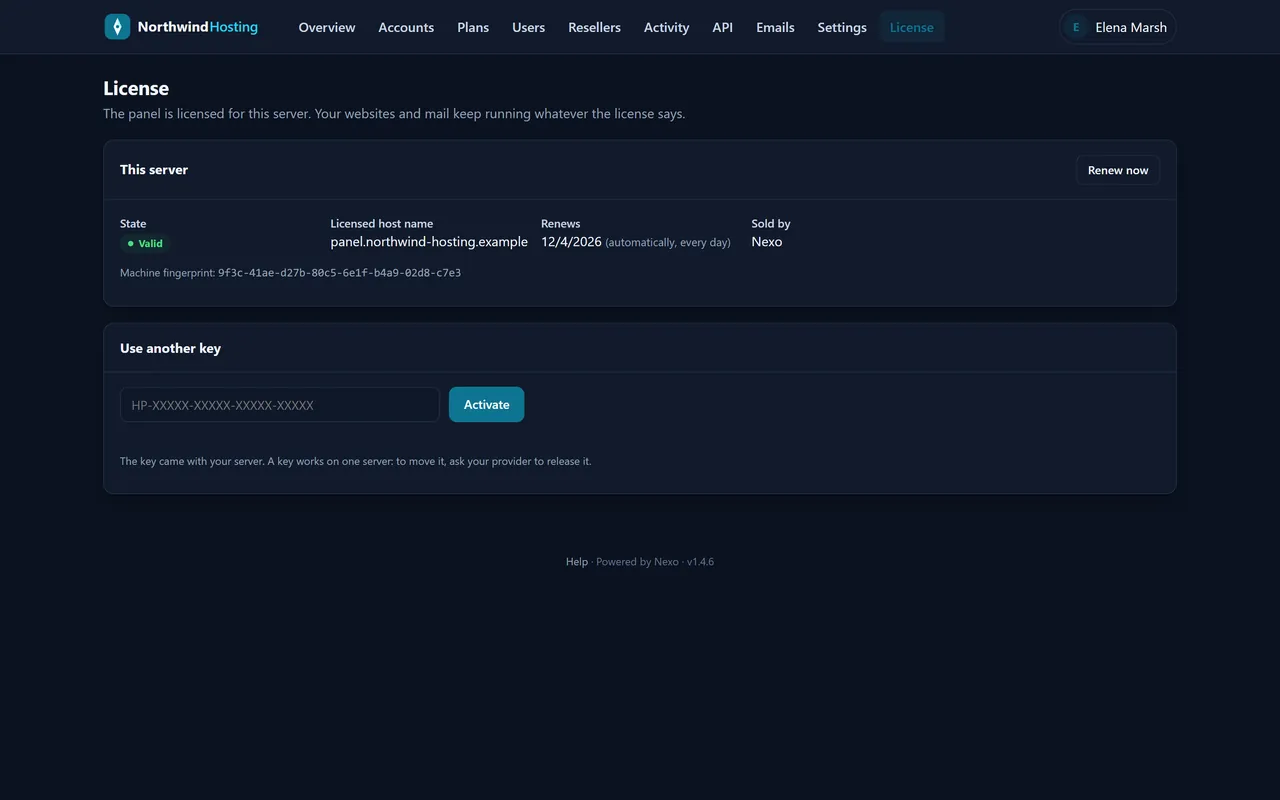
The License page shows its state, the licensed host name, when it renews and the machine’s fingerprint. Renew now checks in at once; Use another key takes a new key and Activate. From a shell: nexo license status, nexo license refresh.
Nexo 30 Domains is the same panel with its licence capped at 30 domains: each account’s main domain and every added domain count, subdomains and aliases do not. At 30, only a new domain is refused; nothing that exists stops.
The License page.
04 Signing in
Open https://your-server:2083/. Administrators land on /admin/ and customers on their hosting panel; a reseller opens /admin/ for their administration.
Sign in with the first administrator’s name (admin unless you chose another) and the password the installer printed. Change it from your name’s menu, top right: Change password.
Add colleagues as administrators under Users rather than sharing one sign-in: the activity record names whoever made each change.
A session ends after 12 hours without use, or after seven days whatever happens. Ten failed attempts on one name, or twenty from one address, within 15 minutes lock sign-in for that name or address for a while.
Locked out of the only administrator? As root on the server, nexo admin admin prints a new password for admin (or makes a new administrator with any other name).
Customers never get a password by email. When you create an account, its owner receives a one-use link to /set-password and chooses their own (chapter 11).
05 Overview, notices and updates
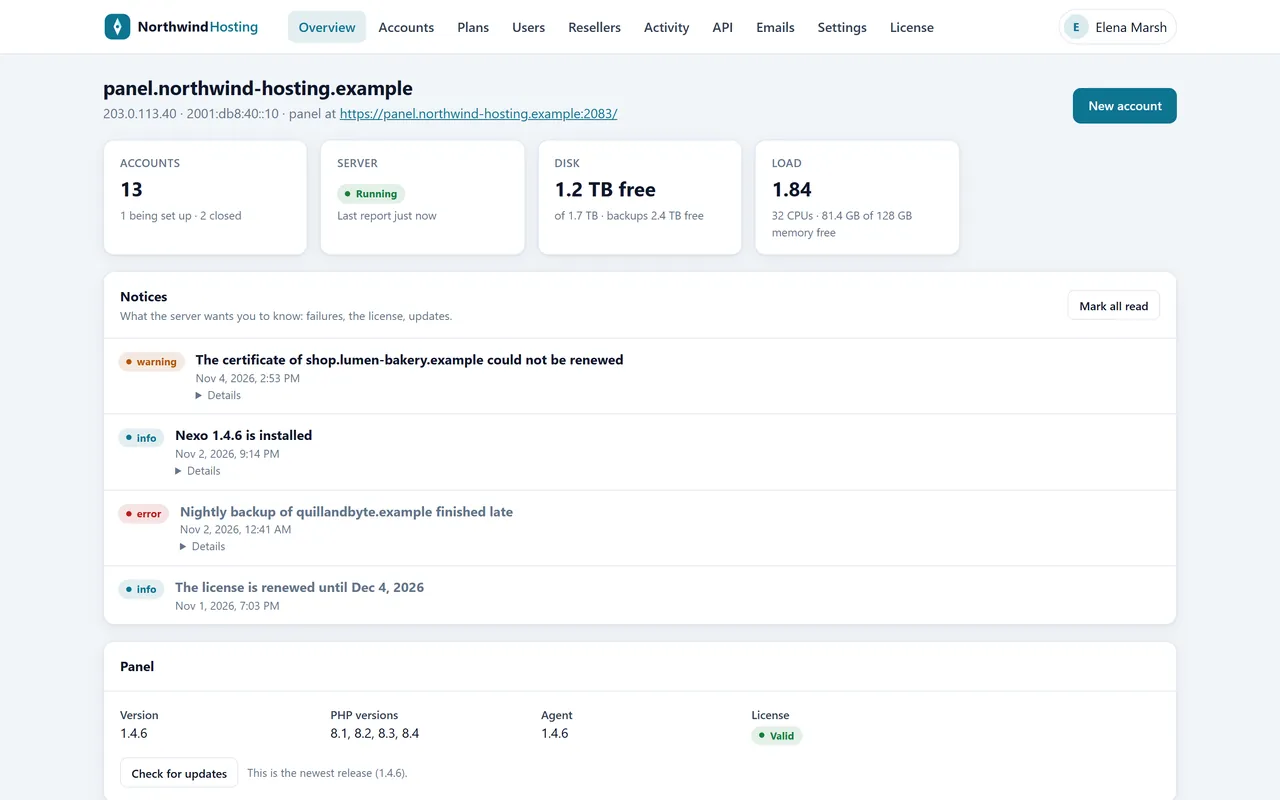
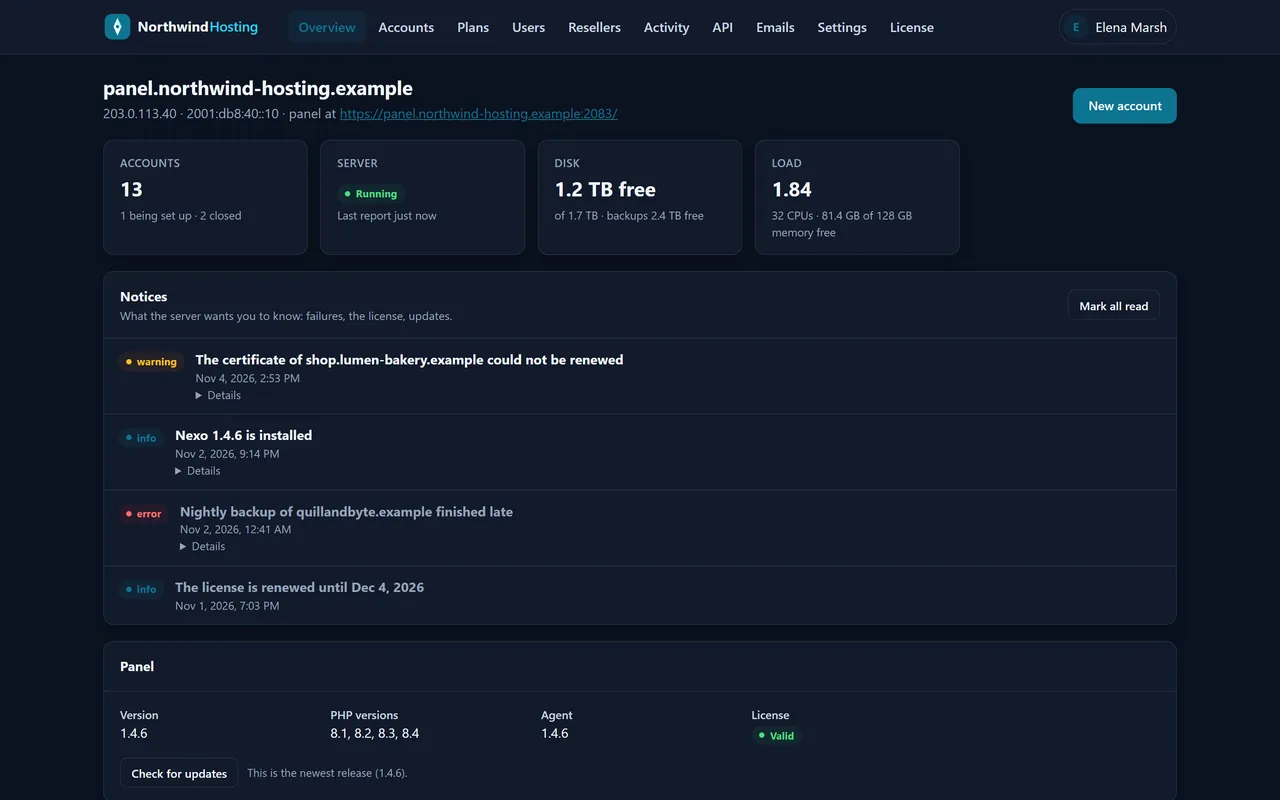
The menu reads Overview, Accounts, Plans, Users, Resellers, Activity, API, Emails, Settings, License. The Overview opens with four tiles: ACCOUNTS (how many, how many being set up or closed), SERVER (whether the agent is reporting), DISK (free space, and free space for backups) and LOAD (load, processors and free memory). New account sits beside them.
The Overview of a server with 13 accounts, four notices and Turbo on.
Notices is what the server wants you to know: a certificate that could not be renewed, a backup that failed or ran late, a new release installed, the licence renewed or in grace. Each has Details; Mark all read clears the list.
Panel shows the version, the PHP versions installed, the agent’s version and the licence. Check for updates asks our release server whether a newer stable release exists, and offers to install it now.
Turbo is the front web server’s switch and figures (chapter 14).
Updates also install themselves between 1 and 4 in the morning, New York time. Every release carries a manifest signed with our key, and its size and SHA-256 must match before a file is unpacked; the three newest releases stay on disk.
06 Plans
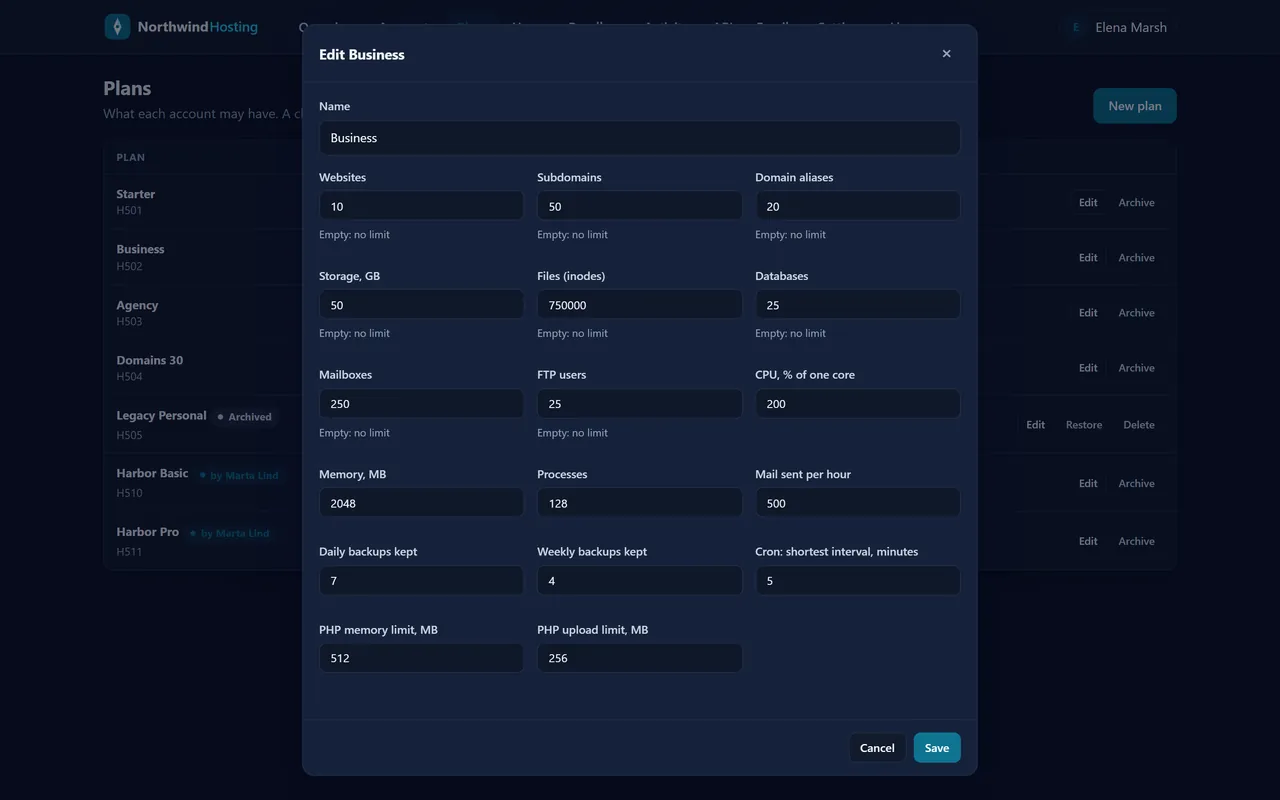
A plan is a set of limits; every account sits on one. Plans lists them with New plan above and Edit and Archive on each (an archived plan takes no new accounts; Restore brings it back, Delete removes one nobody uses). Plans a reseller made carry “by” and the reseller’s name.
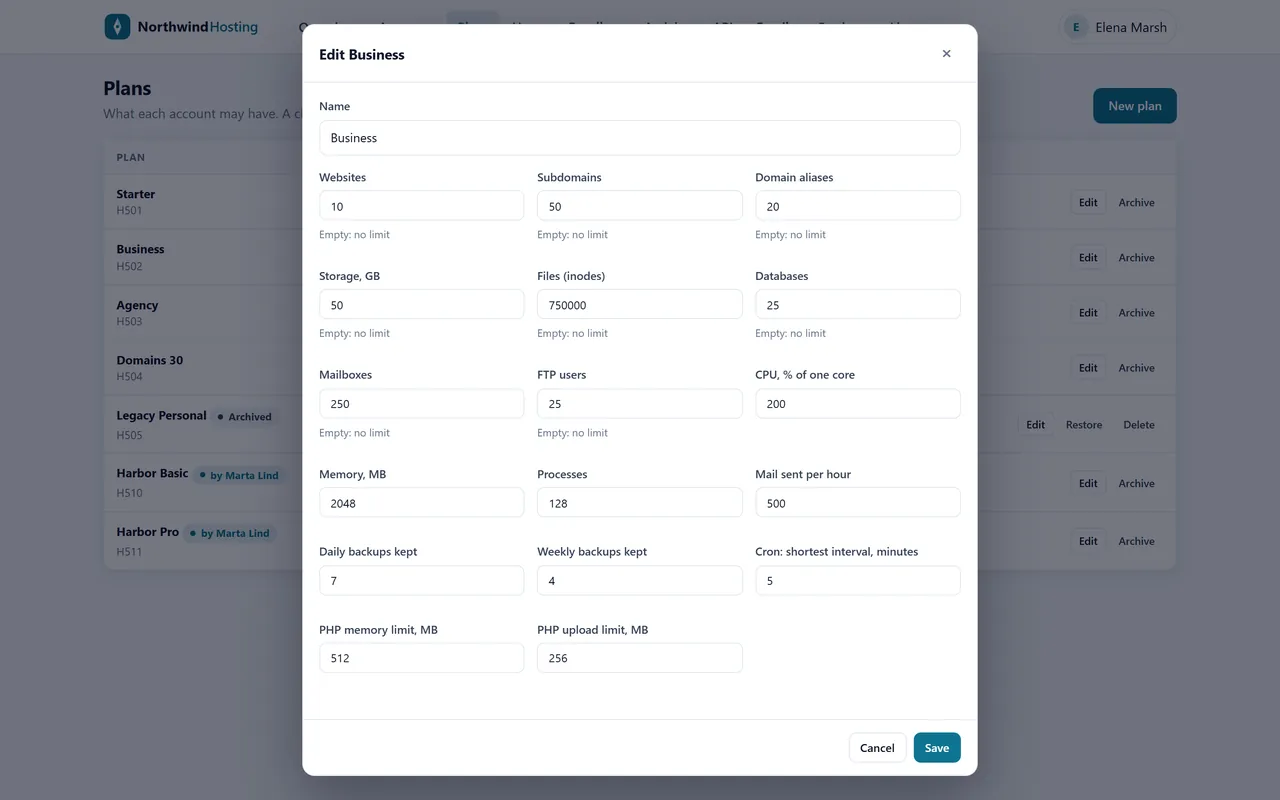
Editing a plan: every limit on one form.
The form’s fields: Websites, Subdomains, Domain aliases, Storage (GB), Files (inodes), Databases, Mailboxes, FTP users, CPU (% of one core), Memory (MB), Processes, Mail sent per hour, Daily backups kept, Weekly backups kept, Cron: shortest interval (minutes), PHP memory limit and PHP upload limit (MB). Saving a plan gives every account on it the new limits.
07 Accounts
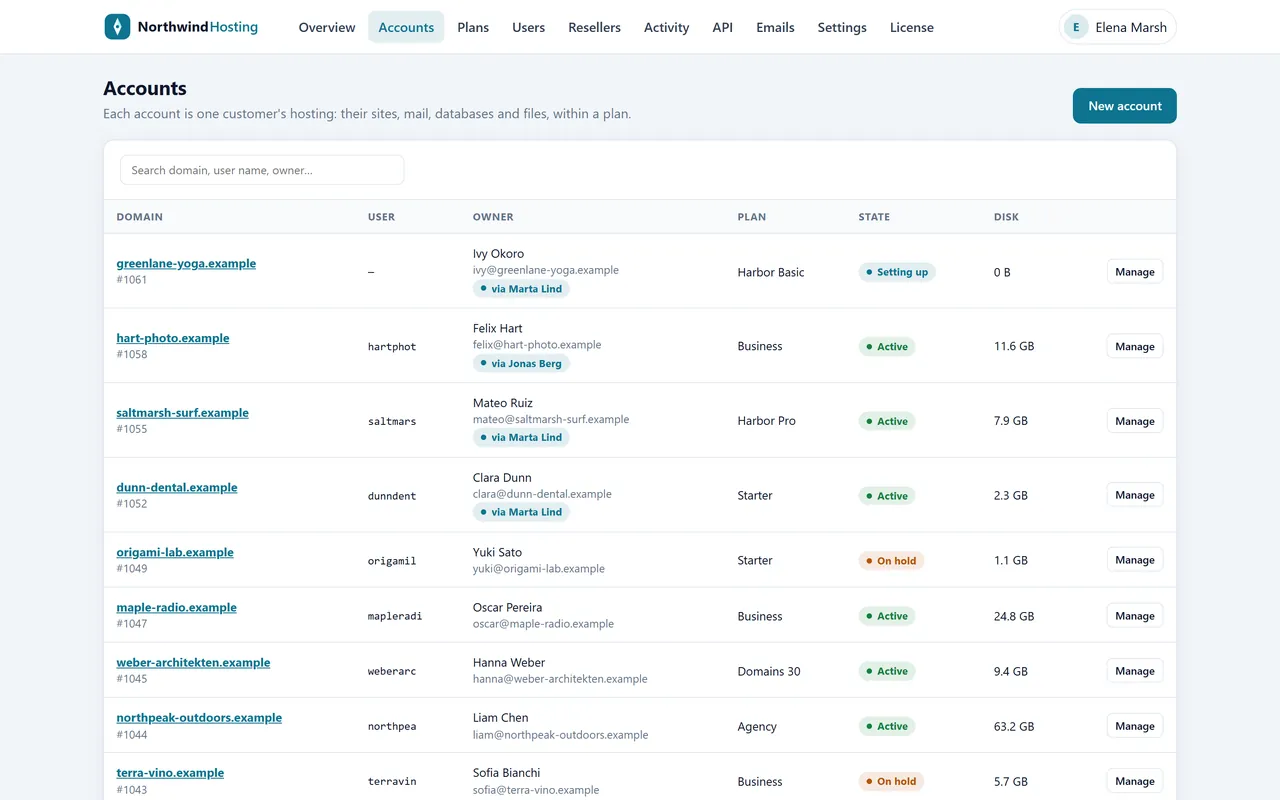
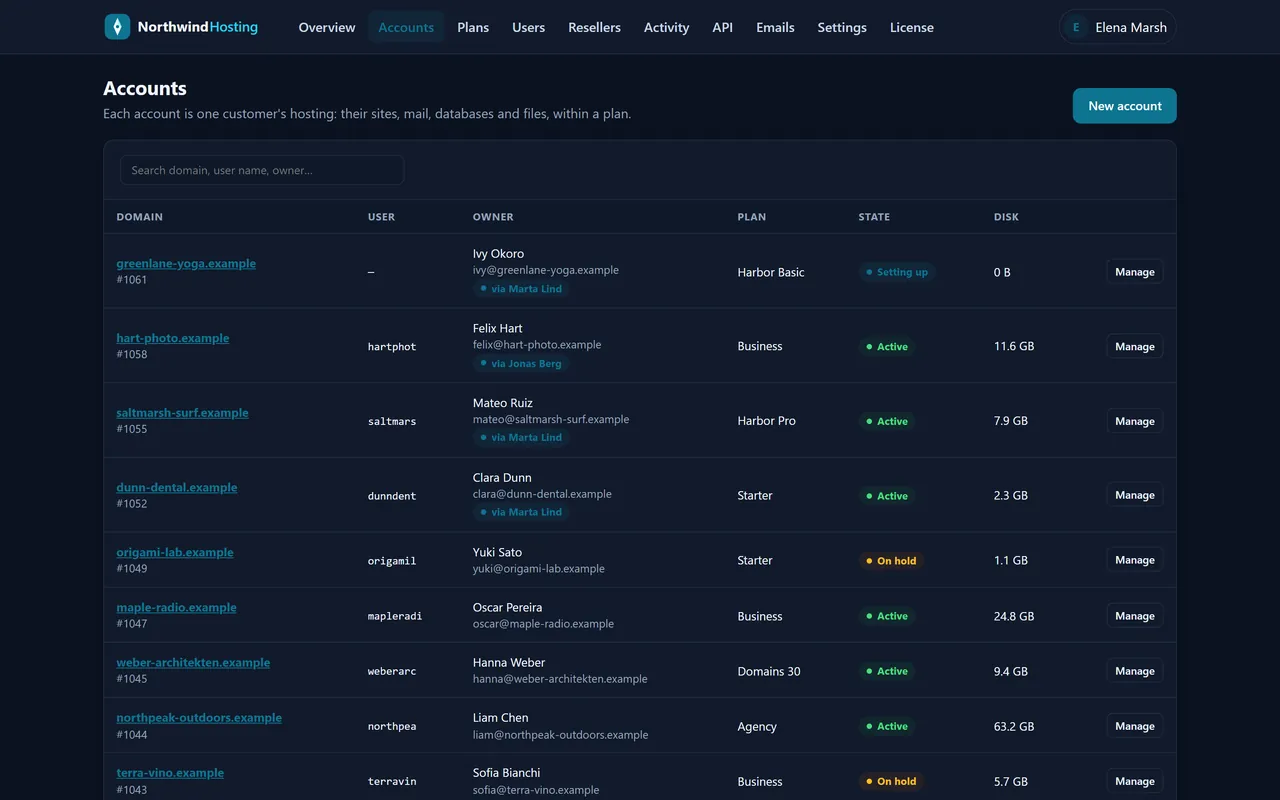
Accounts lists every hosting account with Domain, User, Owner, Plan, State and Disk. Search by domain, user name or owner. States read Active, Setting up (being built) and On hold. A reseller’s accounts are marked with the reseller.
The Accounts list.
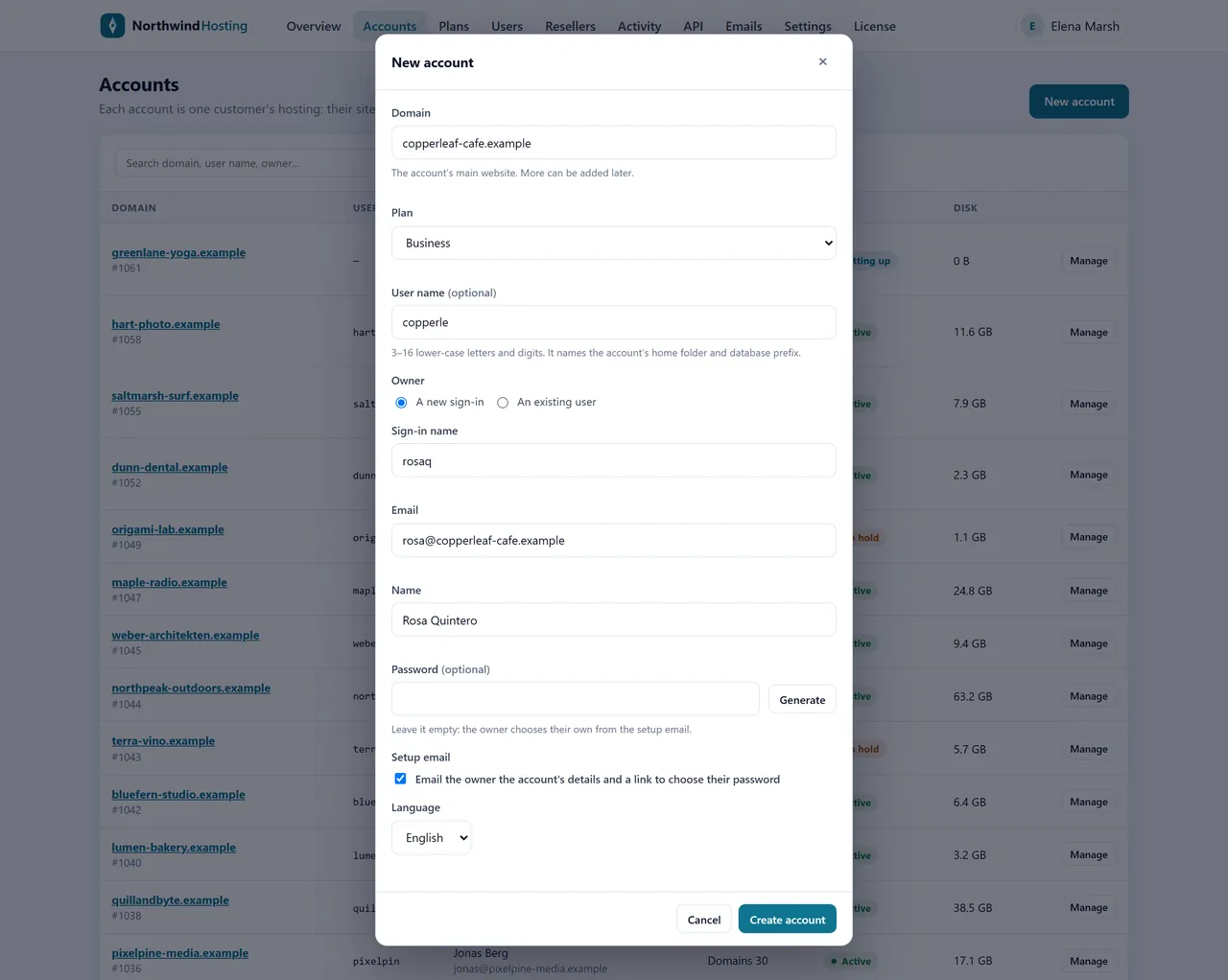
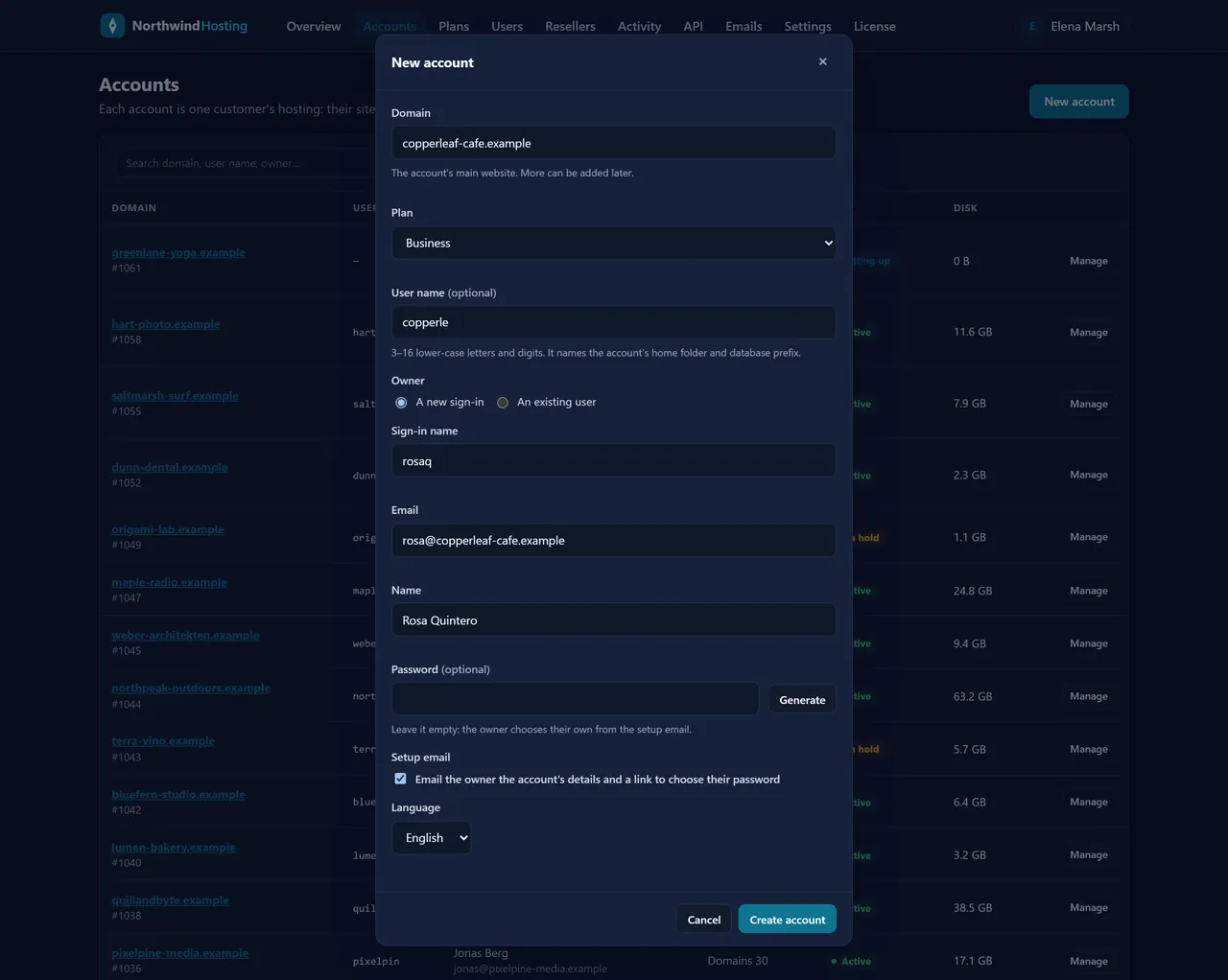
Creating an account
Press New account. Enter the Domain and pick a Plan. User name is optional: Nexo suggests one from the domain.
Under Owner, choose A new sign-in (a sign-in name, email and name) or An existing user to give a customer one more account. Leave Password empty and the customer chooses their own from the setup email; Generate makes one if you would rather hand it over yourself.
Keep Setup email ticked, pick its Language (English or Spanish) and press Create account. The account shows Setting up for a moment while the server builds it, then Active, and the email goes out.
The New account form.
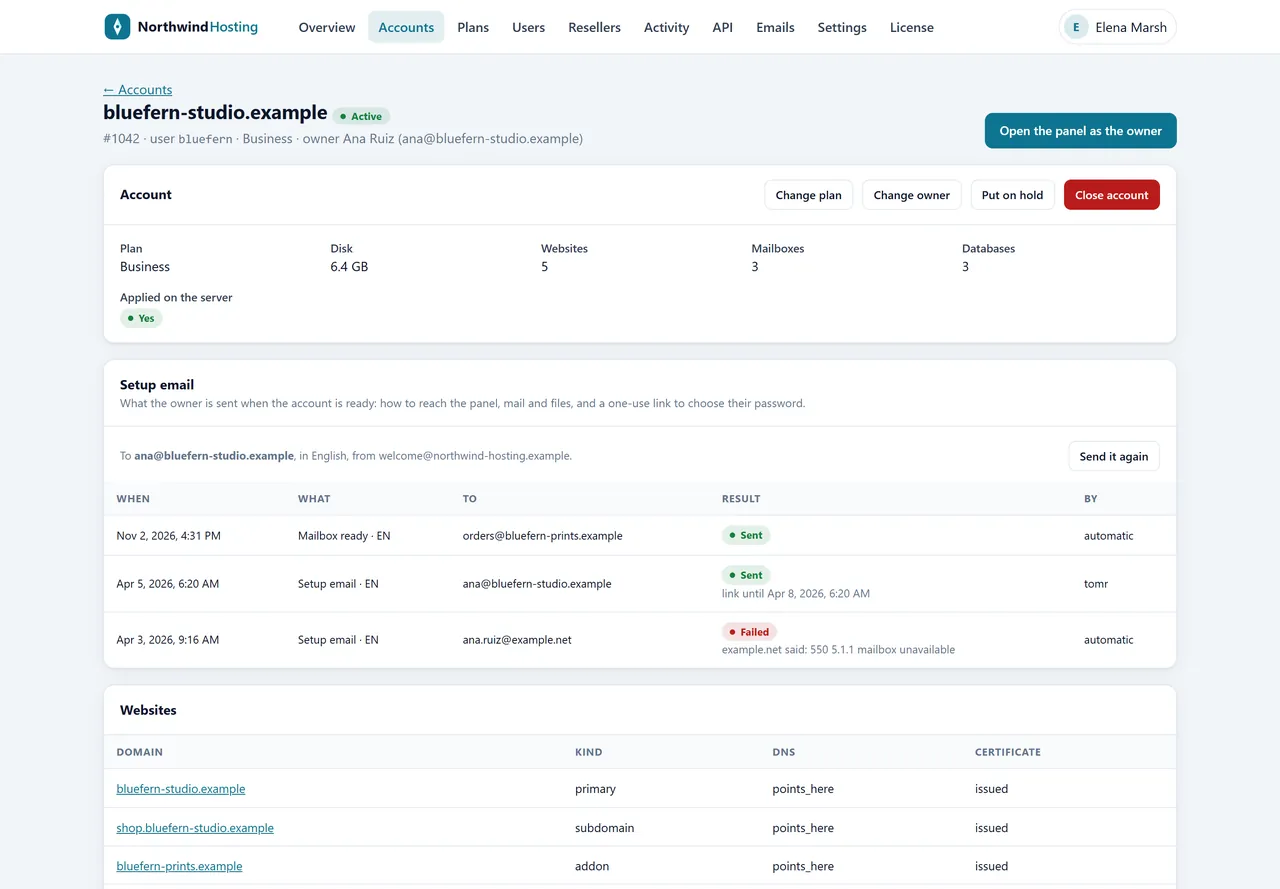
An account’s page
Manage on a row opens it. Open the panel as the owner signs you in to the customer’s own panel to see what they see: the session lasts up to two hours, is marked as yours in the record, and cannot set passwords or start restores. The cards below it:
Account: plan, disk, websites, mailboxes, databases and whether the latest change is Applied on the server, with Change plan, Change owner, Put on hold (with a reason, until you release it) and Close account (you type the user name to confirm; the data is purged after a grace period).
Setup email: every welcome email sent, by whom and whether it was delivered, with Send it again (a new link ends the old one).
Websites, Passwords (Set a new password for a mailbox, FTP user or database user), Backups (Restore… from any snapshot) and History (when, who, what and why).
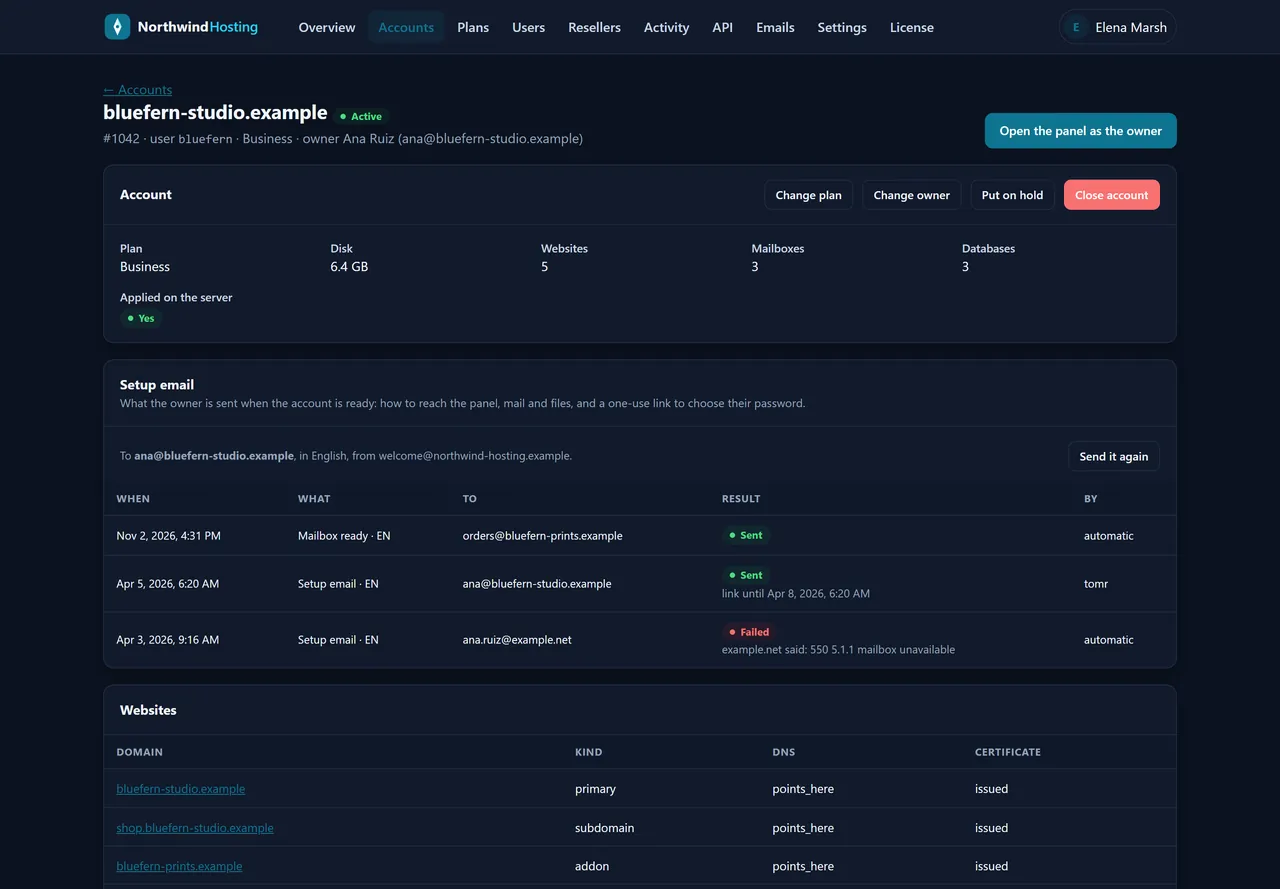
One account’s page.
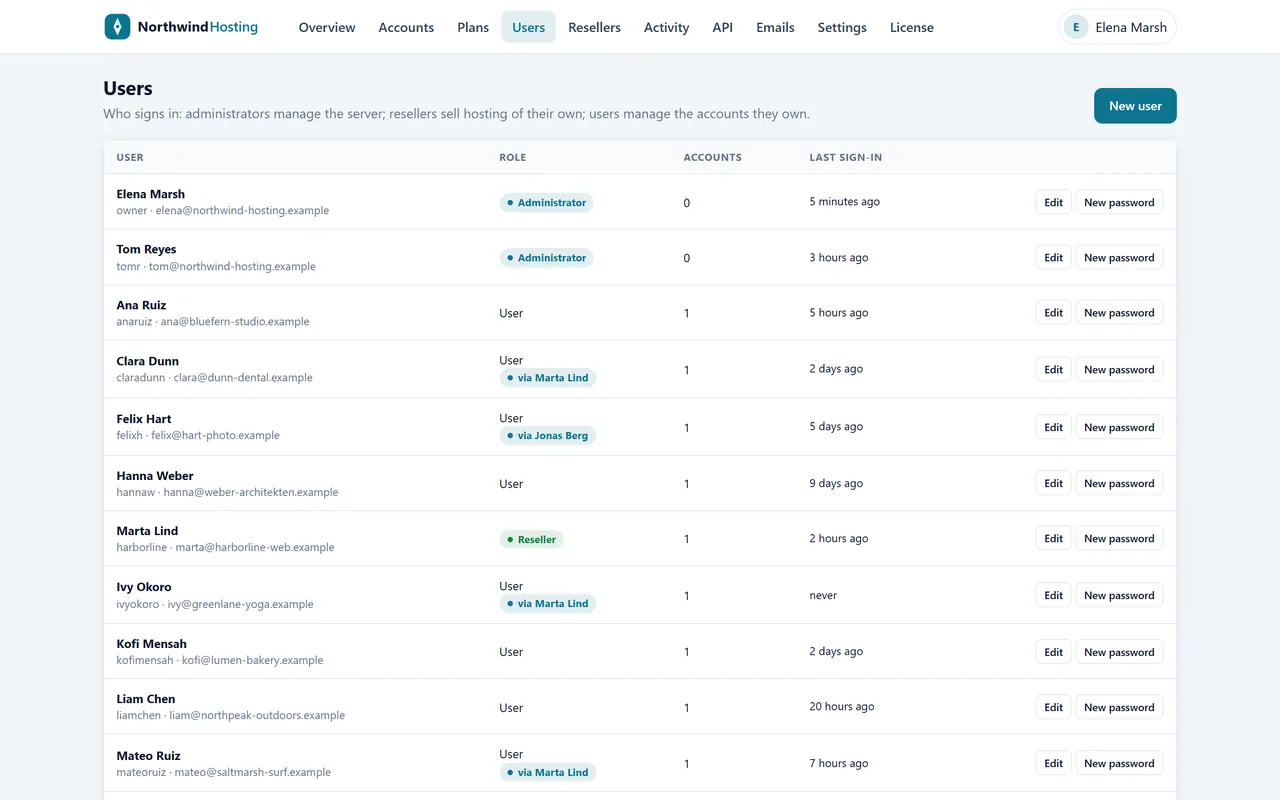
08 Users
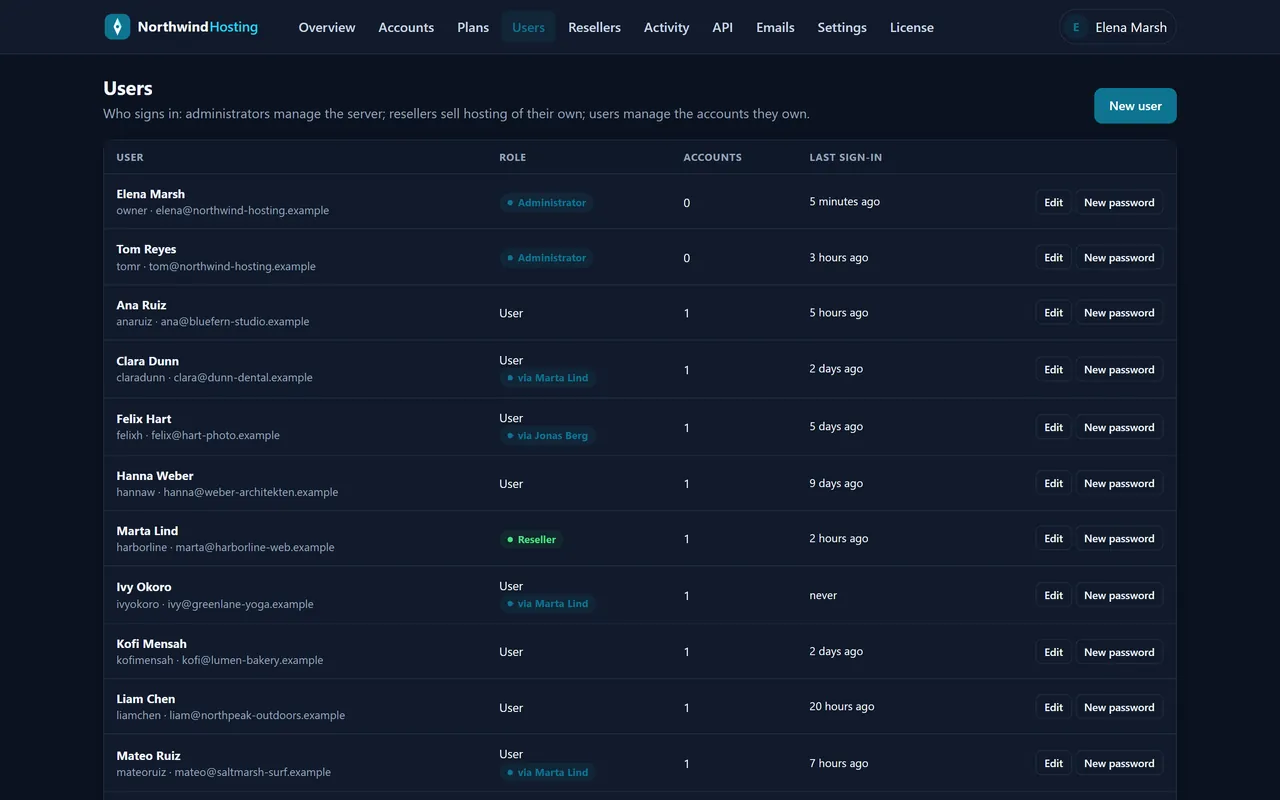
Users holds every sign-in on the server: Administrator, Reseller and User. New user makes one; Edit changes a sign-in’s details or disables it; New password sets or generates one. A user can own several hosting accounts.
Sign-ins of every role.
09 Resellers
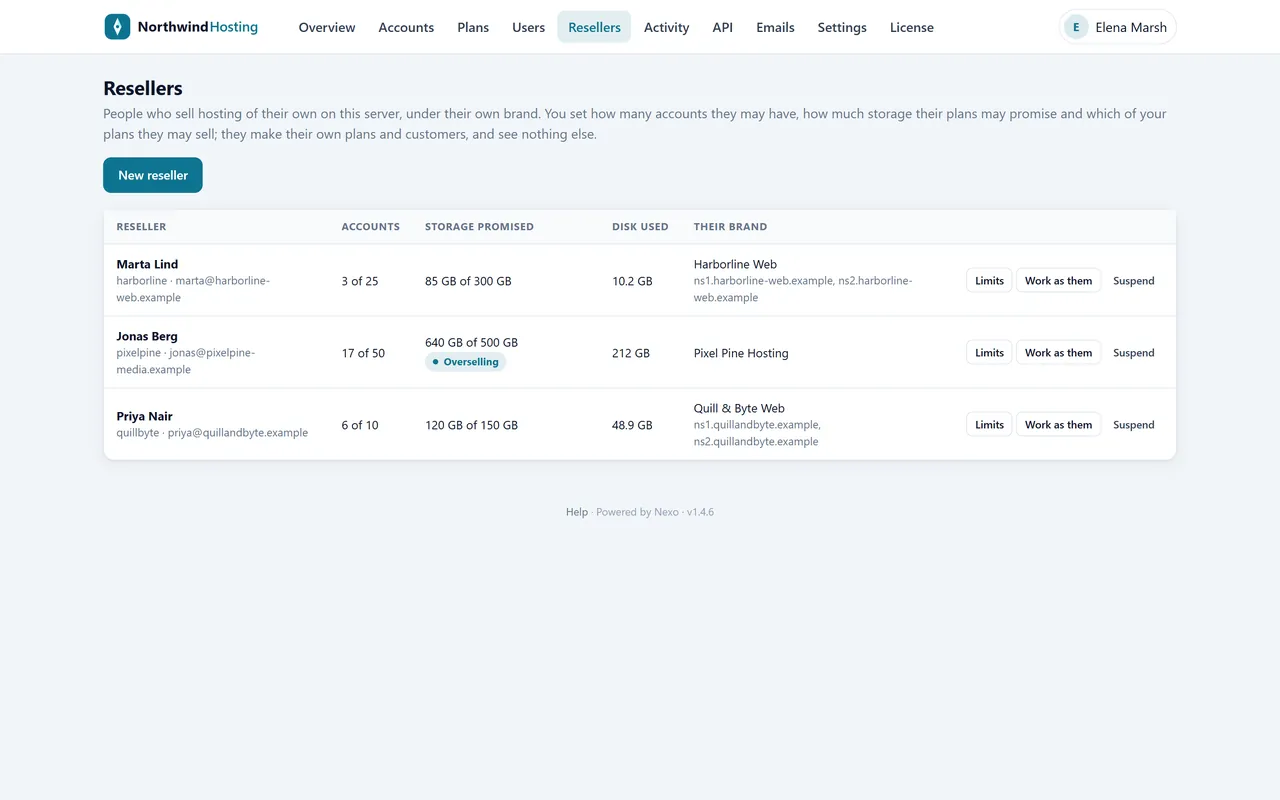
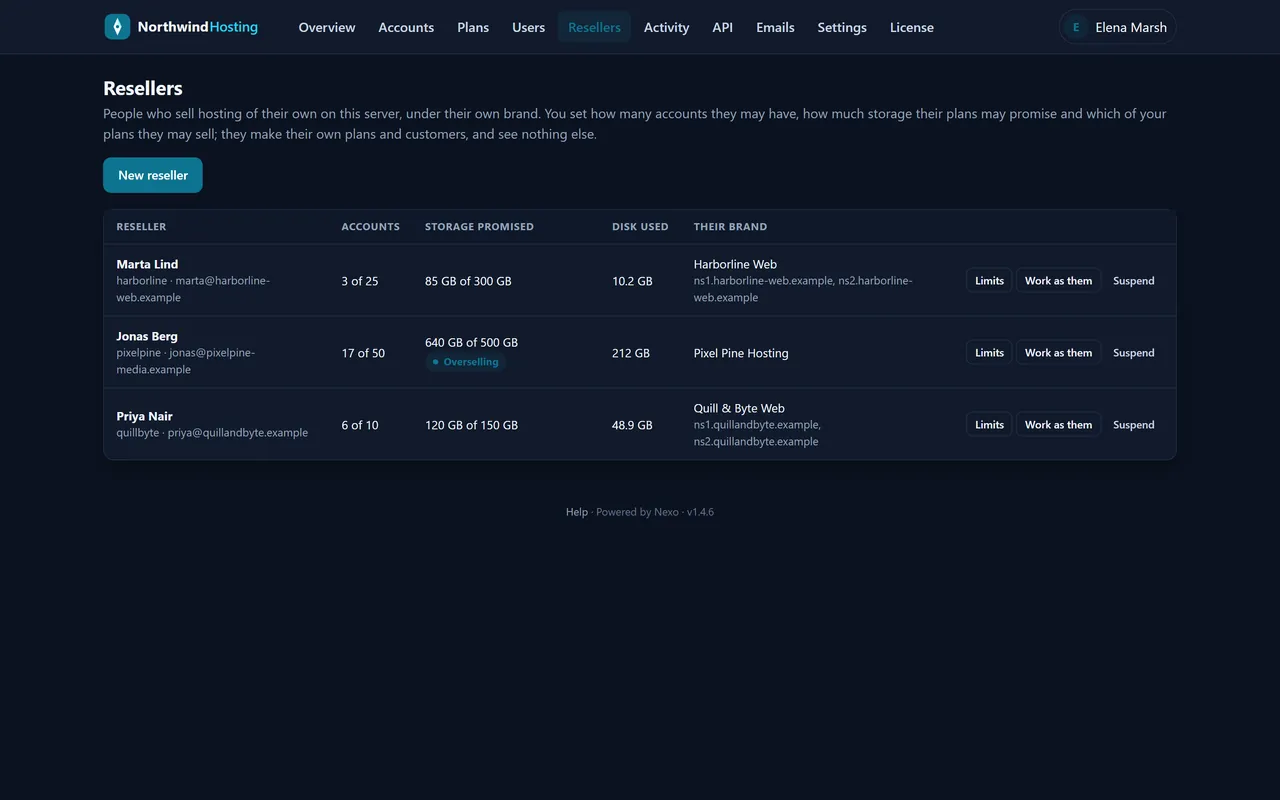
A reseller sells hosting of their own on your server: their own plans, their own customers, their own brand and nameservers. Resellers lists each with Accounts, Storage promised, Disk used and Their brand.
Press New reseller.
Under Limits, set Accounts, at most, the Storage their plans may promise, whether they may oversell it, whether They may make plans of their own, and Your plans they may sell.
Work as them opens their administration as they see it. Suspend puts the reseller and every account under them on hold at once.
Three resellers, one of them overselling its storage.
What a reseller sees
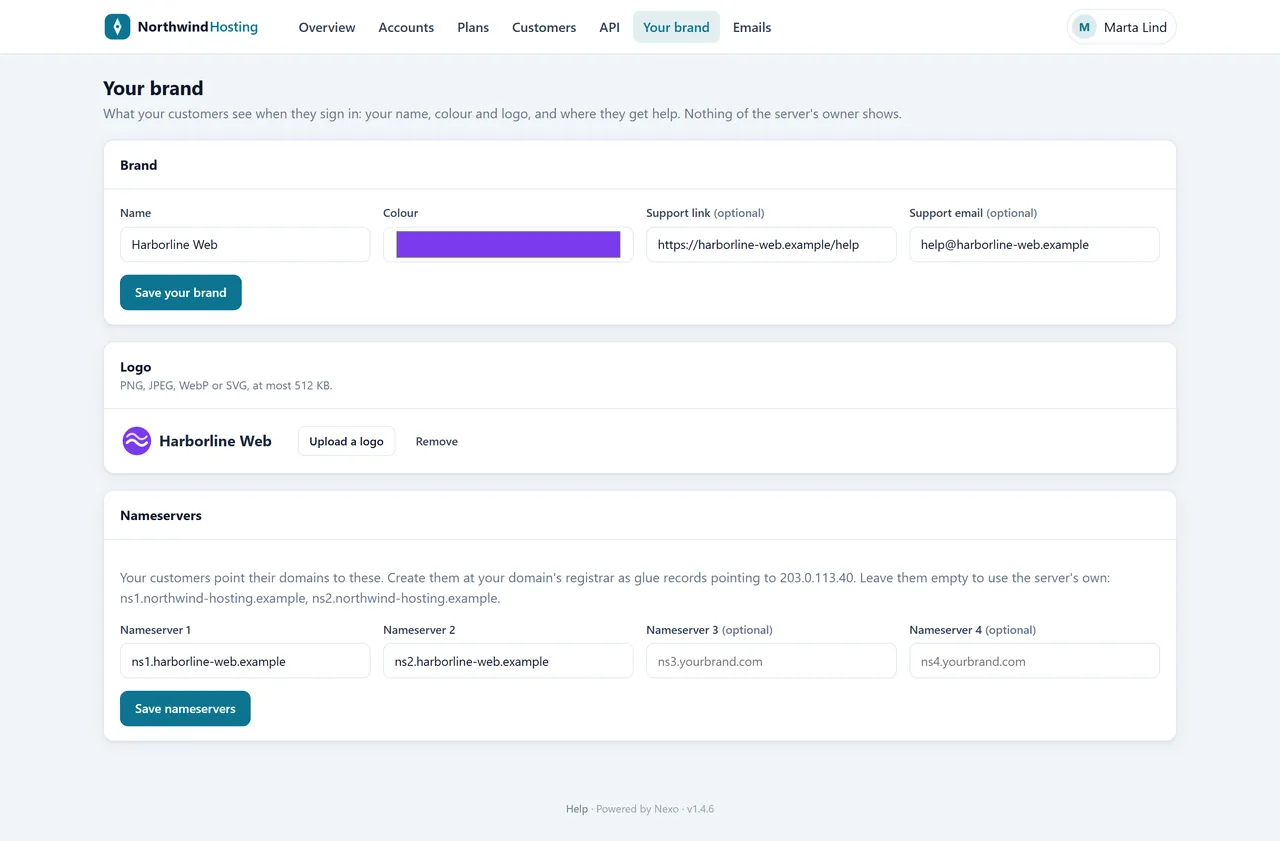
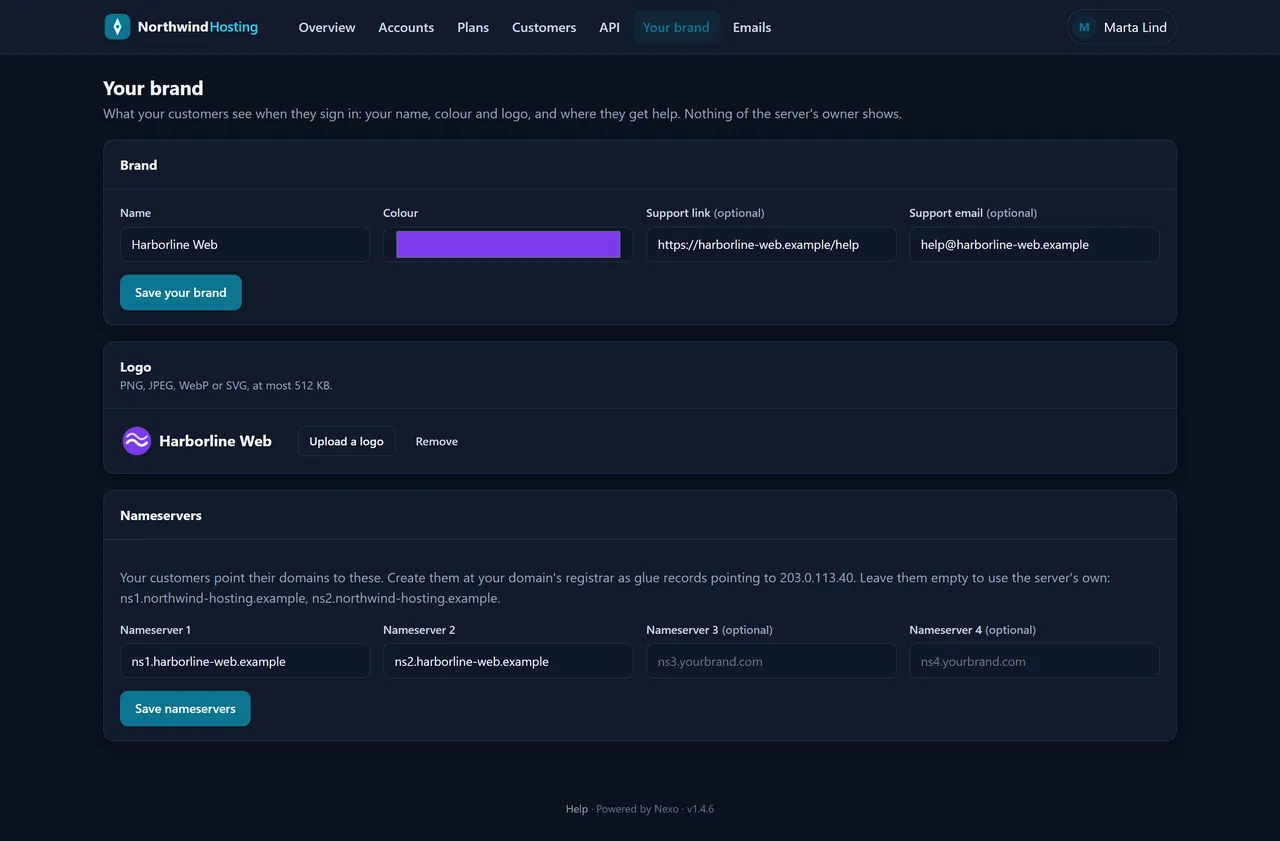
Their menu is Overview, Accounts, Plans, Customers, API, Your brand and Emails. The Overview reads Your hosting business, with their accounts, storage promised, disk used and plans. Their plans list shows yours that they may sell as The owner’s. Under Your brand they set the panel name, colour, logo and up to four nameservers on their own domain; their customers see that brand and those nameservers, never yours.
A reseller’s Your brand page.
10 Server name, brand and DNS
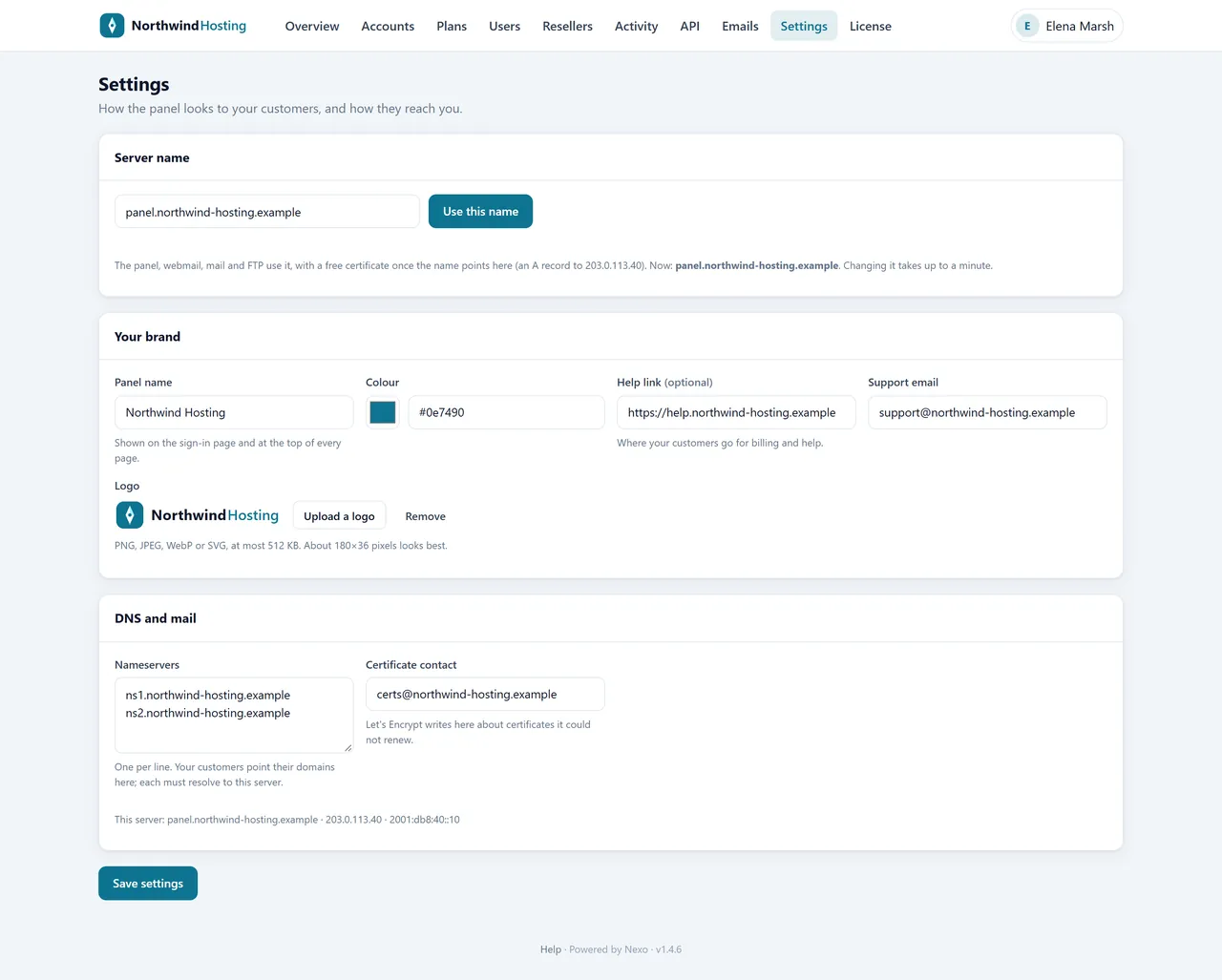
Settings has three cards and one Save settings button.
Server name: the name the panel, mail and FTP answer on (chapter 2).
Your brand: Panel name, Colour, Help link (optional), Support email, and Upload a logo (PNG, JPEG, SVG or WebP, up to 512 KB). Every sign-in page and panel shows them; the only trace of us is a small “Powered by Nexo” line at the foot.
DNS and mail: the Nameservers your customers point their domains to (ns1 and ns2 under the server’s name unless you set others) and the Certificate contact for Let’s Encrypt.
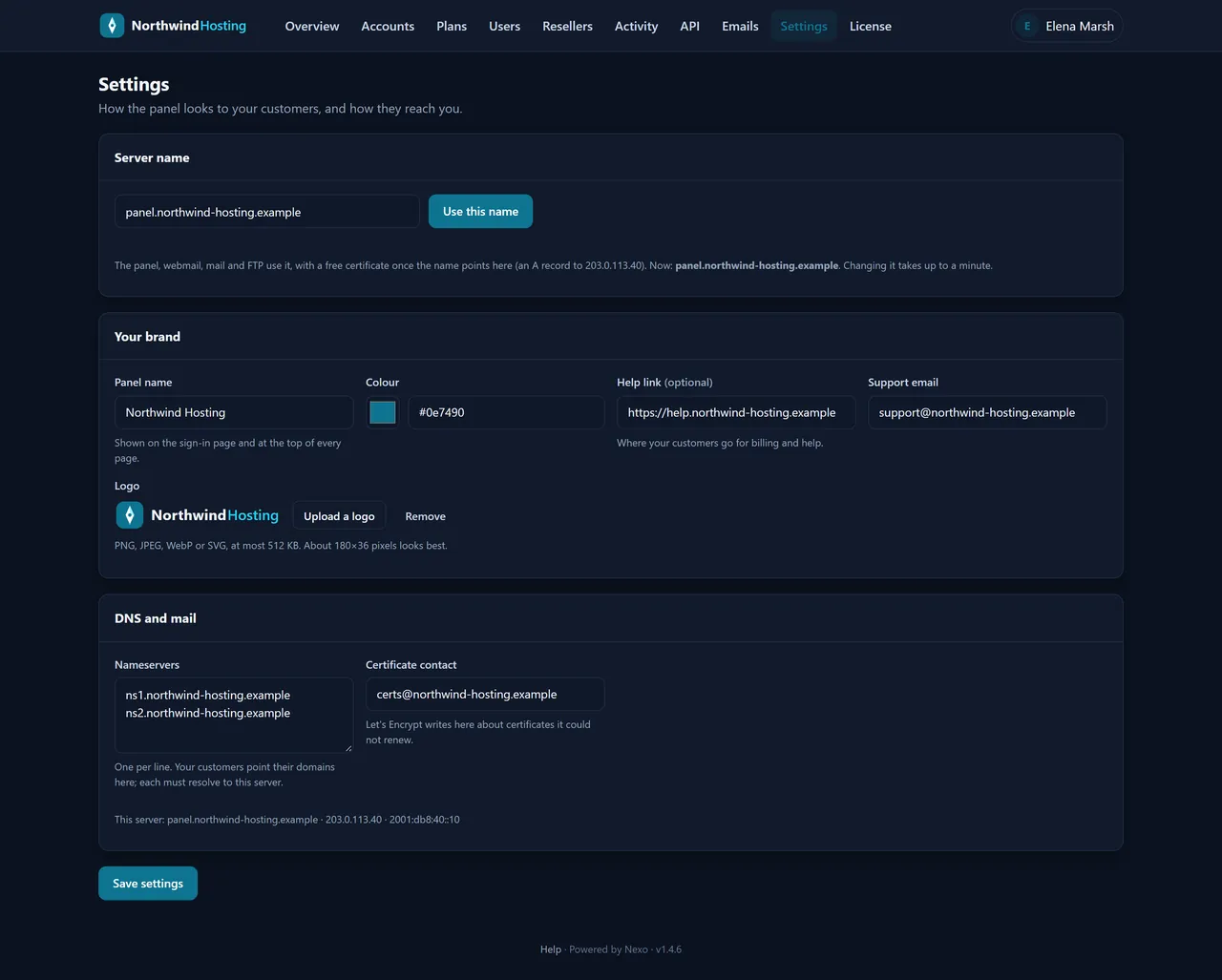
Settings with the Northwind Hosting brand.
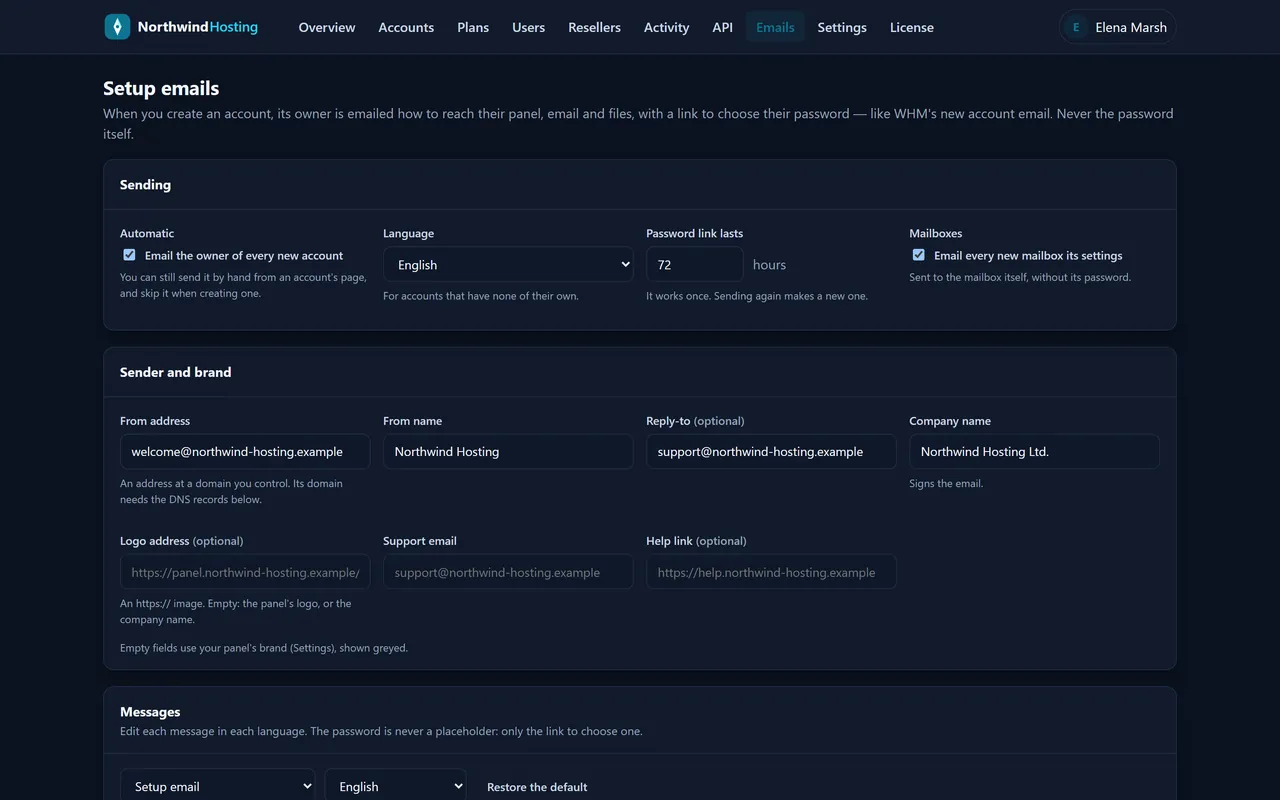
11 Setup emails
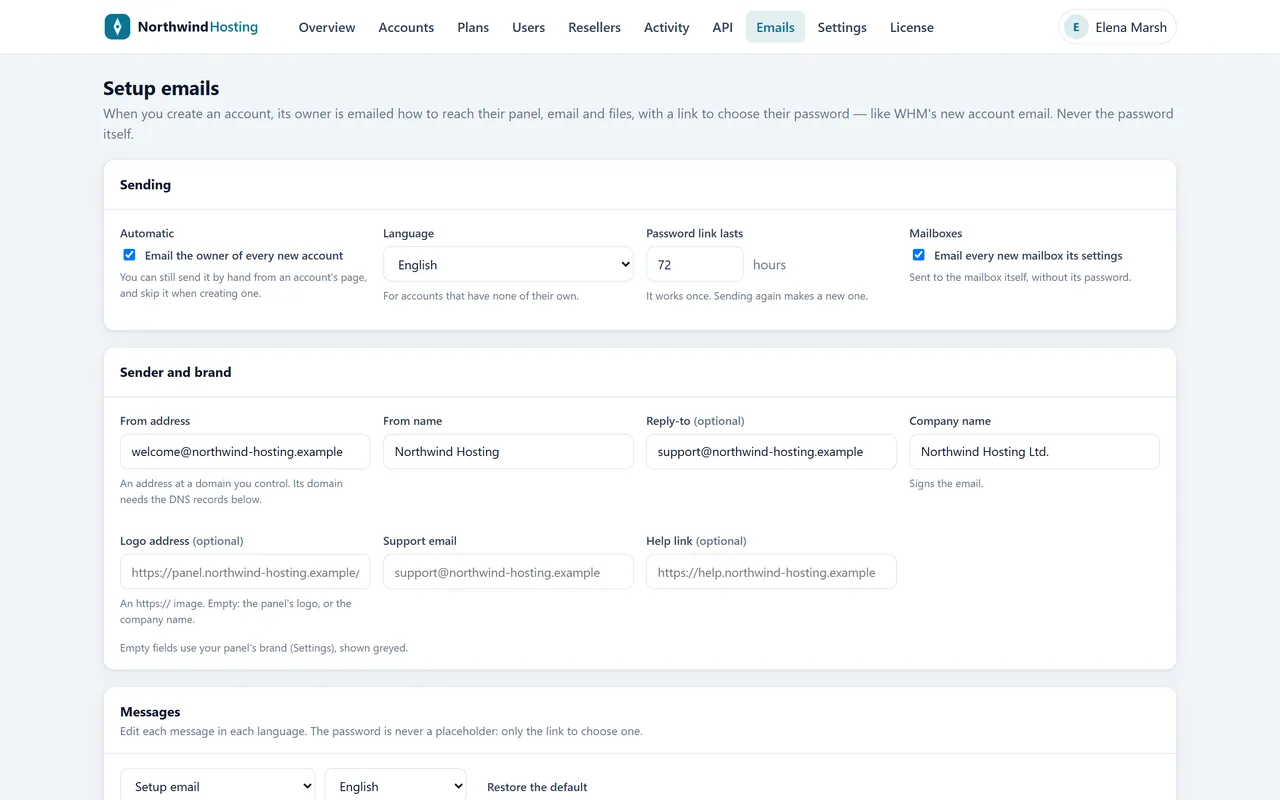
Once a new account is built, its owner is emailed the panel’s address, their user name, the nameservers, the server’s IPv4 address, the webmail, IMAP, SMTP and FTP host names, and a one-use link to choose their password. The password itself is never in a message. Emails (titled Setup emails) controls it:
Sending: on or off, the default language (English or Spanish), how long the link lasts (72 hours unless you change it), and optional “mailbox ready” notes.
Sender and brand: From, Reply-To, company name, logo and support address.
Messages: the templates, with Placeholders — click to insert, Preview, Send a test and Restore the default. Save with Save setup emails.
Delivery: the server’s own Postfix, or an SMTP relay of yours.
DNS for your sending address: Nexo signs every setup email with DKIM selector nexo. Publish the nexo._domainkey TXT record it shows, add the server’s IP to your domain’s SPF, then Check again until each row reads Published.
The setup emails page.
Resellers have the same page for their own customers, sent under their brand. Accounts created through the API or WHMCS can skip it (send_setup_email: false) when the billing system sends its own welcome.
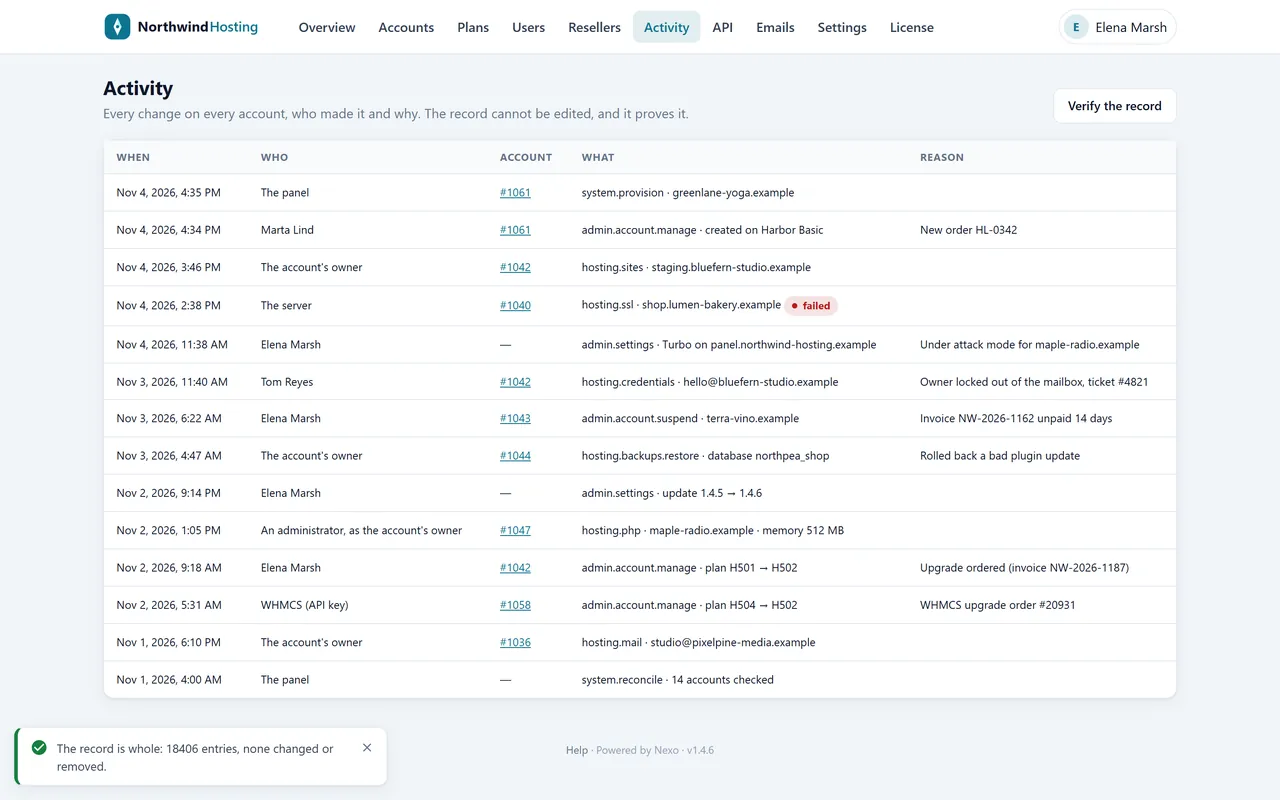
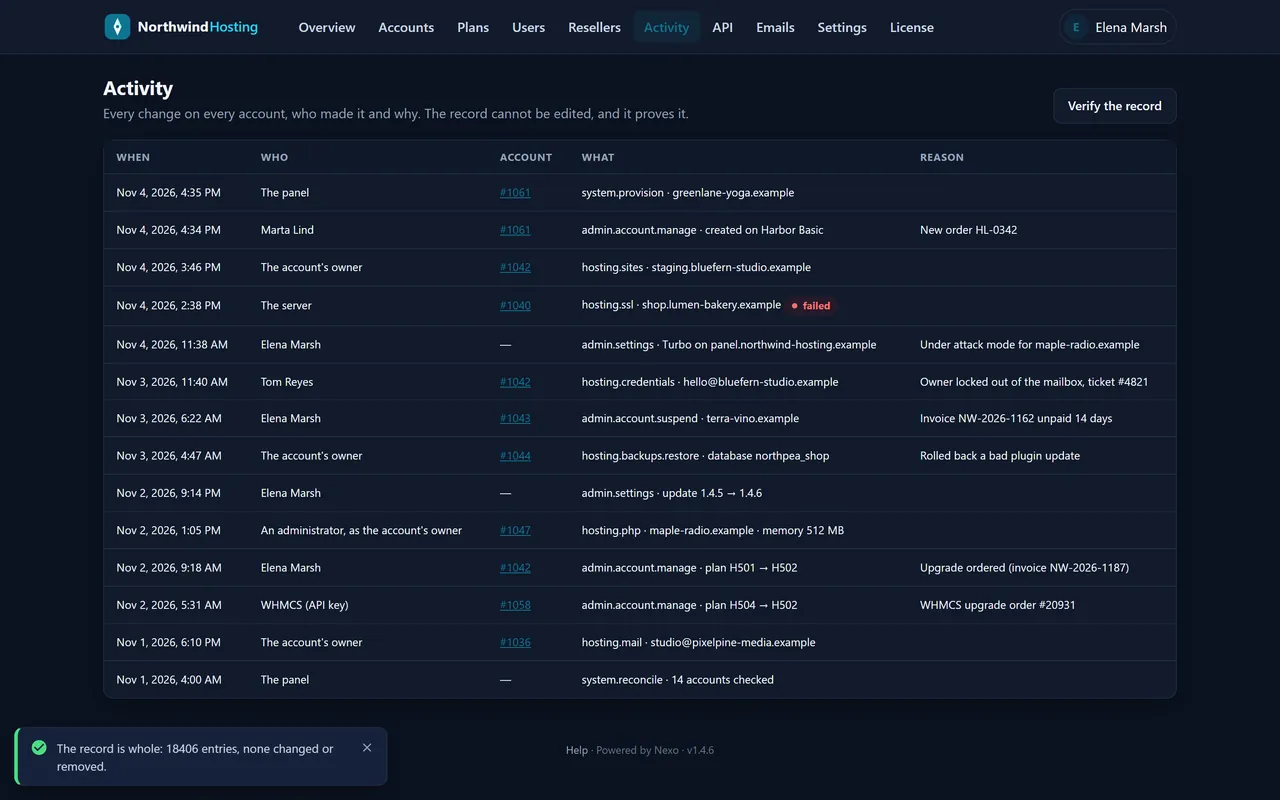
12 The activity record
Activity lists every change on the server with When, Who, Account, What and Reason, written in the same database transaction as the change. Entries are chained by hash: Verify the record walks the whole chain and reports whether any entry was altered or removed. Changes made with an API key are recorded under the key’s name. Customers see their own account’s part of it on their Activity tab.
The record after Verify the record.
13 API keys, WHMCS and single sign-on
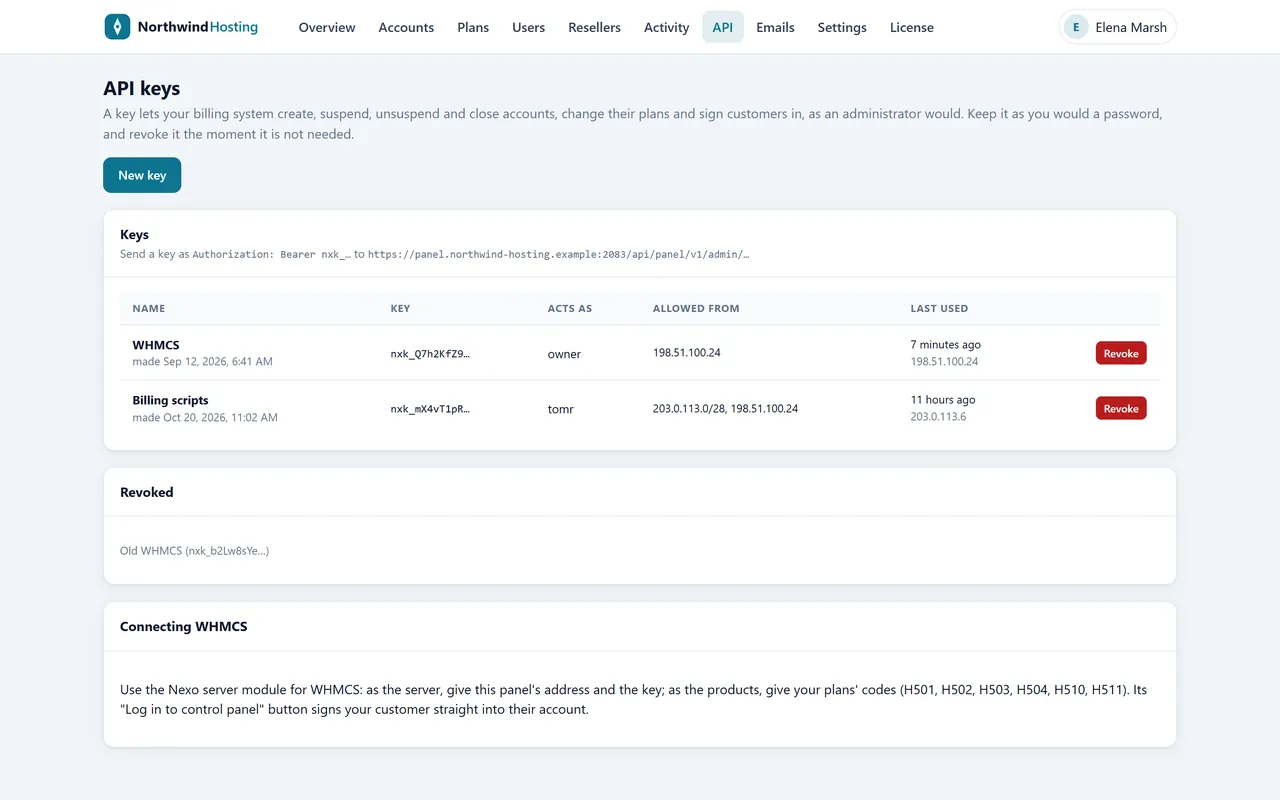
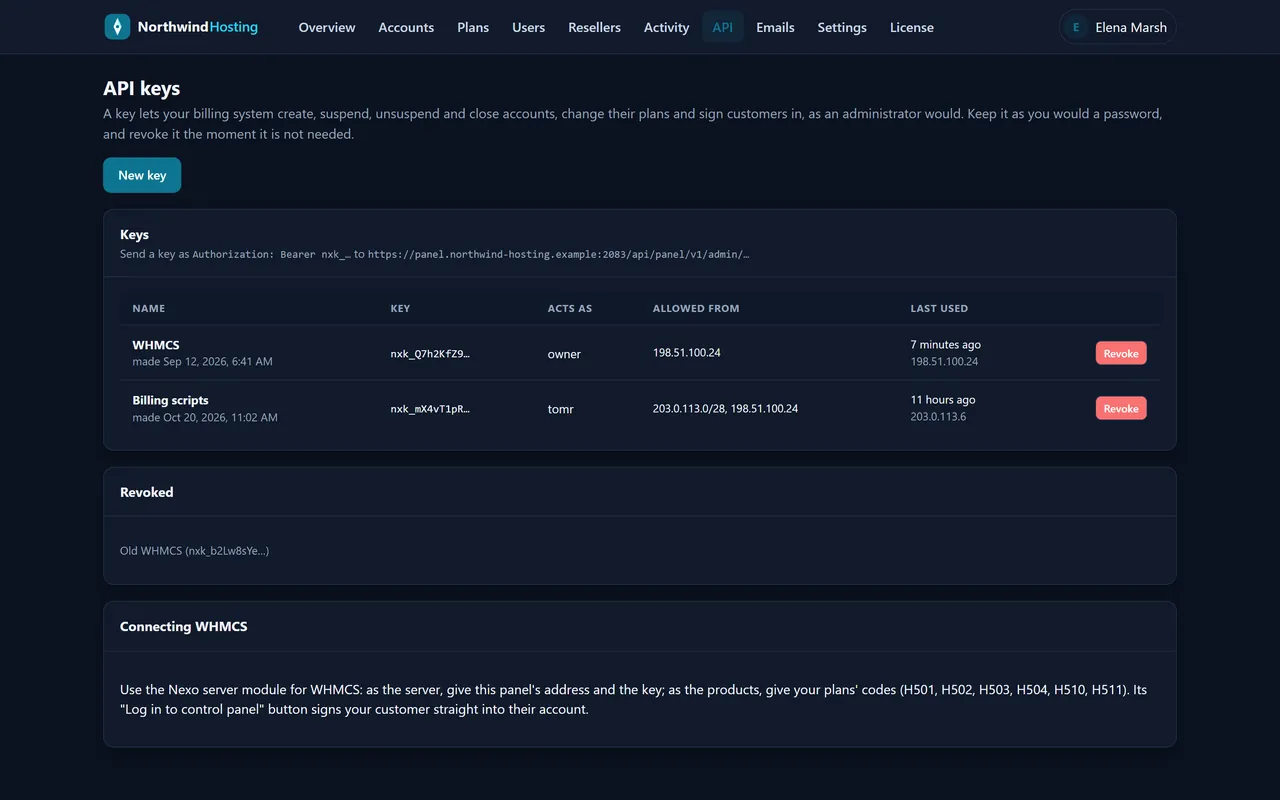
A billing system drives Nexo the way it drives WHM: with an API key. API (titled API keys) has New key; give it a name and, in Allowed from, your billing server’s address or range. The key (nxk_ and 40 characters) is shown once; only its hash is kept. A key acts as whoever made it: yours reaches every account, a reseller’s only theirs. Revoke stops it at once.
Two live keys and the WHMCS instructions.
Calling the API
Base address https://your-server:2083/api/panel/v1/admin; send the key as Authorization: Bearer nxk_… or X-Api-Key. Calls: GET /plans, GET /accounts?q=, POST /accounts, POST /accounts/<id>/suspend, /unsuspend, /plan, /terminate, /setup-email, /sso, and POST /users/<uid>/password.
Download the Nexo WHMCS module and copy modules/servers/nexo/ into your WHMCS.
Make a key in Nexo with Allowed from set to the WHMCS server’s address.
In WHMCS, Servers › Add New Server: module Nexo Panel, host name = your panel’s, password (or access hash) = the key, port 2083, Secure ticked. Test Connection lists your plans.
On each product choose module Nexo Panel and a Nexo plan.
WHMCS then creates, suspends, unsuspends, terminates and re-plans accounts, changes the customer’s password, reads disk usage, and gives the customer a Log in to control panel button. Keep the WHMCS domain the same as the account’s: the module finds accounts by domain.
Single sign-on
POST /accounts/<id>/sso answers with https://your-server:2083/sso#<ticket>. Send the customer’s browser there: the ticket opens their own panel once, within two minutes.
14 Nexo Turbo
Turbo is our own front web server, included with every licence. Switched on from the Turbo card on the Overview, it takes ports 80 and 443 (with HTTP/3 over UDP 443), keeps a page cache for the sites that ask for one, compresses with Brotli, limits each visitor address and holds back floods. Apache keeps serving every site behind it on the loopback, configured exactly as before, and switching Turbo off puts the server back as it was.
The card shows On, whether it is Answering, Running for, Cached pages, Sites and which sites are in Under attack mode.
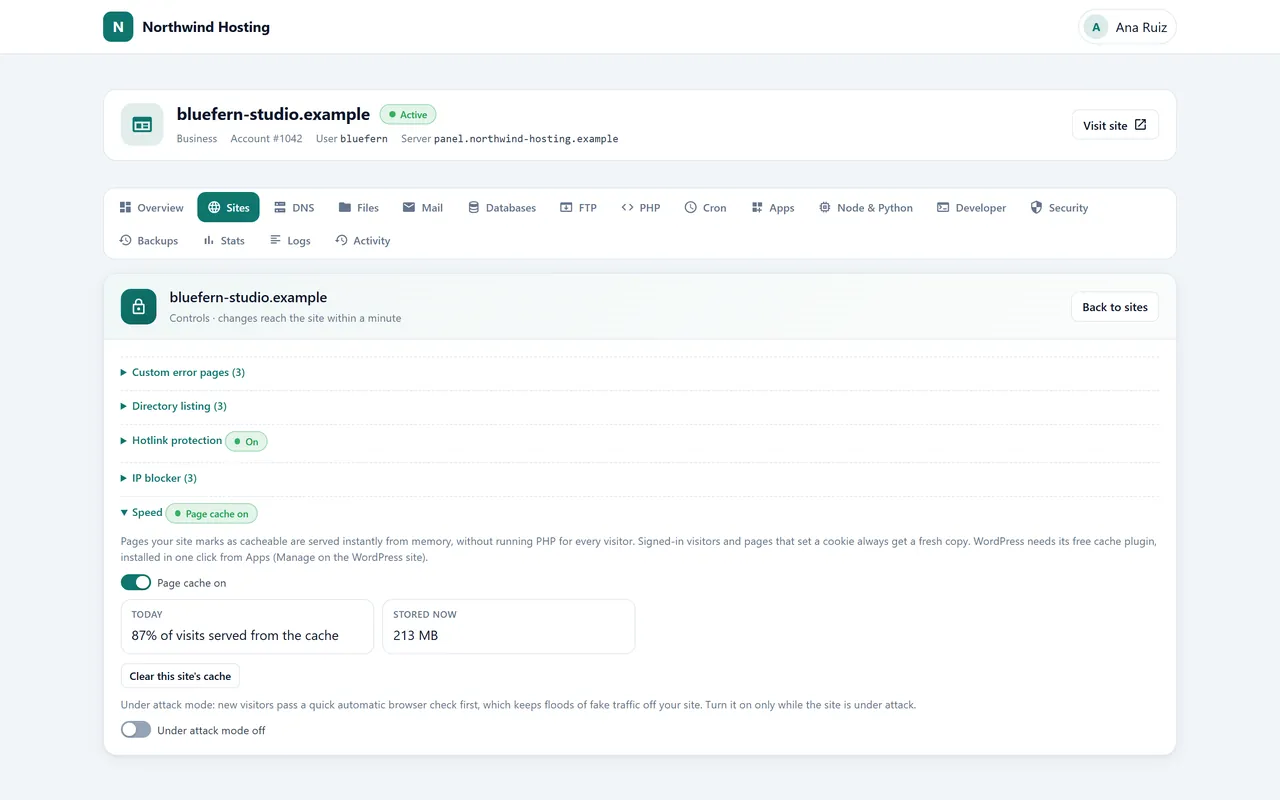
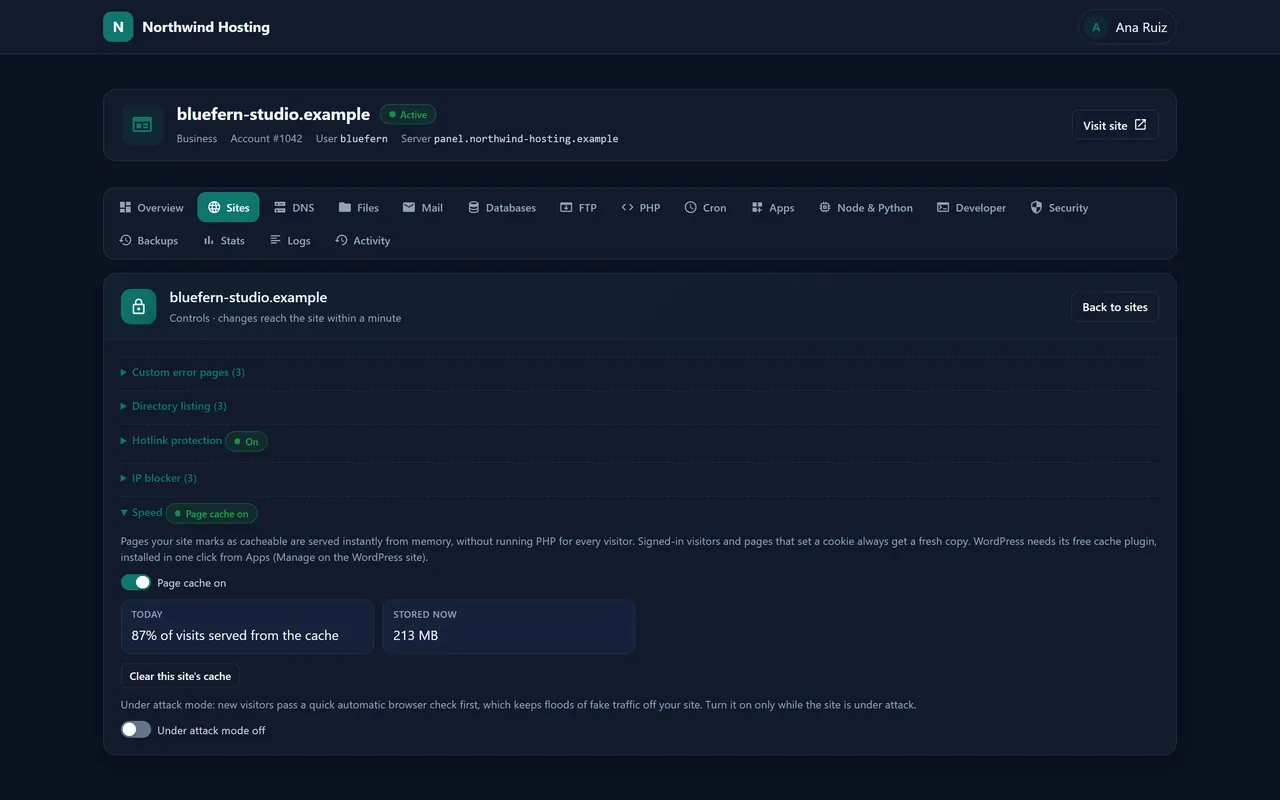
Each customer then gets a Speed section on every site (chapter 16): the page cache on or off, today’s hit rate, a purge, and under-attack mode, which shows new visitors a short “checking your browser” page that their browser solves by itself before the site answers. It can also come on by itself when a site is flooded.
WordPress sites drive the cache through a popular WordPress cache plugin, installed in one click from the site’s Manage dialog. Other applications are cached when they send the cache headers Turbo understands.
PHP and log files still see the visitor’s real address. Benchmarking from one address will hit the per-address limit (about 50 requests a second, bursts of 200) and see 429 answers: that is the flood guard, not a fault.
15 The customer’s panel
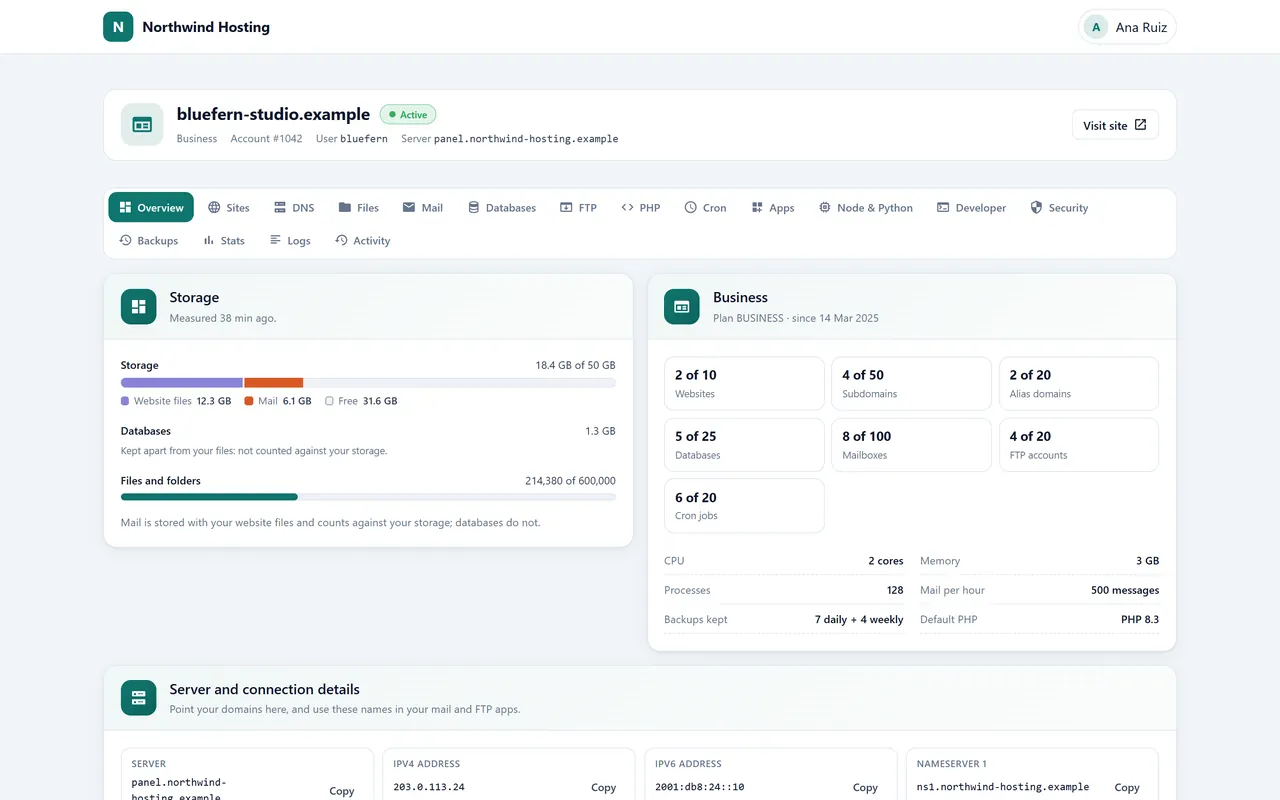
A customer signs in at https://your-server:2083/ and sees their account’s name, its state, plan, number, user name and server, a Visit site button, and these tabs:
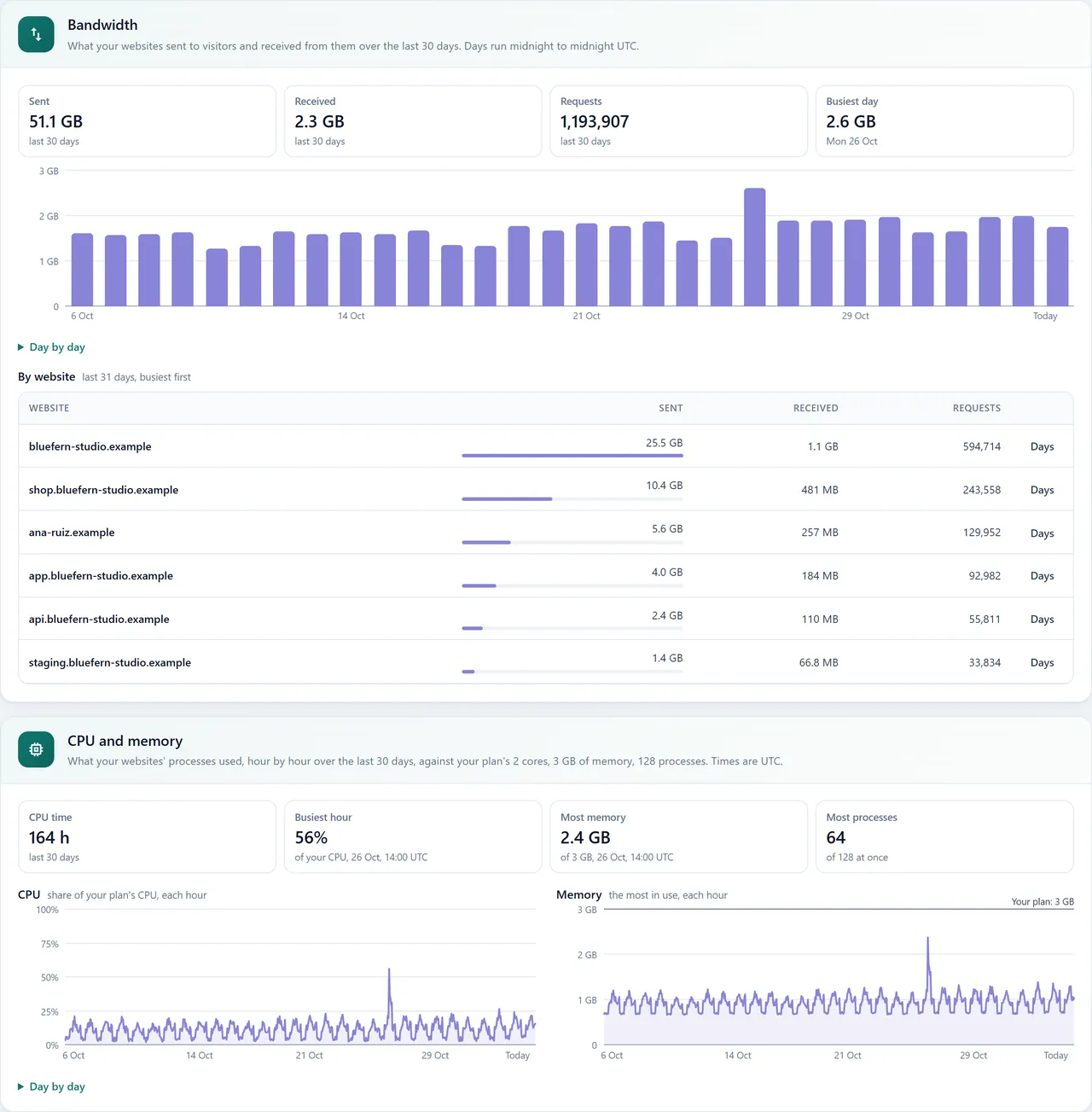
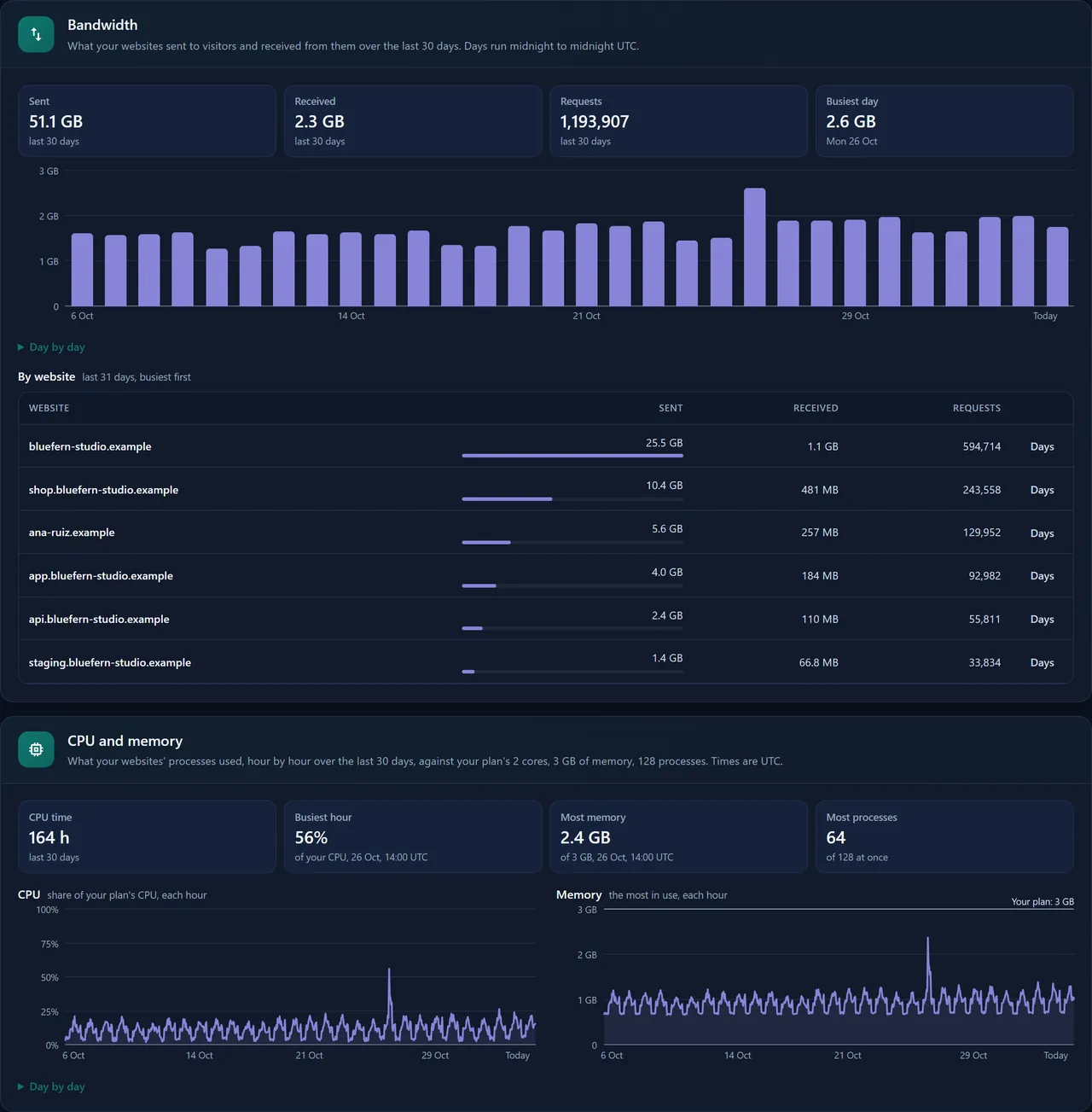
Storage splits website files and mail against the plan (databases are kept apart and not counted), with the file count below. The plan card shows every limit as used of allowed. Server and connection details lists the server, IPv4 and IPv6 addresses, both nameservers, webmail, the FTP host and the mail server, each with Copy. Bandwidth covers the last 30 days by day and by website; CPU and memory shows hour by hour what the account used against its plan.
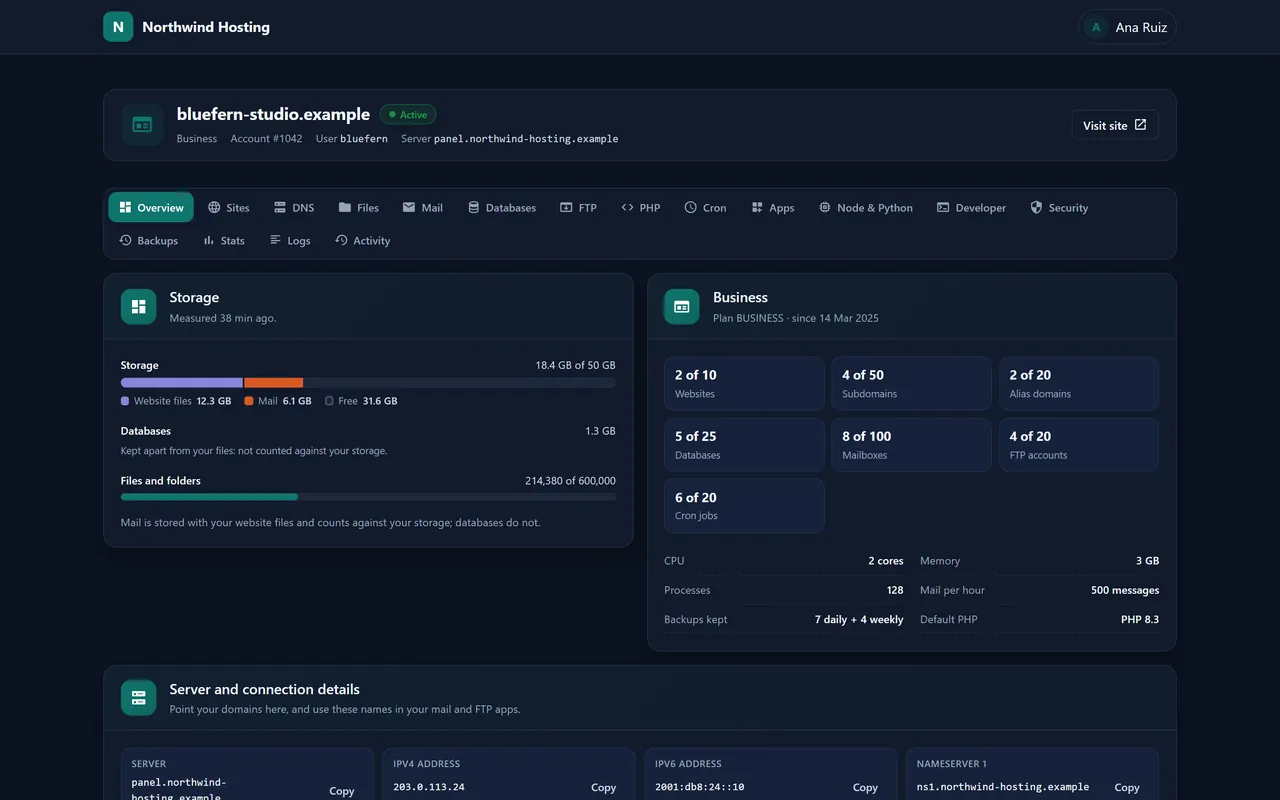
A customer’s Overview.
Bandwidth, CPU and memory, lower on the same tab.
16 Sites and domains
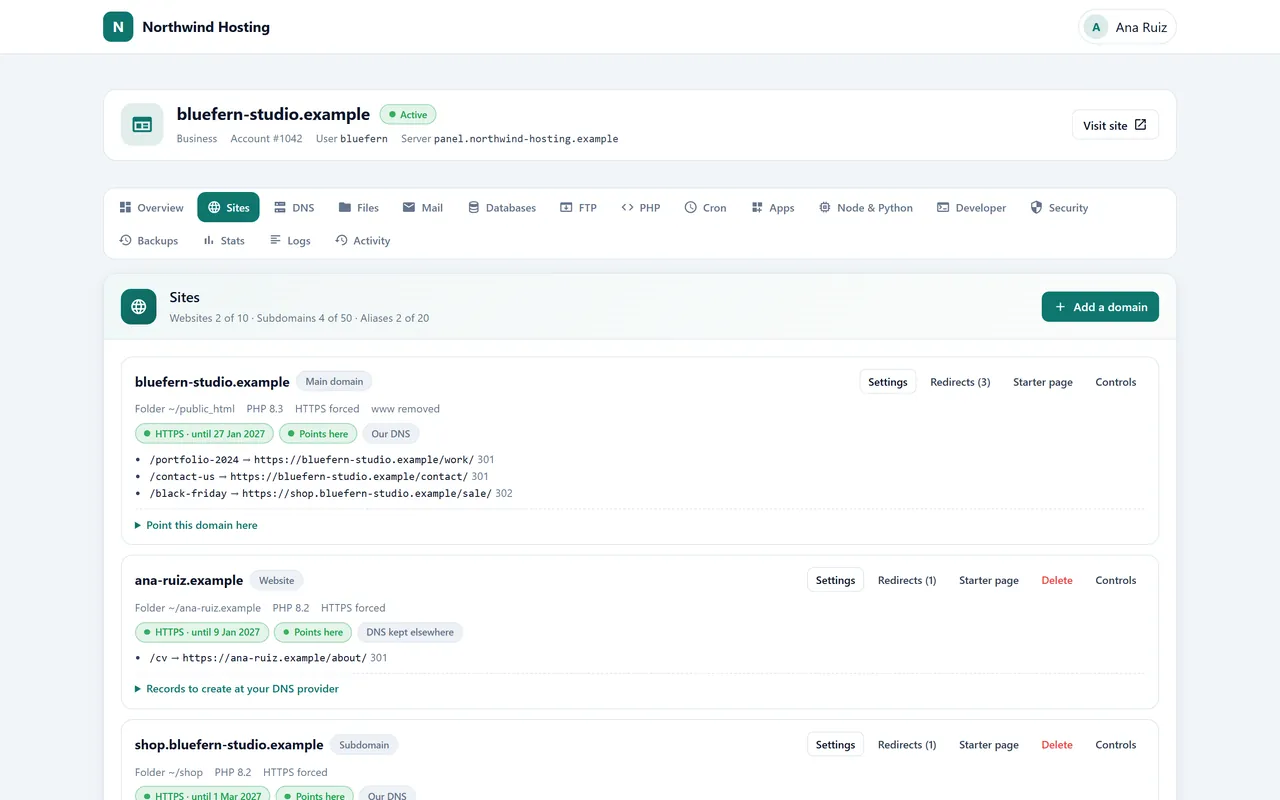
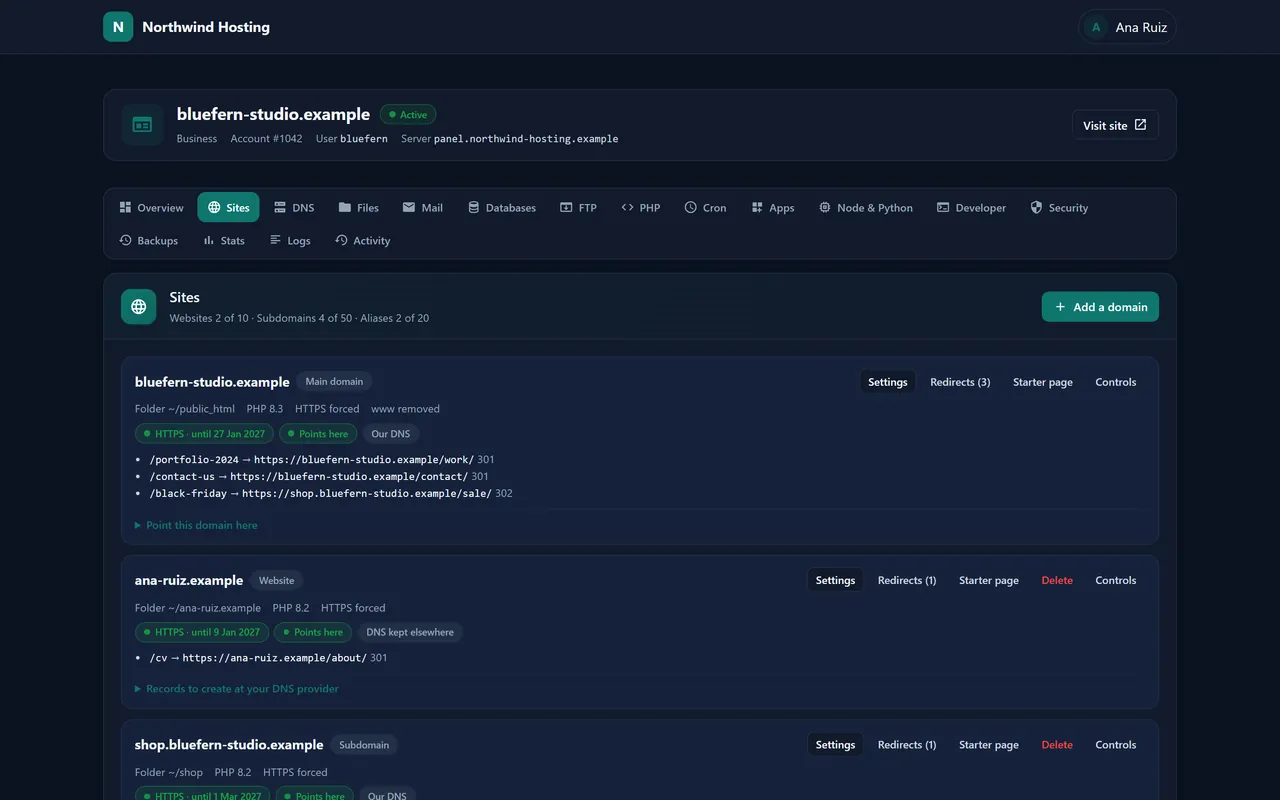
Every name the account serves is a row on Sites, marked Main domain, Website, Subdomain or Alias, with its certificate state (HTTPS · until a date, or Certificate pending) and whether its DNS is Our DNS or DNS kept elsewhere.
Eight names on one account.
Adding a domain
Add a domain. Under What is it? pick Website (its own folder), Subdomain or Alias (another name for an existing site).
Type the Domain, keep or change the Folder, and choose Use our nameservers or Keep DNS where it is. Press Add domain.
With our nameservers, point the domain’s NS records at the registrar to the two names on the Overview. Keeping DNS elsewhere, open Records to create at your DNS provider on the row and create those.
Once the name resolves to the server, a Let’s Encrypt certificate is issued by itself and renewed from then on.
On each row
Settings: the folder, the PHP version (8.1 to 8.4, per site), Always use HTTPS, how to treat www, and Redirect this whole site.
Redirects: paths or the whole domain, 301 or 302.
Starter page: publish Under construction, Coming soon or Business card in one click while the real site is built.
Controls: Custom error pages, Directory listing per folder, Hotlink protection, the IP blocker (block addresses, or allow only some), and Speed when Turbo is on. Changes reach the site within a minute.
A site’s Speed section: Page cache on, today’s hit rate, Clear this site’s cache and the under-attack switch.
17 DNS
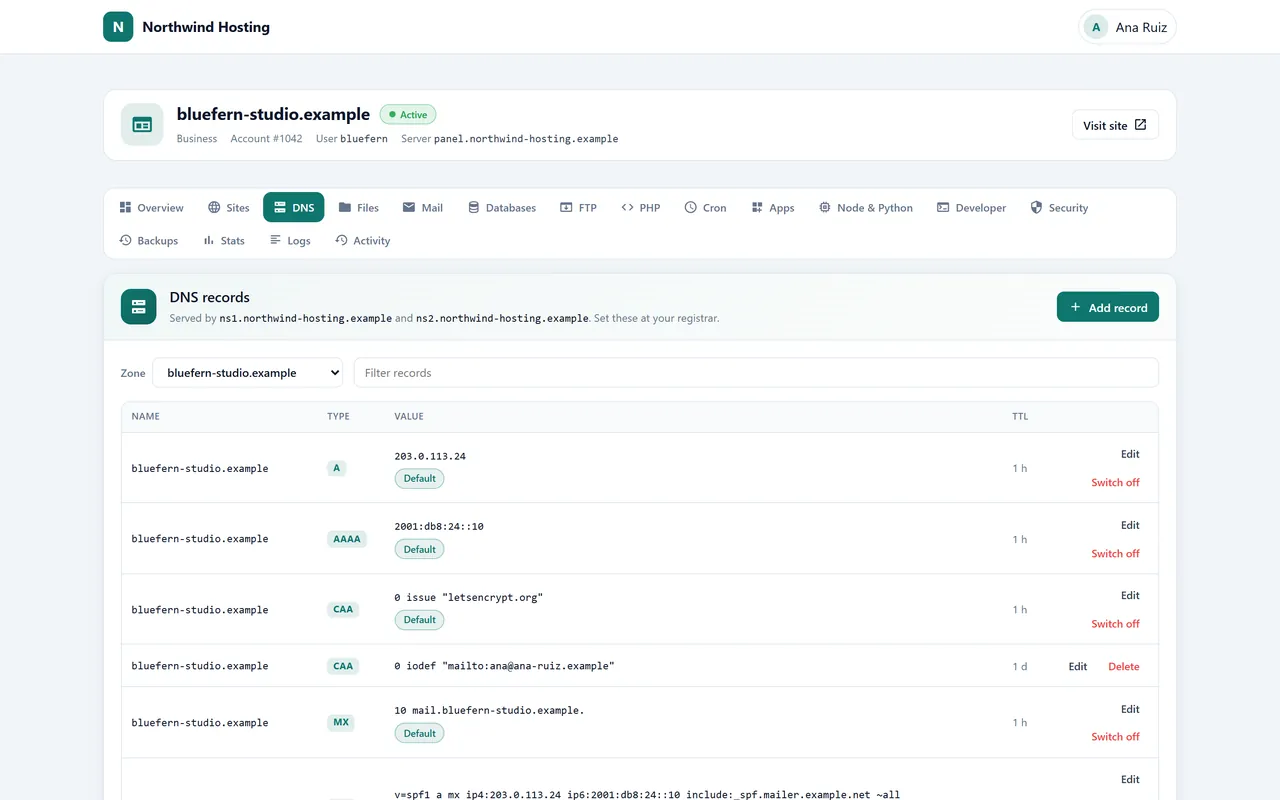
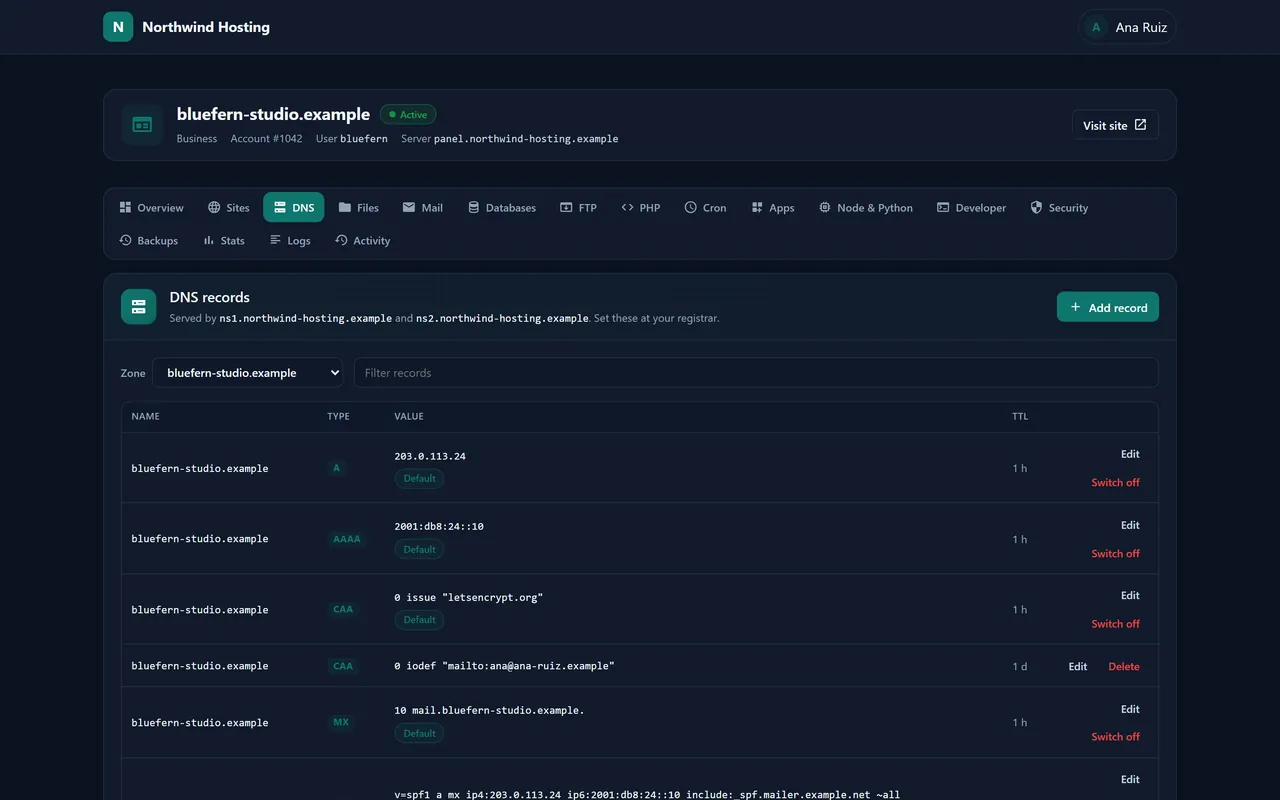
For domains on our nameservers, DNS records is the zone editor: A, AAAA, CNAME, MX, TXT, SRV, CAA and NS records with their TTL. Records Nexo writes for you (the site’s address, mail, SPF, DKIM, DMARC, the records mail apps use to configure themselves) are badged Default. Edit one and it is marked Replaces a default; Restore default puts it back. Switch off pauses a record without deleting it. Filter records finds one in a long zone.
A zone with its default records and one customised SPF record.
DNS tools answers the usual “why is my site not up” questions: Look up records as the world sees them (and whether they point to this account), Who answers for a domain (the delegation chain from the root down) and Route trace to any address.
18 Files and FTP
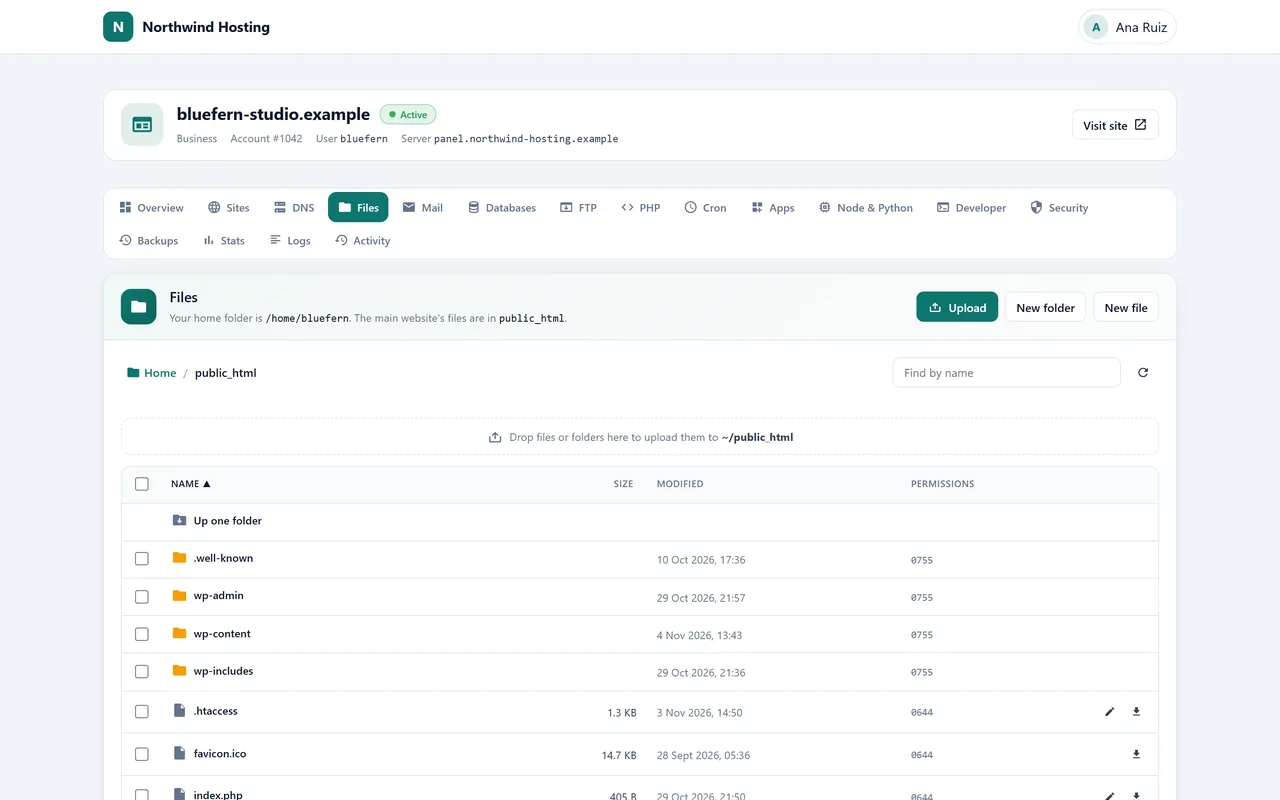
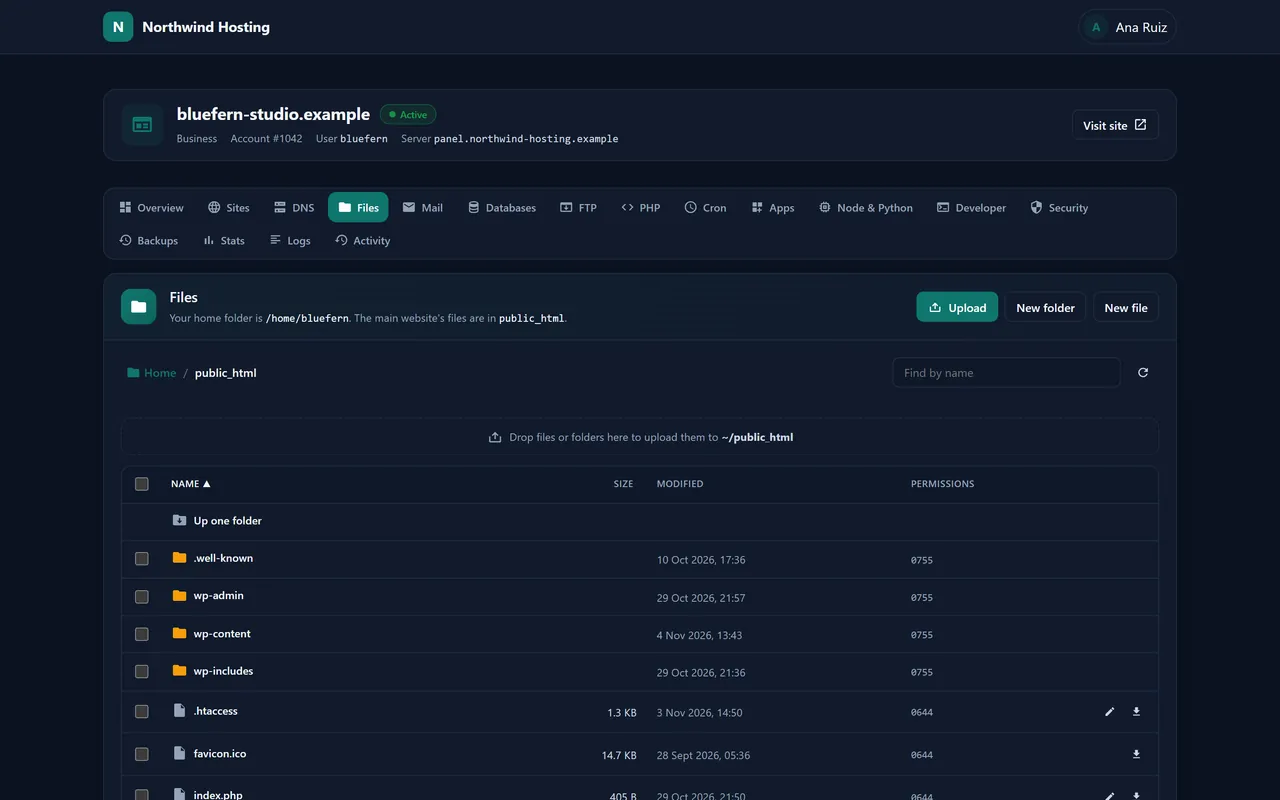
Files is a file manager that acts as the account itself, so nothing it makes has the wrong owner. Upload, or drop files and whole folders onto the list; New folder, New file, Find by name. Select rows for Download, Rename or move, Copy, Permissions, Extract, Compress to .zip and Delete. Click a text file to open it in the editor and Save.
The file manager in public_html.
FTP adds FTP accounts for a designer or developer, each locked into one folder: Add FTP account, then Password, Settings or Delete. FTP runs over explicit TLS (FTPS) on port 21; the user name is the name you chose followed by @ and the account’s main domain. Connected now lists live sessions: who, doing what, on which file, from where.
19 Mail
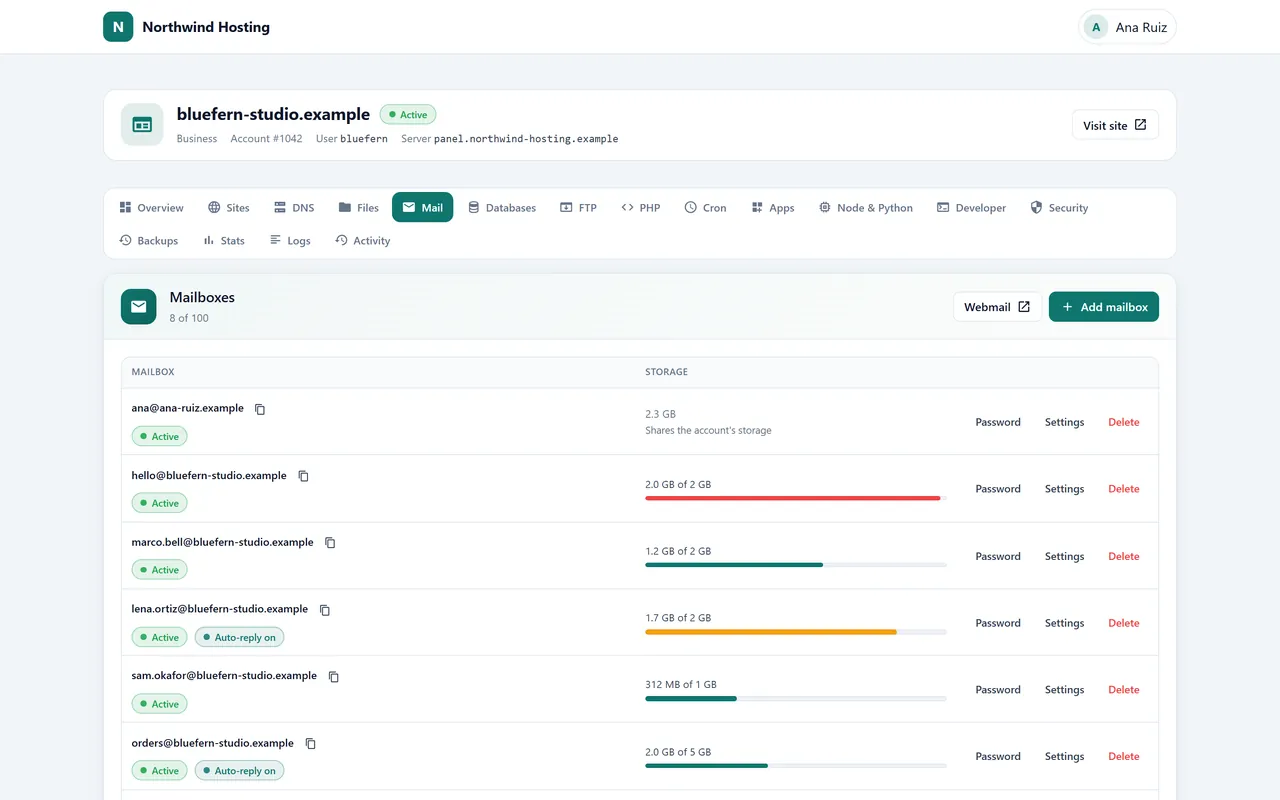
Mailboxes and forwarders.
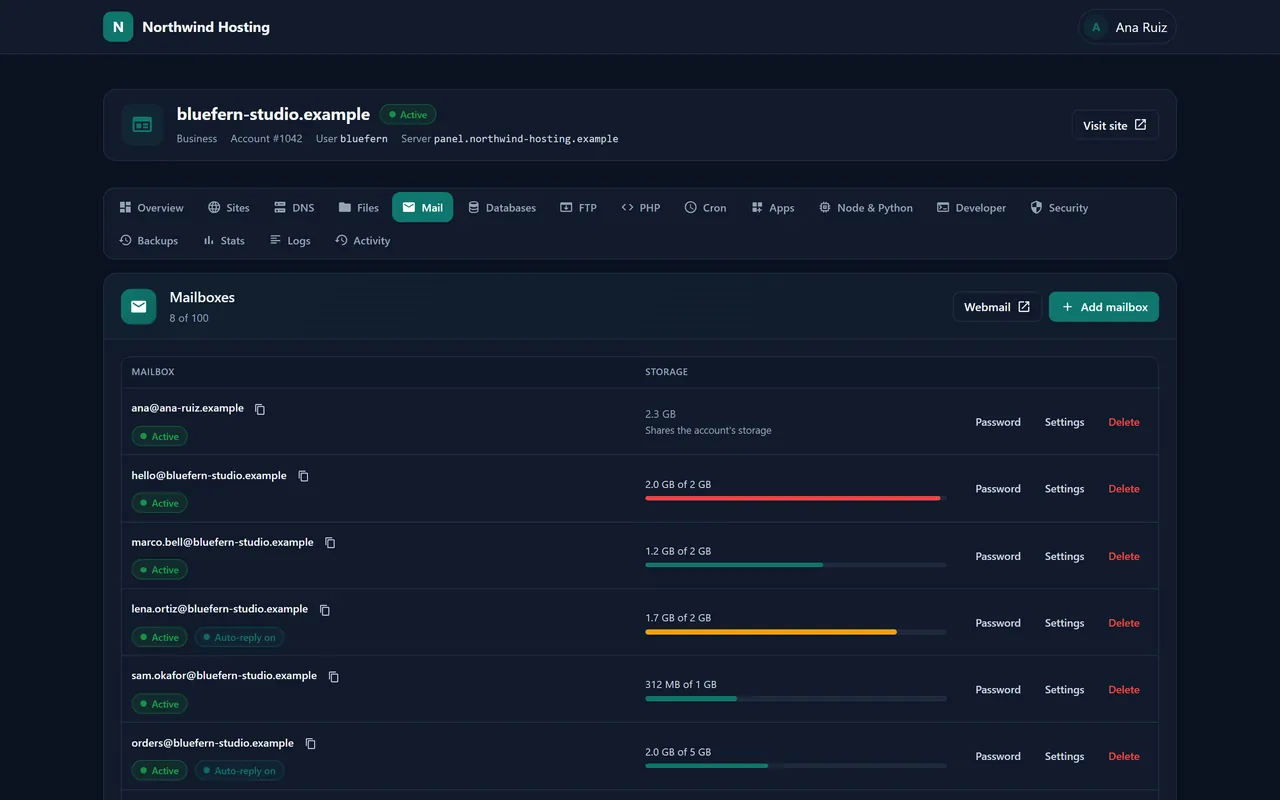
Mailboxes: Add mailbox with an address, password and quota; each row has Password, Settings (quota, sign-in on or off) and Delete. Webmail opens Roundcube.
Forwarders send an address on to one or more others; Catch-all decides what happens to mail for addresses that do not exist on each domain.
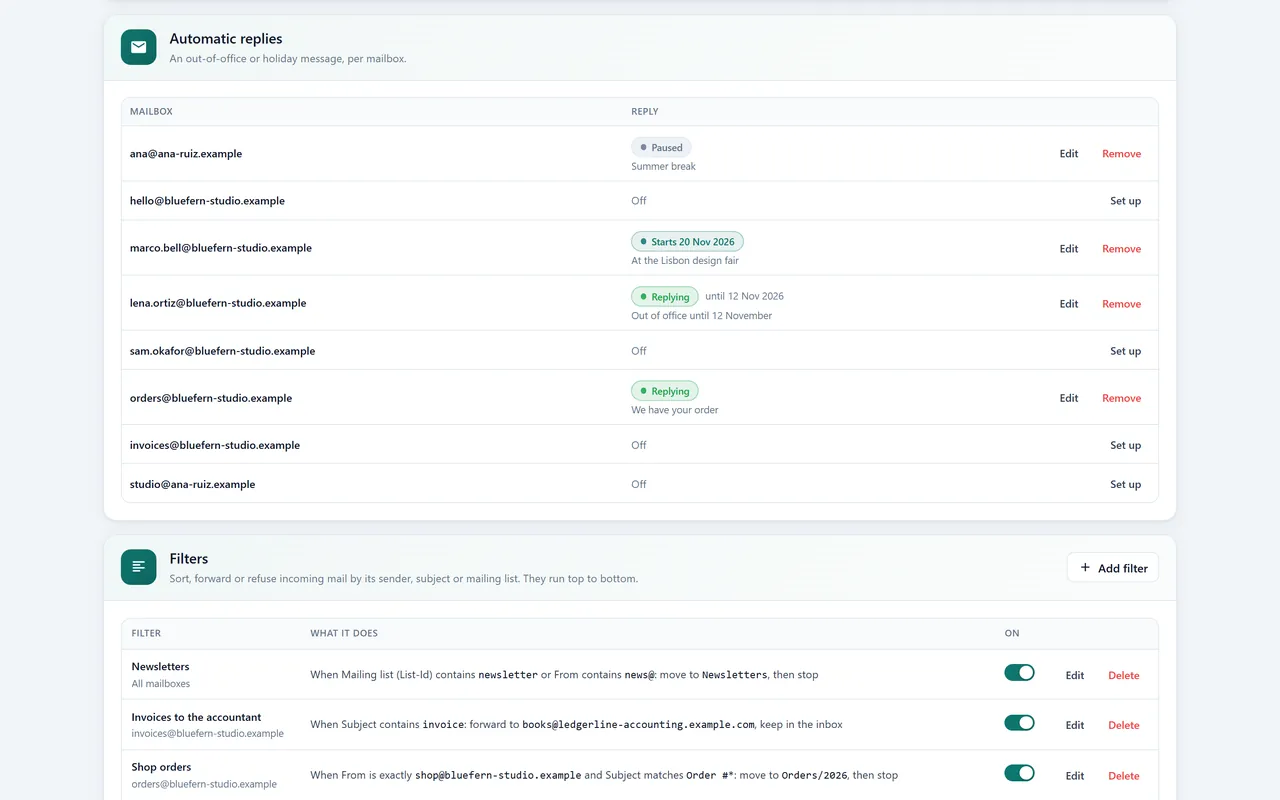
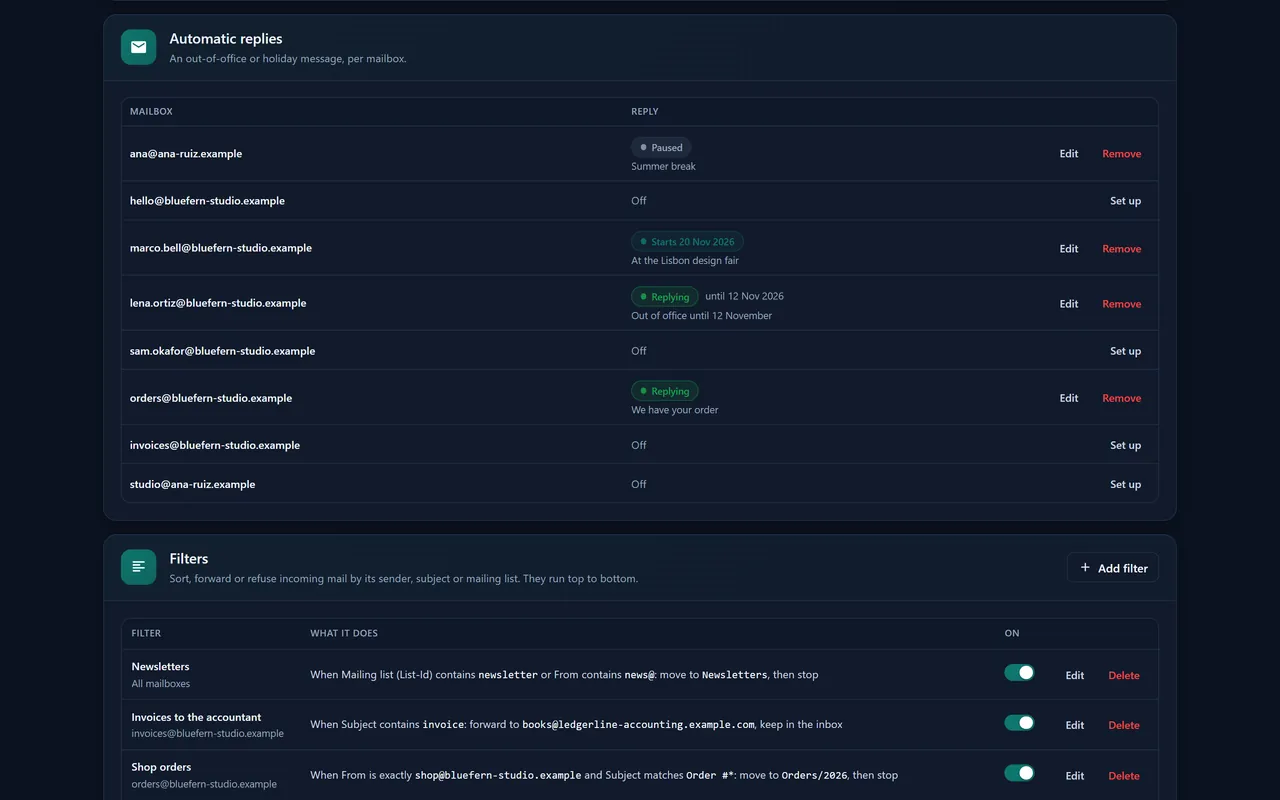
Automatic replies (an out-of-office per mailbox), Filters (by sender, recipient, subject, list or any header: file into a folder, forward, discard or refuse) and Spam (the score from which mail counts as spam, whether spam is marked, has its subject rewritten or is refused, and addresses always let through or always treated as spam).
Email routing per domain: mail handled on this server, or by a remote mail exchanger.
Import addresses: Import CSV creates up to 1,000 mailboxes (rows of address,password[,quota_mb]) or forwarders (address,destination;destination) at once; rows that cannot be made are listed with the reason.
Automatic replies, filters and spam settings.
Connecting a mail app
Connect a mail app lists the settings, and most apps find them on their own from the records Nexo publishes. Incoming: IMAP on 993 or POP3 on 995, SSL/TLS. Outgoing: SMTP on 465 with SSL/TLS, or submission on 587 with STARTTLS. The user name is the full address. Outgoing mail is DKIM-signed and limited per mailbox and per account to the plan’s hourly figure.
20 Databases
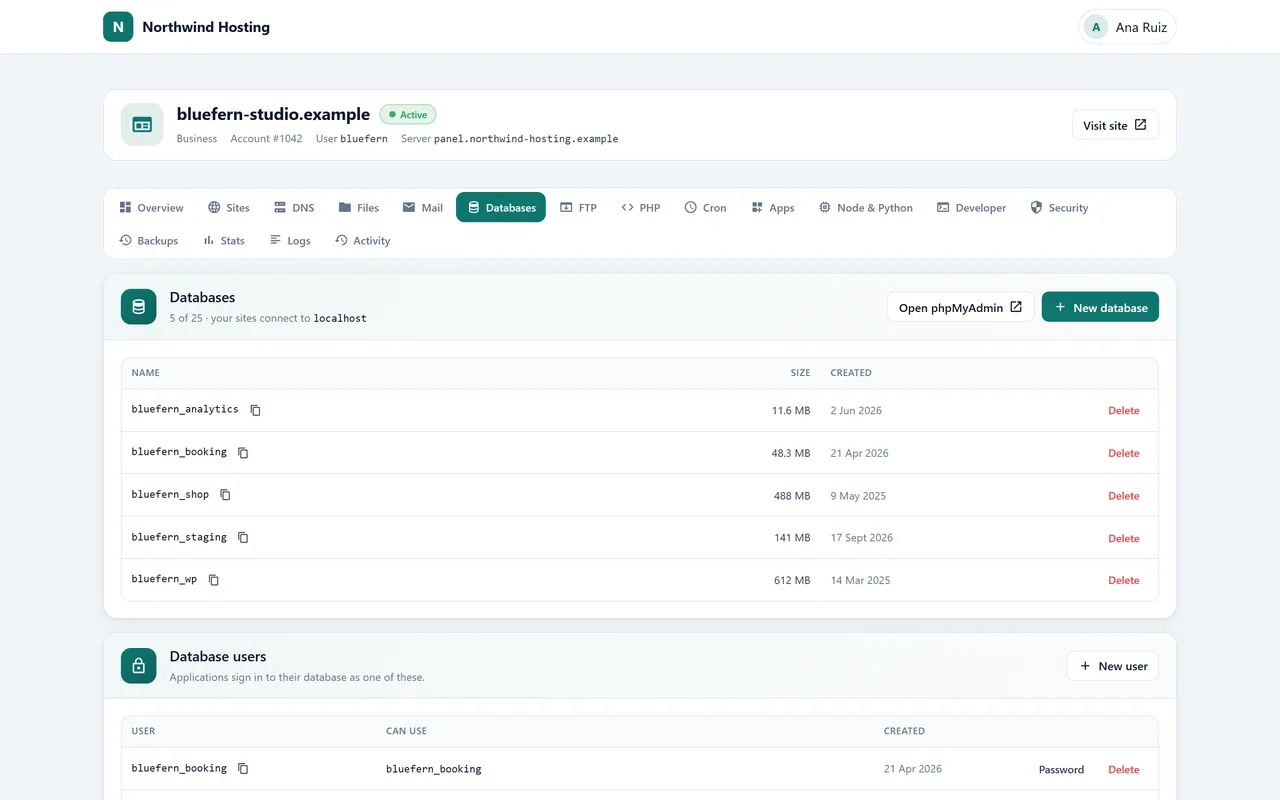
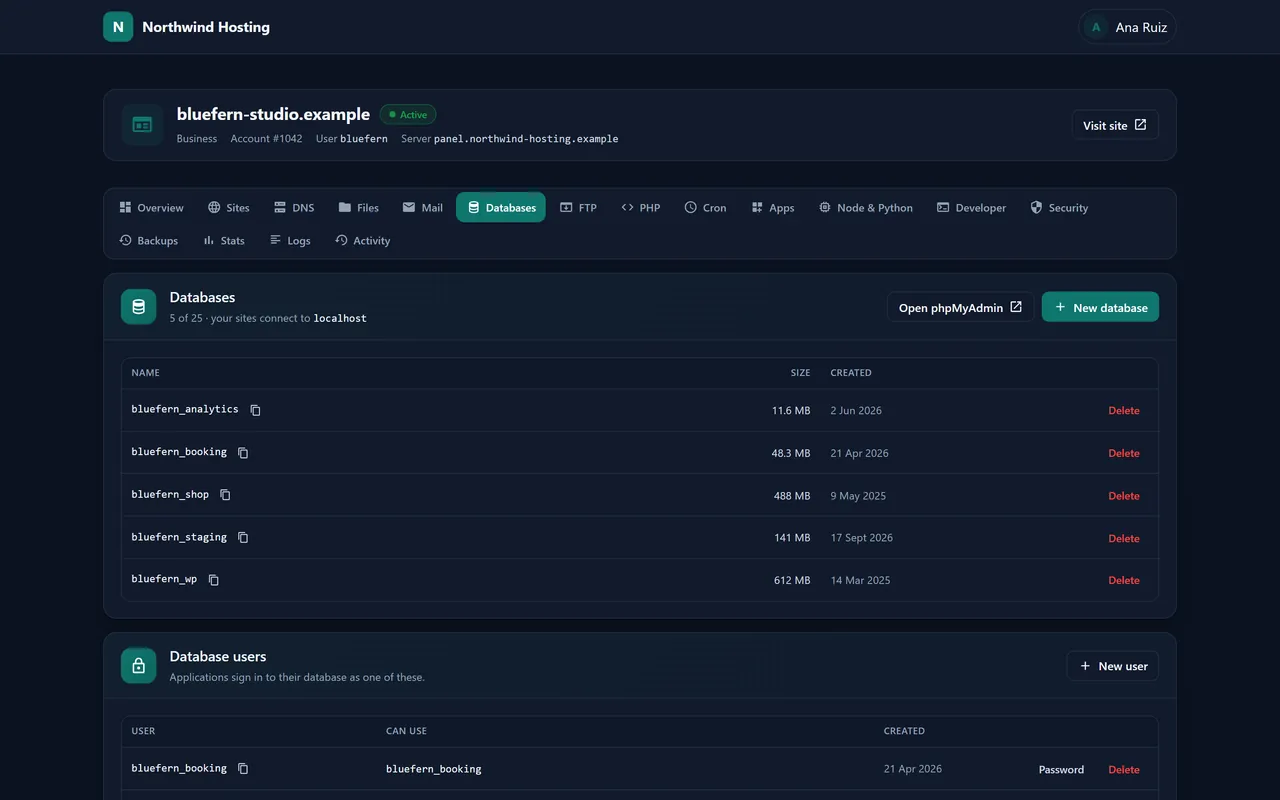
Database and user names start with the account’s user name and an underscore. New database and New user make them; Access is a grid of users against databases where each cell is All privileges, a chosen set, or No access. Open phpMyAdmin signs in with a temporary user that sees only this account’s databases, with no second password.
Databases, users and the access grid.
Remote access lets a database be reached from outside, but only from the hosts listed there (up to 50): Allow a host with an address or range and a note. The card shows the server and port to connect to.
21 PHP and cron
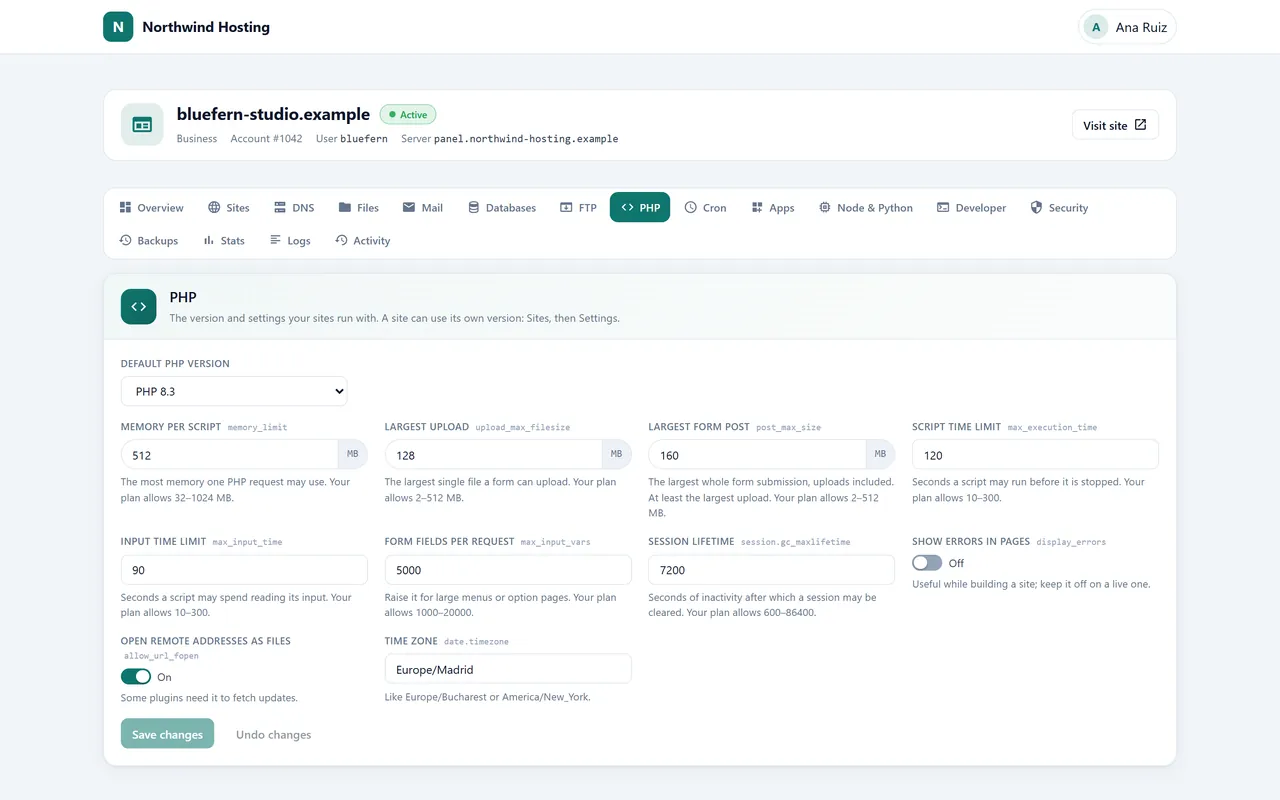
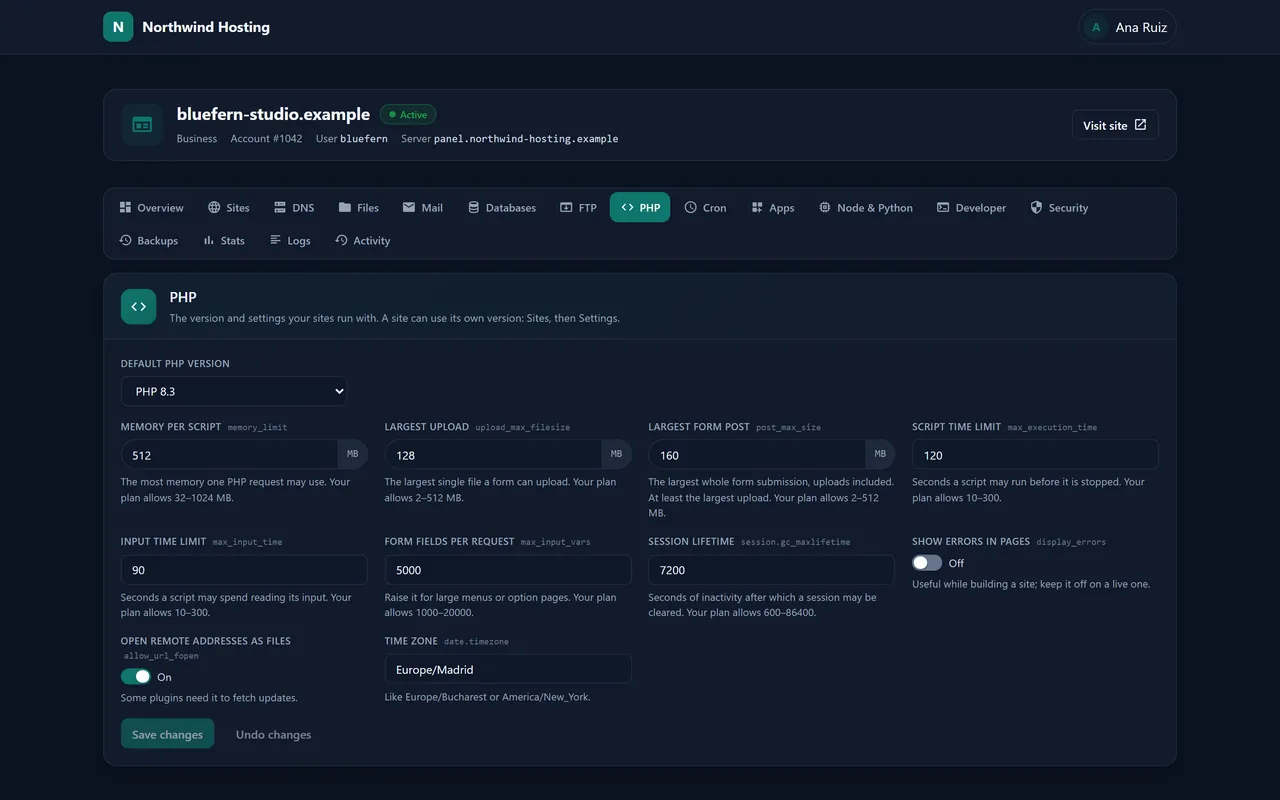
PHP sets the account’s Default PHP version (each site can choose its own under Sites › Settings) and its settings within the plan’s ceilings: Memory per script, Largest upload, Largest form post, Script time limit, Input time limit, Form fields per request, Session lifetime, Show errors in pages, Open remote addresses as files and Time zone. A .user.ini in a site’s folder is honoured too.
PHP settings.
Cron: Add cron job, choose how often under Runs (or set minute, hour, day, month and weekday yourself), type the Command, Add job. Jobs run as the account in the same sandbox as its PHP, no more often than the plan’s shortest interval, and each can be switched off without deleting it.
22 Apps and WordPress
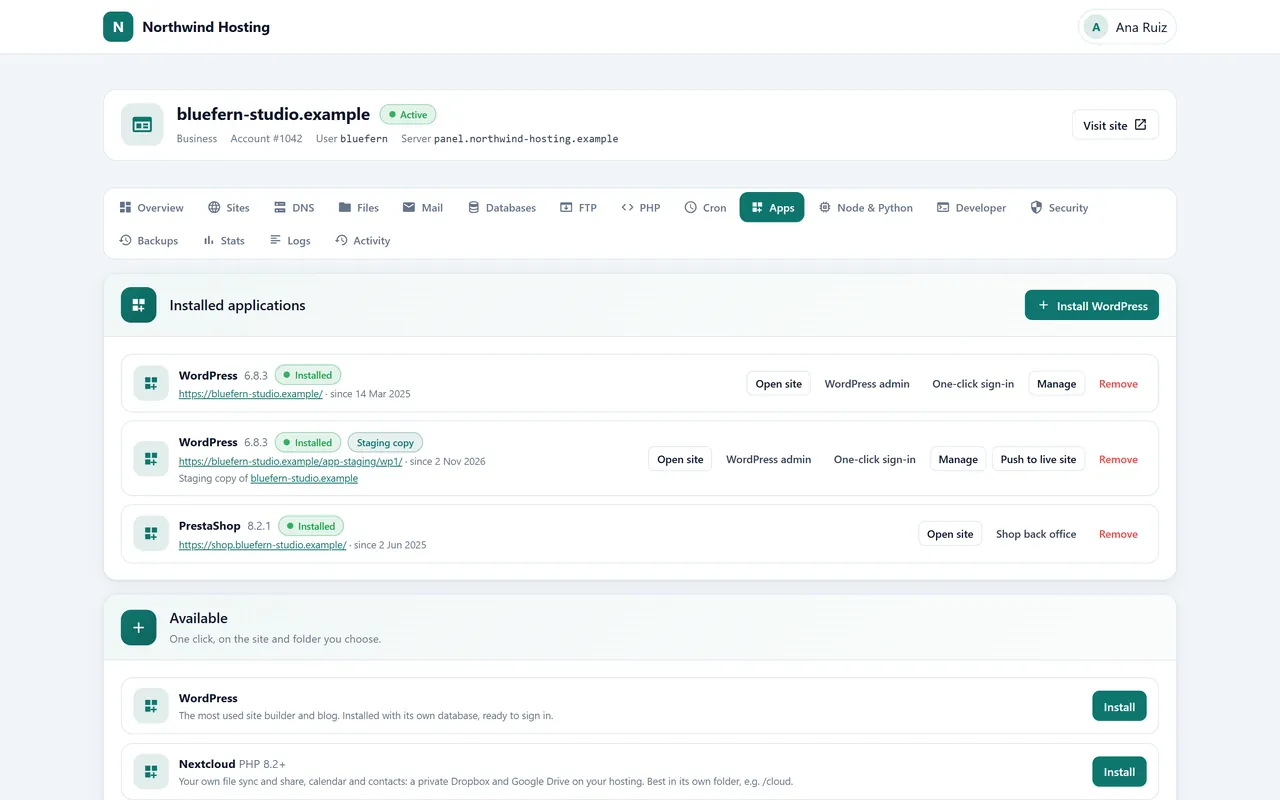
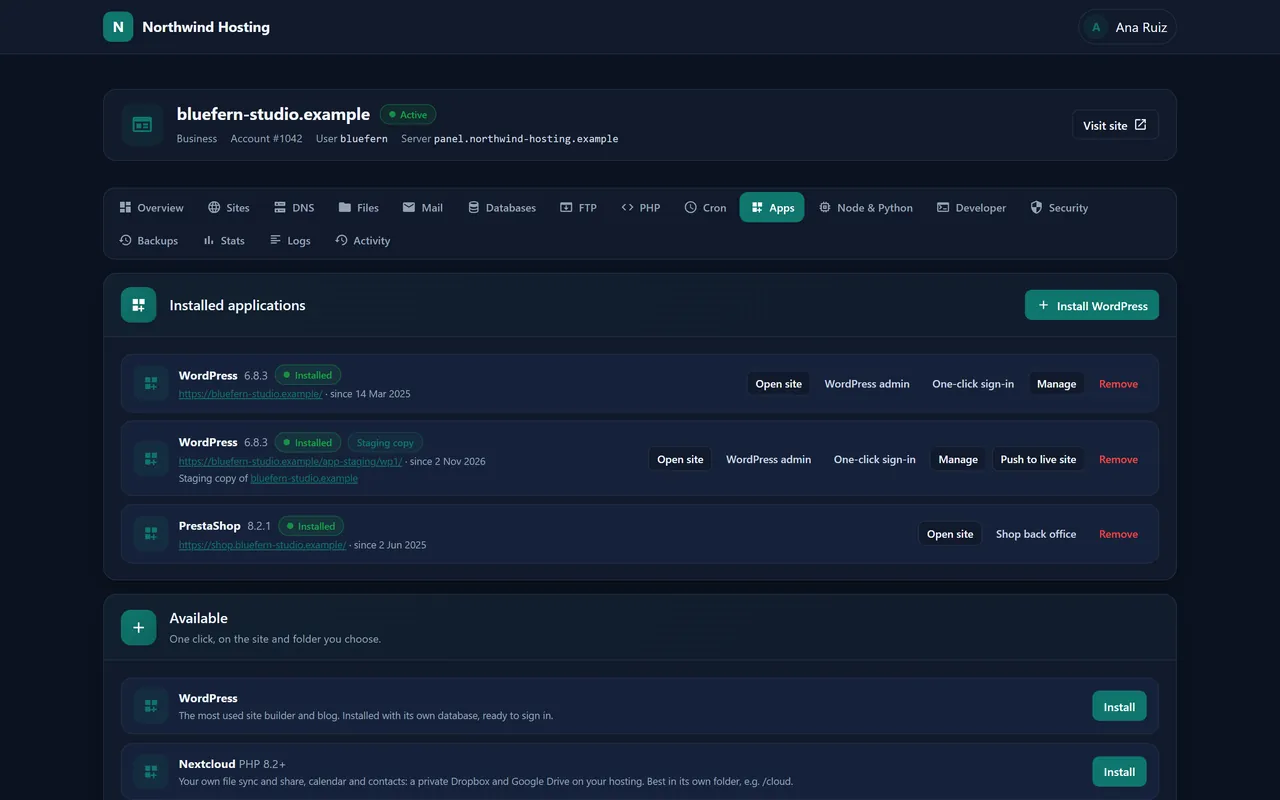
Apps installs WordPress, Nextcloud, Joomla, Drupal, PrestaShop or Laravel on any of the account’s sites, with its database, in one step: Install under Available, pick the site and folder, and Nexo creates the database and installs it. Remove takes an app off again: its database and database user go, and so does its folder when it has one of its own (an app at a site’s root leaves the files, which Nexo cannot tell apart from yours).
Installed apps and the catalogue.
Managing WordPress
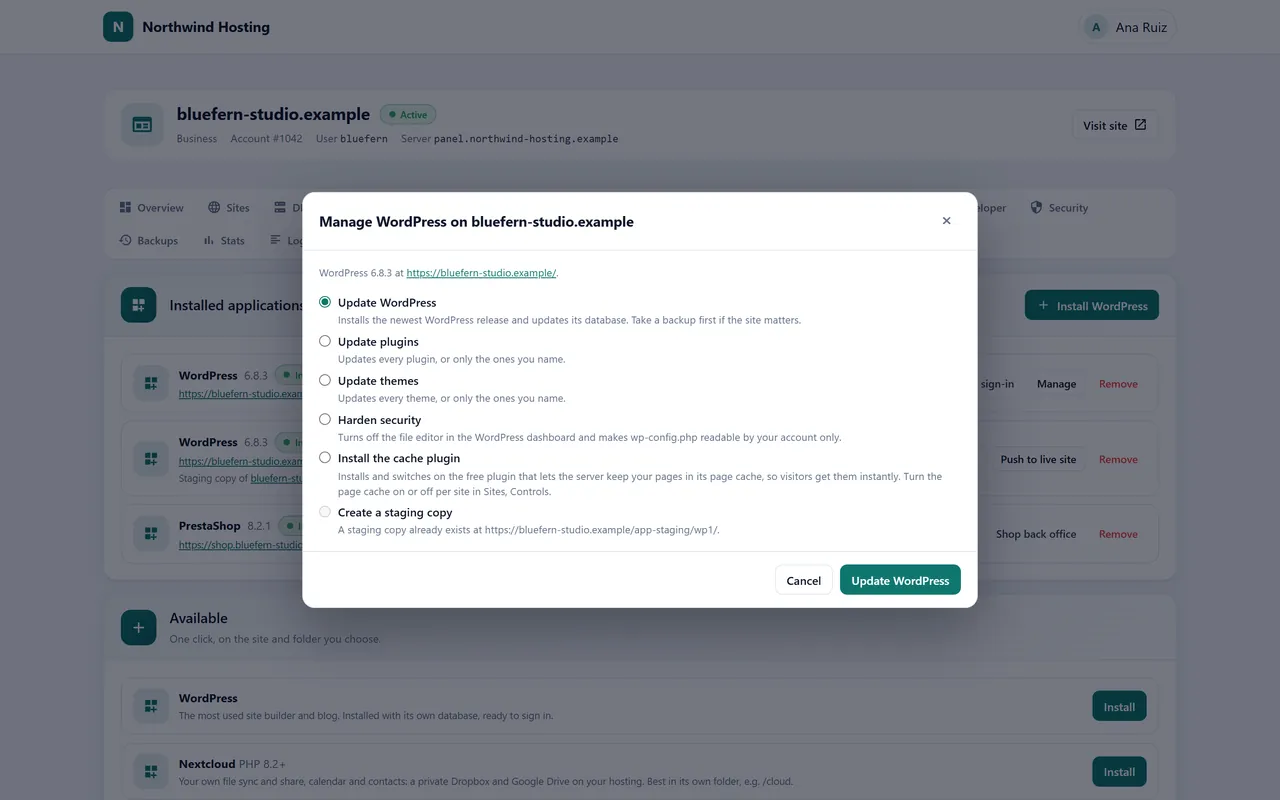
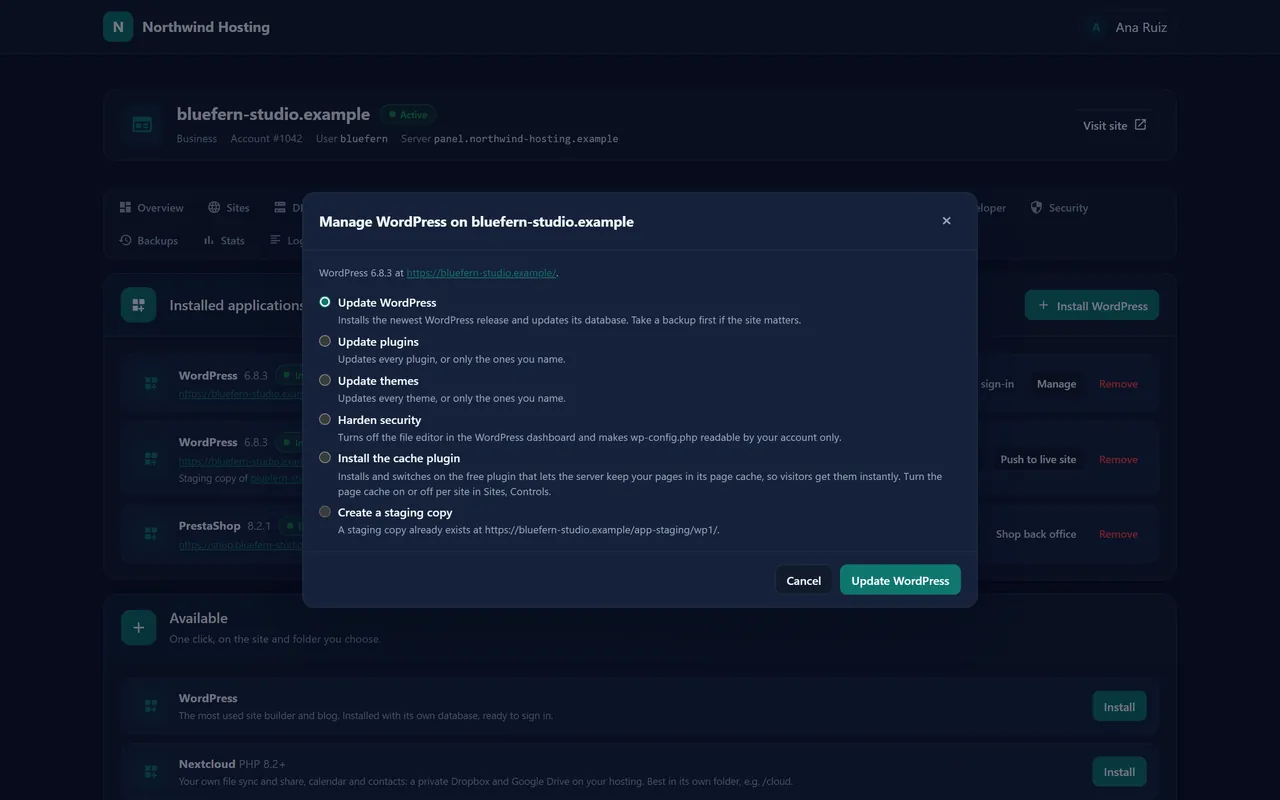
Each WordPress row has Open site, WordPress admin, One-click sign-in (into wp-admin without the password) and Manage: Update WordPress, Update plugins, Update themes, Harden security, Install the cache plugin (for Turbo) and Create a staging copy.
Make a staging copy: the site and its database are copied to a staging address of their own, listed as Staging copy.
Change it as you like: themes, plugins, content.
Push to live site puts the copy live. The live database is saved in the account first, so nothing is lost.
The Manage dialog.
23 Node.js and Python apps
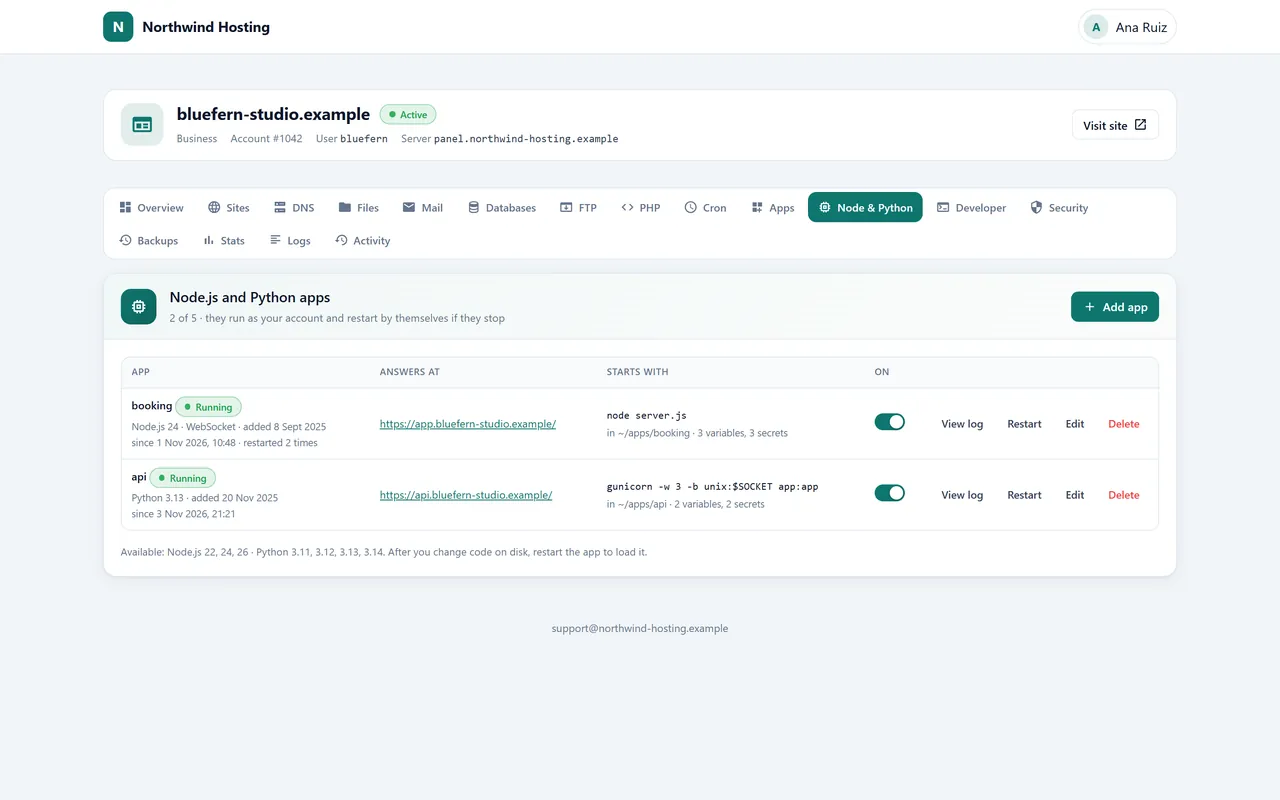
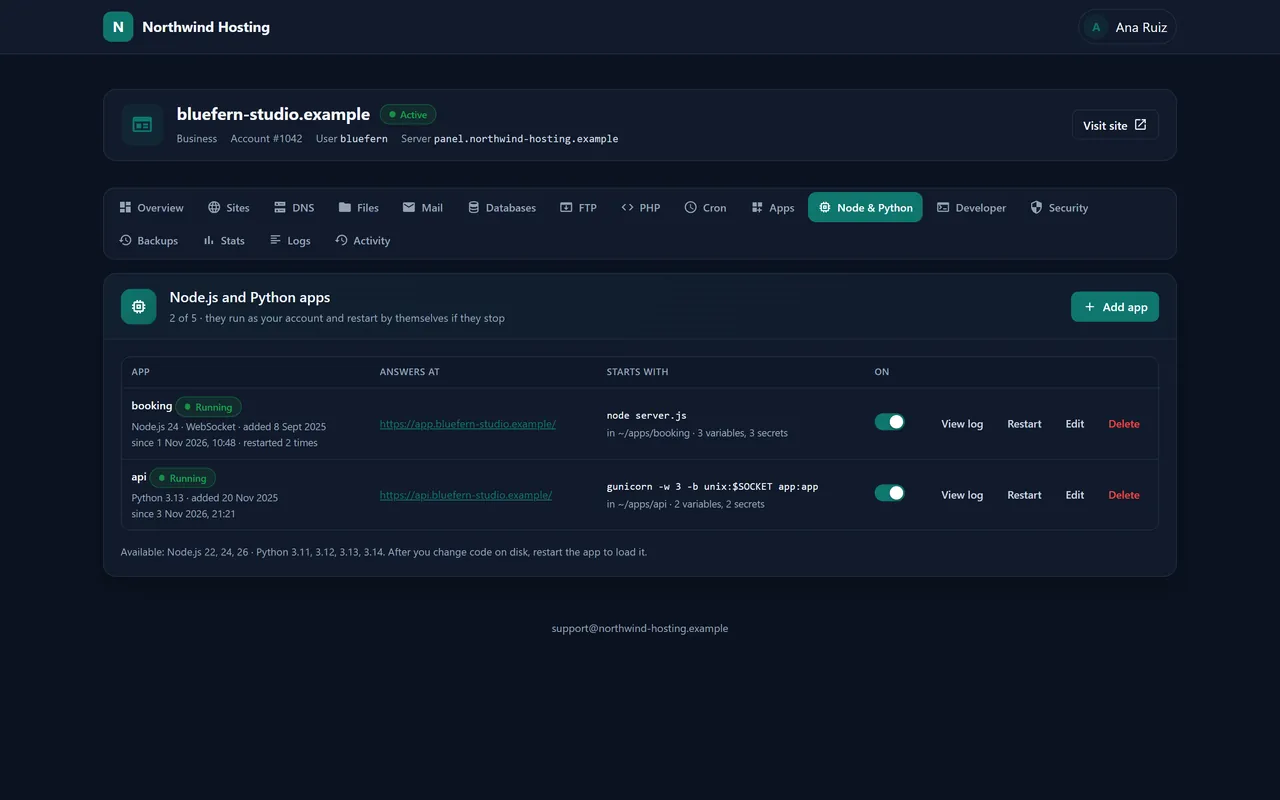
Node & Python runs long-lived apps on a site’s address: Node.js 22, 24 or 26, or Python 3.11, 3.12, 3.13 or 3.14. Add app, choose the site and path it Answers at, the runtime, the folder and what it Starts with (for example node server.js or a gunicorn command). Secret settings such as API keys are stored encrypted and never shown again.
The app runs as the account under systemd, restarted if it stops, inside the account’s limits. The row shows Running and how often it restarted; View log, Restart, Edit and Delete do what they say.
A Node.js and a Python app.
24 SSH, Git and API tokens
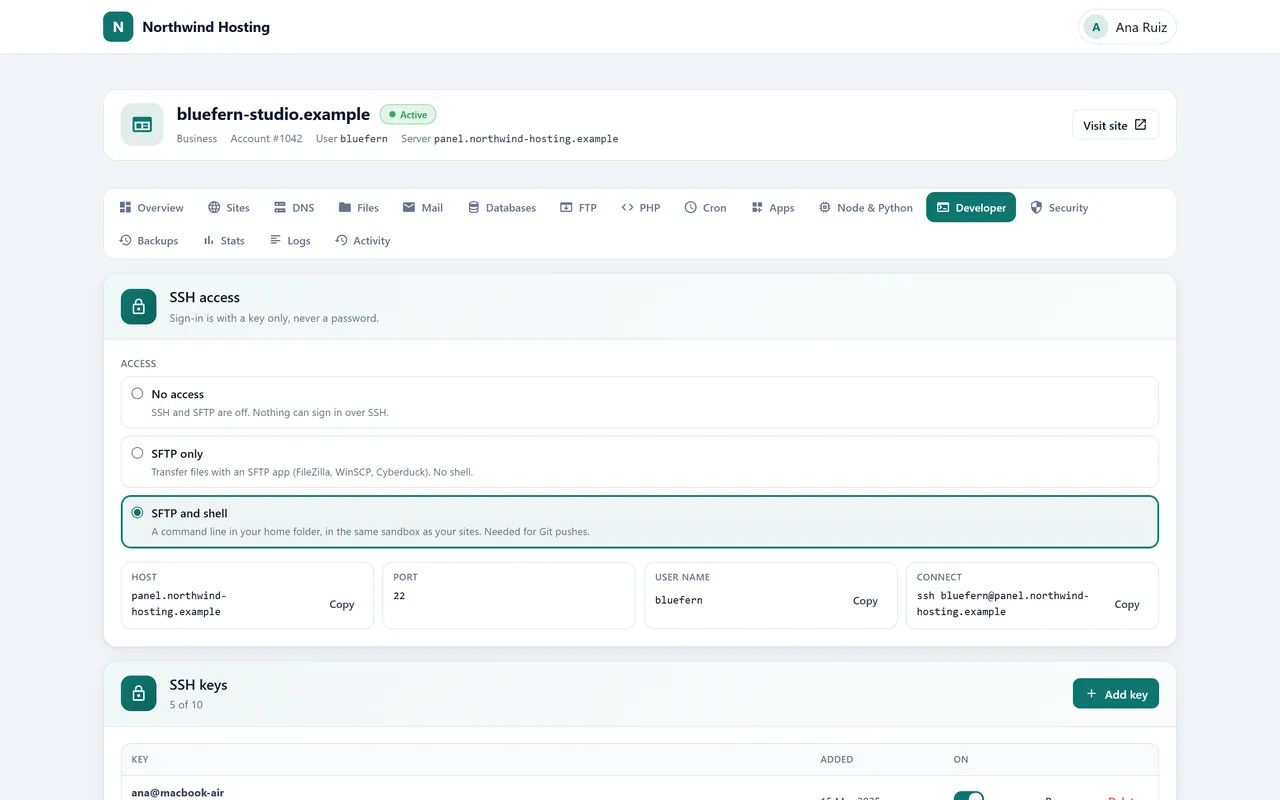
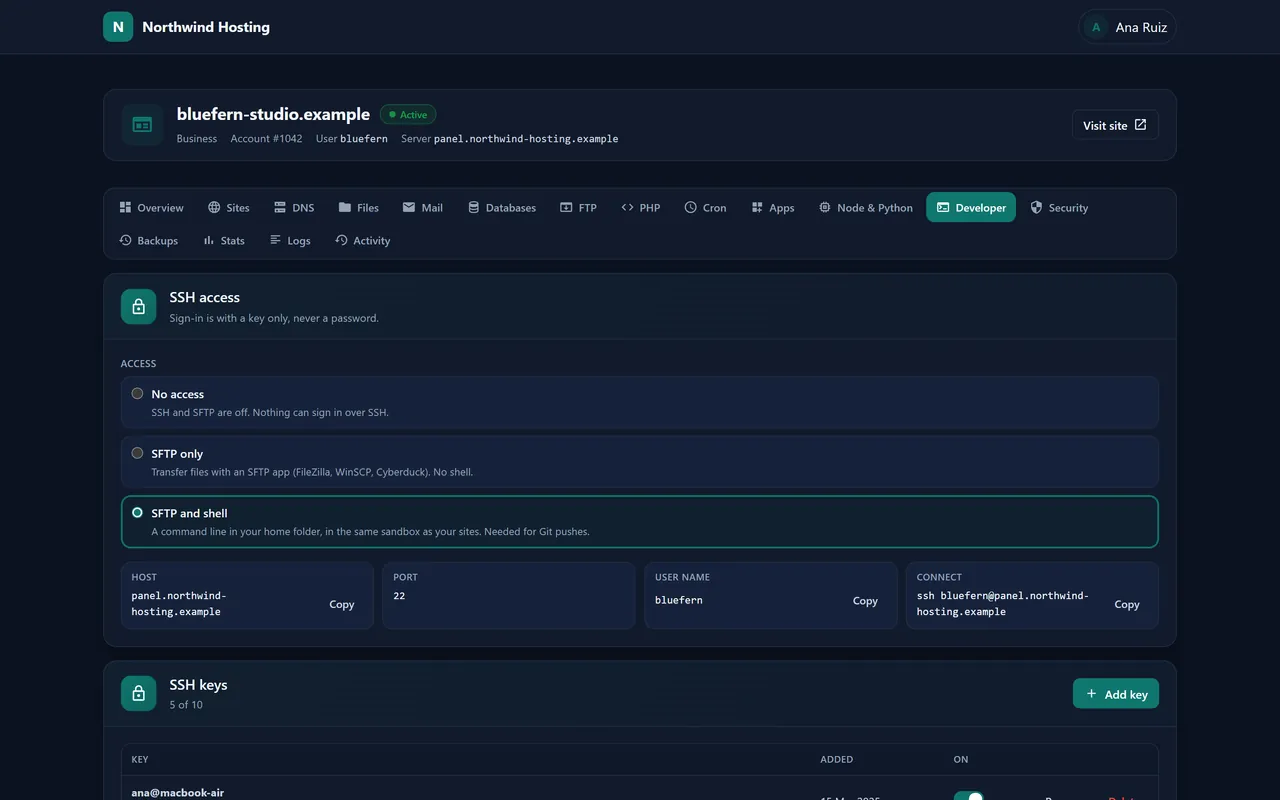
SSH access: No access, SFTP only (locked to the home) or SFTP and shell (a jailed shell in the account’s sandbox), with the host, port, user name and the command to connect.
SSH keys: keys only, never passwords. Add key with a name; Rename, switch off or Delete later.
Git repositories: Create repository and choose the site folder it Deploys to and the branch. Every push to that branch puts it live; the row shows the latest commit and when it last deployed, and Deploy now does it by hand.
API tokens: Create token for the customer’s own scripts, limited to what it may do (DNS records, Git repositories and so on) and to the addresses named; Revoke ends it.
SSH, keys and Git.
To publish, add the repository’s address (printed on its row) as a Git remote on your computer and push the branch: the push goes over SSH with one of the account’s keys. Removing a repository leaves the files it deployed.
25 Certificates and locks
Security holds two cards.
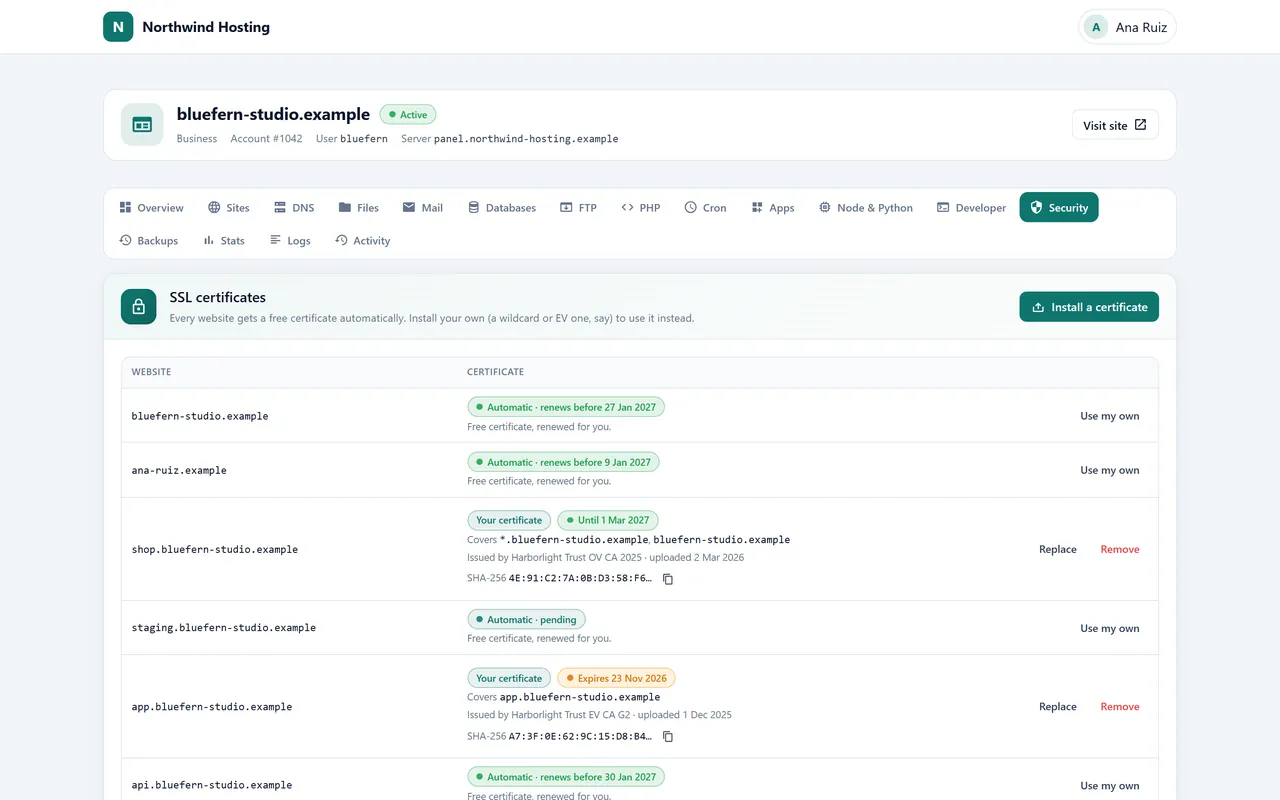
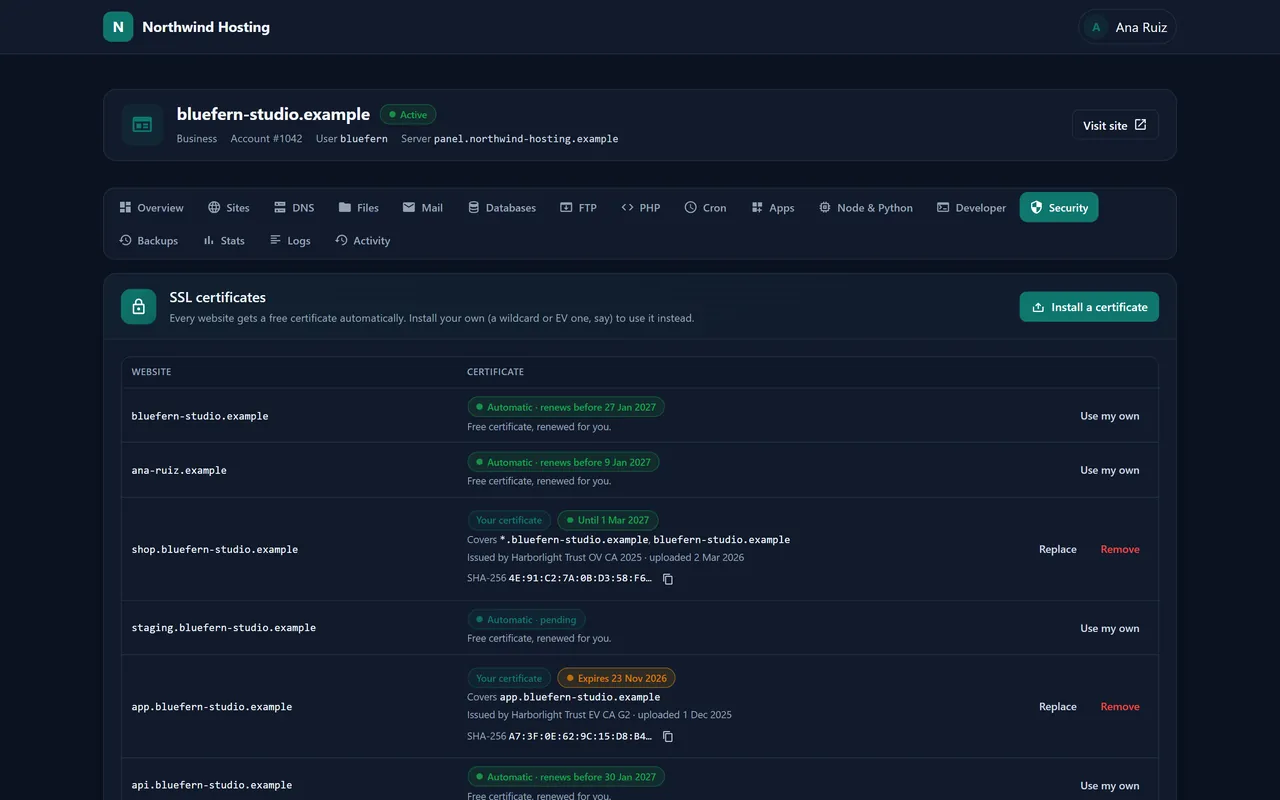
SSL certificates: every site’s certificate, Automatic · renews before a date for Let’s Encrypt ones. Use my own or Install a certificate takes a certificate bought elsewhere with its key and chain; Nexo checks it matches the site’s name before installing it. Remove goes back to automatic.
Password-protected folders: Protect a folder, then Add user with a name and password for each person allowed in.
Certificates, automatic and uploaded, and protected folders.
On the server side, fail2ban bans addresses that keep failing to sign in to SSH, mail and FTP.
26 Backups
Every night between 02:00 and 06:00 UTC, restic takes an encrypted snapshot of every account into a repository on the server (on its own disk when the installer was given one). The plan decides how many daily and weekly snapshots are kept. Backups lists them with their size.
Back up now takes one extra snapshot, once a day on top of the nightly one.
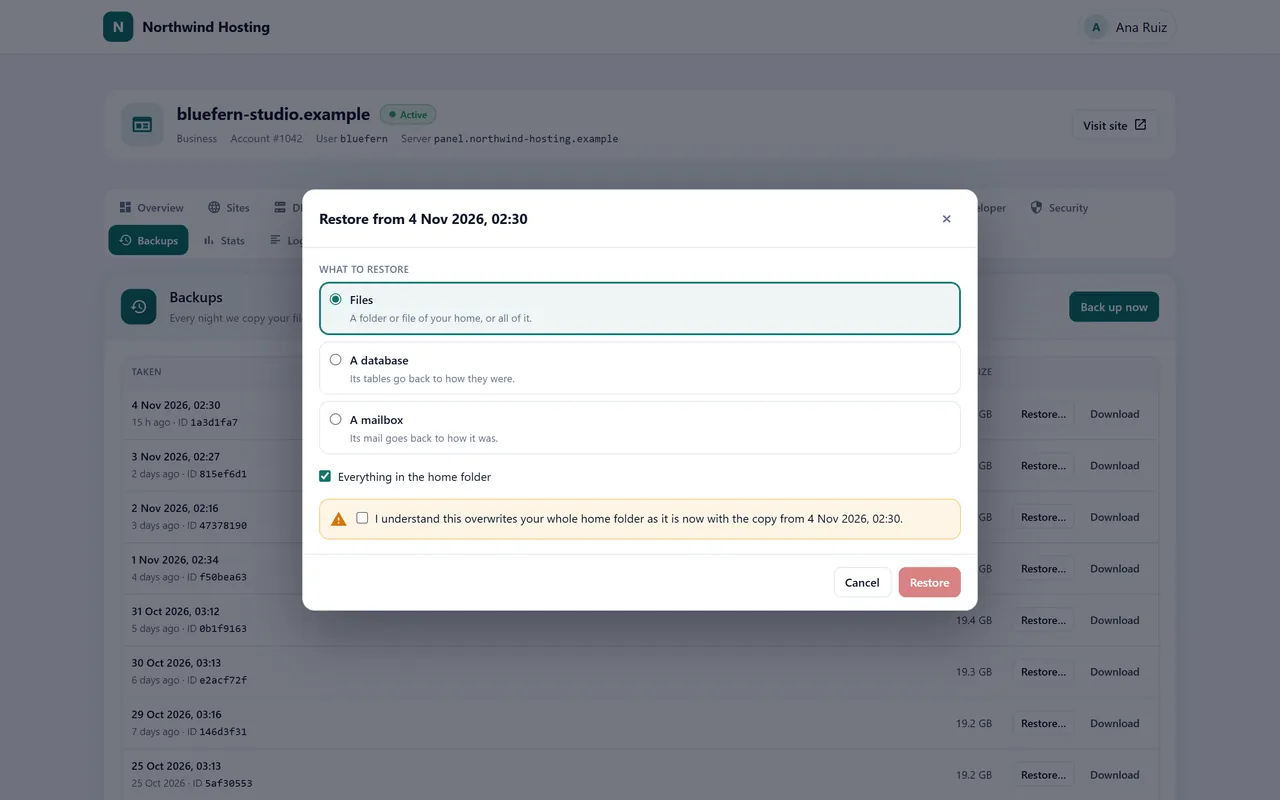
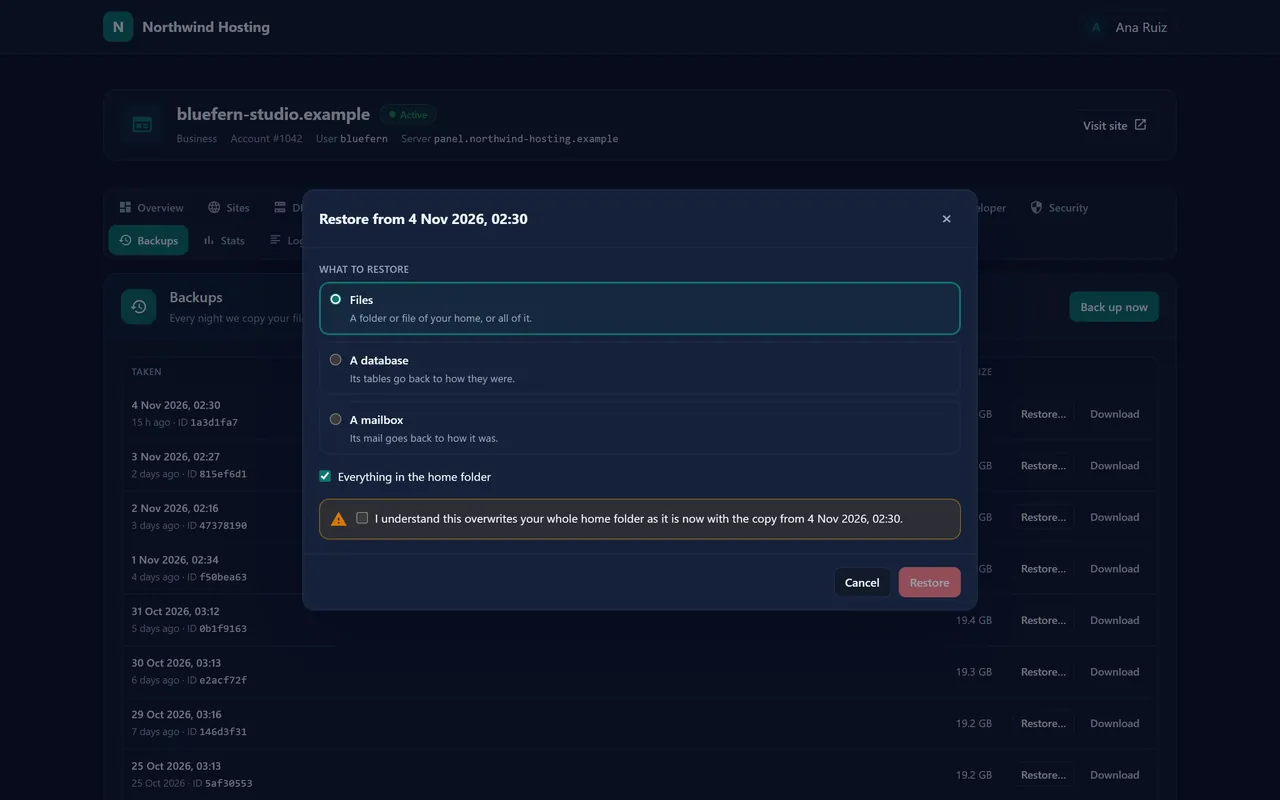
Restore…: under What to restore choose Files (everything in the home folder, or one path), A database or A mailbox, tick that you understand it overwrites what is there, and Restore.
Download makes a .tar.gz of a snapshot, databases included, and puts it in the account’s files; Recent backup tasks shows progress, with Open in Files when it is ready.
The restore dialog.
Backups live on the server. They bring back a deleted file or a broken site, not a lost machine. Keep a copy somewhere else as well, by downloading archives or with a backup service of your own.
27 Stats, logs and usage
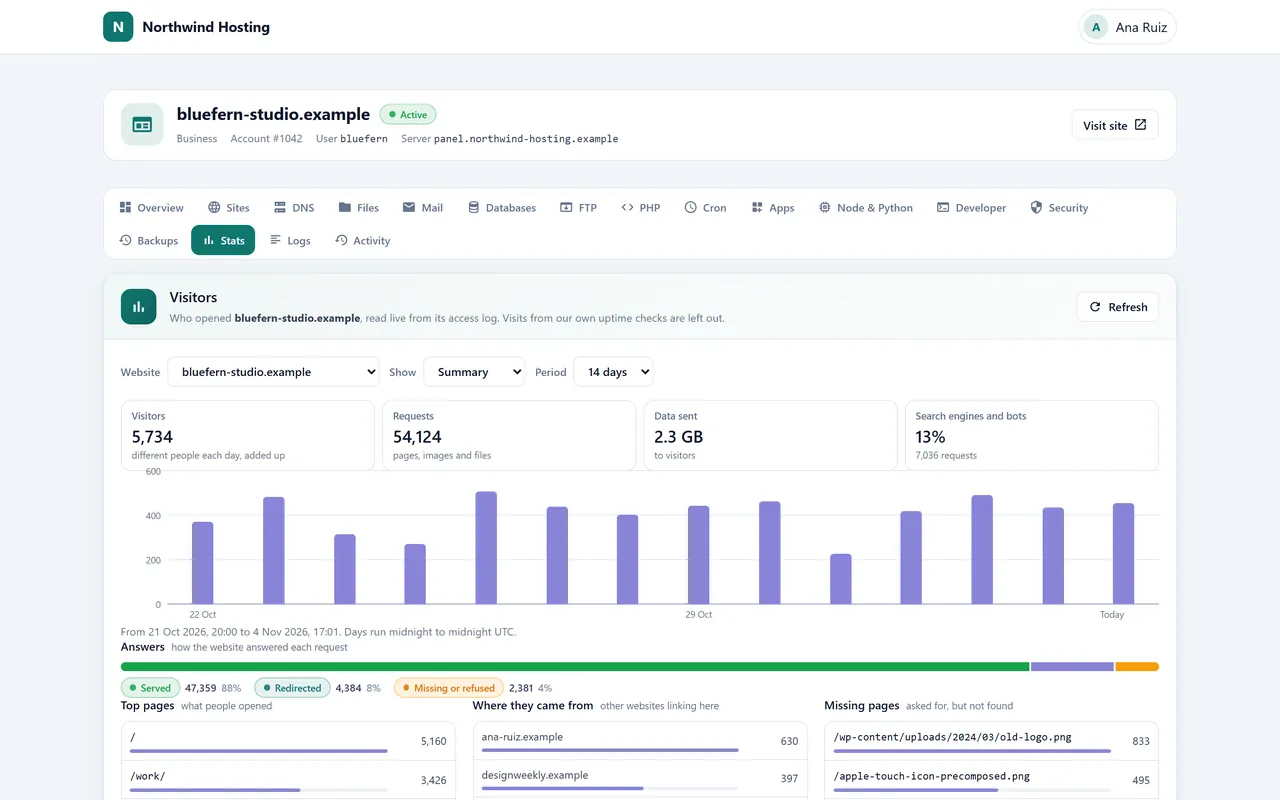
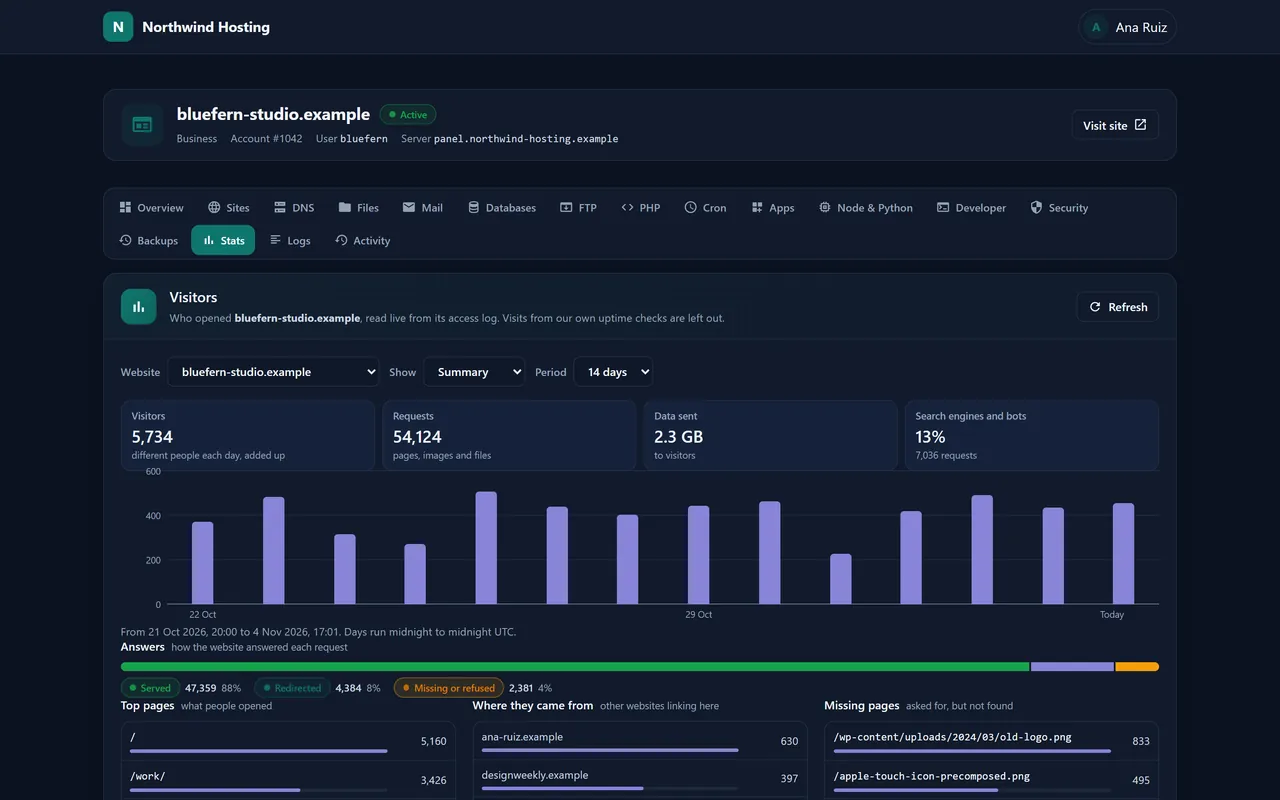
Stats reads each site’s own access log. Choose the Website and a Period of Today, 2 days, 7 days or 14 days: visitors, requests, data sent, search engines and bots, then Answers (status codes), Top pages, Where they came from, Missing pages and Countries. Latest visits shows the newest requests one by one.
Fourteen days of visitors.
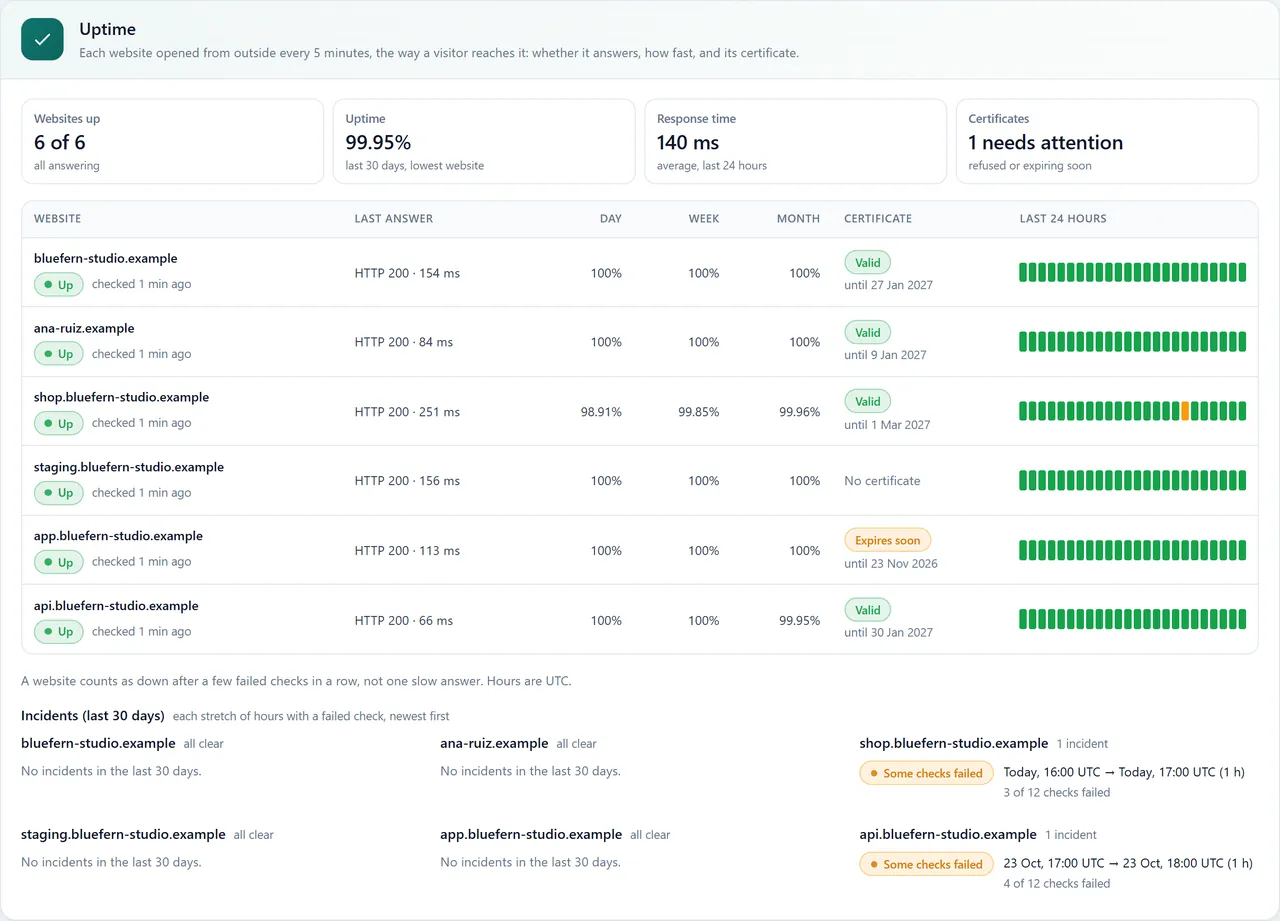
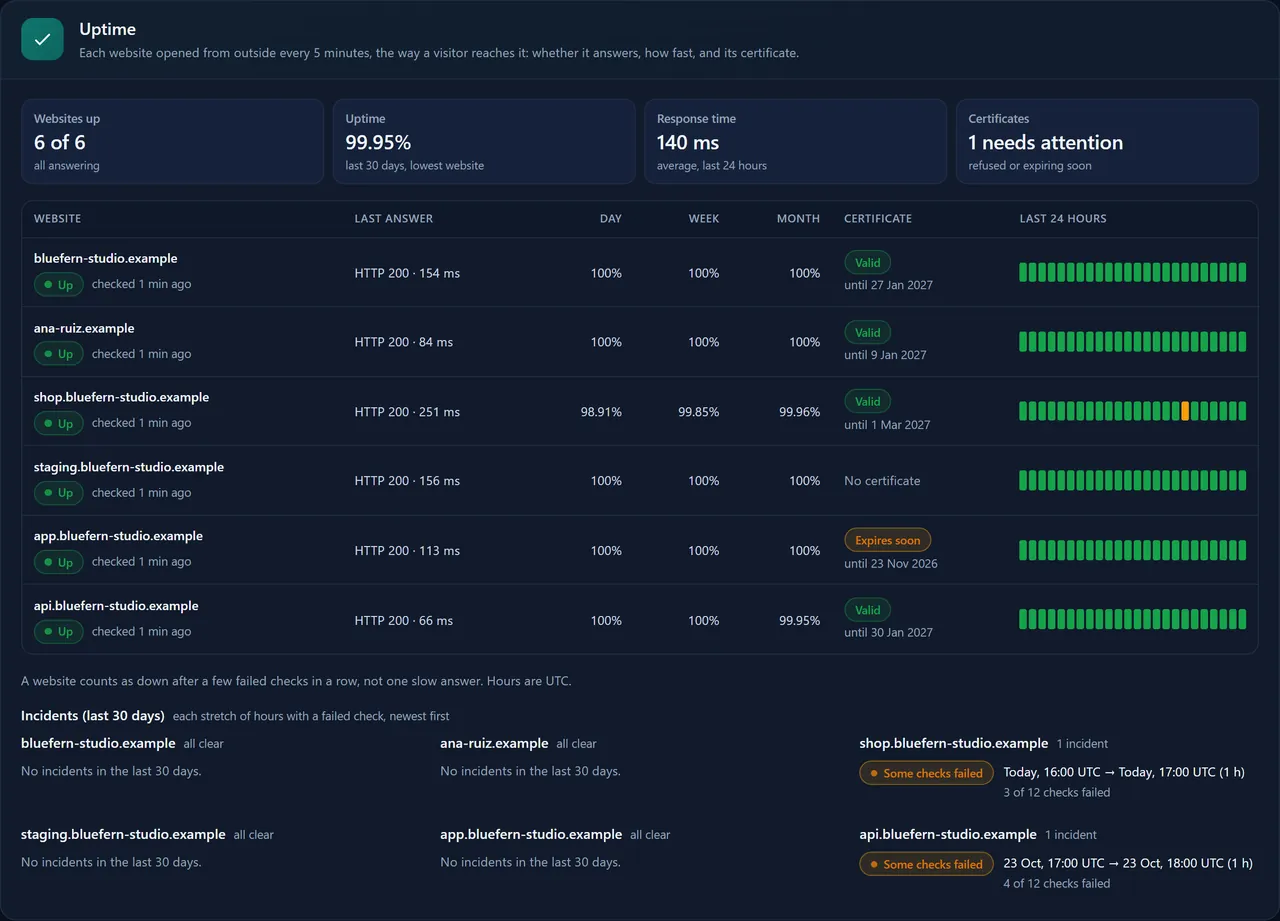
Uptime, on the same tab, checks every site from outside every five minutes: the last answer, uptime over a day, week and month, the response time, when the certificate expires, the last 24 hours as a strip, and 30 days of Incidents.
Uptime and incidents.
Logs shows the latest lines of a site’s Error log, Access log or PHP errors. Activity is the account’s part of the activity record. Bandwidth, CPU and memory history are on the Overview.
28 Moving from cPanel
Our team moves cPanel accounts onto Nexo for you; there is no import screen to learn. Nexo reads cPanel’s full account backups, so websites and their files, mailboxes and their mail, databases with their users, DNS zones and cron jobs come across, and each account lands on the Nexo plan you choose.
Create the plans you want the accounts on (chapter 6).
Chat with us and send either cPanel full backups (cpmove-*.tar.gz or backup-*.tar.gz) or access to the WHM server, with the plan for each account.
We import them and tell you when each is ready. Switch each domain’s DNS to the new server when you are happy; mailbox passwords come across, so mail apps keep working.
29 What runs on its own
Job
When
What you see
Licence renewal
Every hour
A notice only if it fails (72 hours of grace)
Nexo updates
01:00–04:00 New York time
“Nexo … is installed” in Notices
Backups
02:00–06:00 UTC, nightly
A notice if one fails or runs late
Certificates
As a site’s name starts to resolve, then before expiry
A notice if one cannot be renewed; a domain that keeps failing is retried less often
Uptime checks
Every five minutes
The customer’s Uptime card
Security updates of the system
Unattended, by the operating system
Nothing to do
30 Troubleshooting and FAQ
The browser warns about the certificate on port 2083.
The server has no name yet, so it uses a self-signed certificate. Name it (chapter 2) and Let’s Encrypt replaces it.
A site shows Certificate pending.
Its name does not resolve to this server yet. Check with DNS tools › Look up records; once it points here, the certificate follows within minutes. A domain that failed several times is retried less often, so give it time after fixing DNS.
The panel shows only the License page.
The licence is past its grace. Press Renew now; if it is refused, check the service in our dashboard is active, or chat with us. Sites never stopped.
An account stays on Setting up, or a change is not Applied on the server.
The worker builds accounts within a minute. If it does not, run nexo status as root to see whether the services and agent are up, and look at Notices.
Setup emails land in spam.
Publish the nexo._domainkey record and the SPF entry shown under DNS for your sending address, and make sure the server’s IP has reverse DNS for its name.
A customer forgot their password.
On their account’s page, Setup email › Send it again mails a new one-use link; or Users › New password.
Benchmarks show 429 answers.
Turbo’s per-address limit (chapter 14). Real visitors come from many addresses.
Can Nexo invoice my customers?
No. Nexo runs the hosting; billing stays with WHMCS or your own system, connected by API key.
Can I run Nexo on Windows or ARM?
Not today: Nexo runs on the x86_64 Linux systems in chapter 2.
Does Nexo send my customers’ data to Server Room?
The panel talks to our licence server to renew its licence and fetch updates, and reports its version and health every few minutes. Sites, mail, databases and files stay on your server.
31 Getting help
Our live chat is answered in seconds by an assistant that can look up your account and your servers, and a person from the team takes over whenever you ask. For a cPanel move, a key to release, or anything this guide does not answer, start there. Hosting customers of a Nexo server should ask the company that sold them their hosting.